In this session, you take information from the Revolve analysis
and add it as an annotation. Then you use the Annotation
tool to modify that annotation.
Please see the Tutorials Map to check that you have run all necessary previous
sessions.
Annotations are effective ways to document your project. You can use them
to make notes to yourself about project components or you can use them in
multiple-user projects to tell other users about specific situations or to
assign coding tasks.
Annotations are useful in helping analysts track enhancements and to help
programmers share code for research. You can use information contained in
an annotation as a starting point for analysis.
This session uses the project you created in the chapter Using
Revolve in your Getting Started.
- If you have closed Revolve, open it as before, and open the Sample project by selecting the Open a recent project radio button, and selecting it in the wizard.
- Otherwise, open the Sample project by selecting it from the "recently
used files" list at the bottom of the Project menu.
To create an annotation:
- Click Browsers > Variables.
The Variables browser is displayed.
- Type the data-name WS01-XCTL-PROGRAM into the Variable
edit box and click Match.
The Variables browser displays, by default, those places
in the application where the selected variable(s) is directly modified, referenced,
or redefined. You can change this using the Options dialog.
- Click Options
 .
.
- Check the Modifications check boxes in the Direct
Usages area, Indirect Usages (Lower Levels) area,
and the Indirect Usages (Group Levels) area. Uncheck the
References and Redefines check boxes
in the Direct Usages area.
The settings should now be as in Figure 3-1. This selection process
is called information screening.
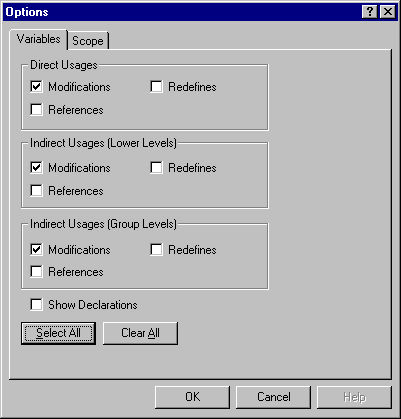
Figure 3-1: Information Screening
- Click OK.
- Select the WS01-XCTL-PROGRAM folder.
- Click Expand Completely
 .
.
A group of information has been isolated and can be used to create a coding
task.
- Starting from ONLINE4.CBL, select all displayed information,
as in Figure 3-2.
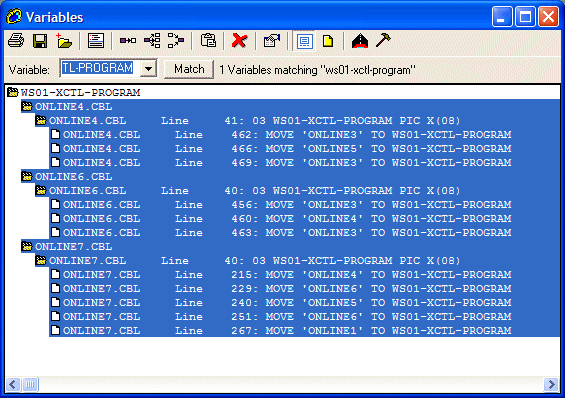
Figure 3-2: Selecting information for an annotation
- Click Capture Results
 .
.
The Capture Results dialog is displayed. This enables you to add the selected
information to annotations, the clipboard, Pop files, and Tag files.
- Ensure that Add to Annotation is selected.
- Click OK.
- Click New Annotation.
The Required Field dialog is displayed, prompting you
to enter a title for the annotation.
- In the open field, type:
Locations modifying WS01-XCTL-PROGRAM
- Click OK.
- Select the new annotation.
- Click Add.
A Revolve dialog informs you how many elements were added
to the annotation.
- Click OK.
The annotation is created and ready to be applied in coding tasks. Information
can be added to the annotation and it can be edited.
To view the annotation:
- Click Tools > Annotation.
- Ensure that Title is selected in the pull-down list
box.
- In the Match edit field, type:
LOCATIONS*
Be sure to include the wild card character (*) or the match will look for
an annotation named LOCATIONS.
- Click Match.
The Annotation tool searches for an annotation that begins with LOCATIONS.
The annotation we created in the previous procedure is displayed.
- Select the folder for LOCATIONS MODIFYING WS01-XCTL-PROGRAM.
- Click Expand Completely .
The information about the annotation as well as the information that we
captured from variable WS01-XCTL-PROGRAM is displayed.
To edit the annotation LOCATIONS MODIFYING WS01-XCTL-PROGRAM:
- Select the folder LOCATIONS MODIFYING WS01-XCTL-PROGRAM.
- Click Edit Annotation
 .
.
The Edit Annotation dialog is displayed. It contains
current information about the annotation, including its title, creator, intended
recipients, status, and a description of the contents. You can edit any of
these details. See Figure 3-3.
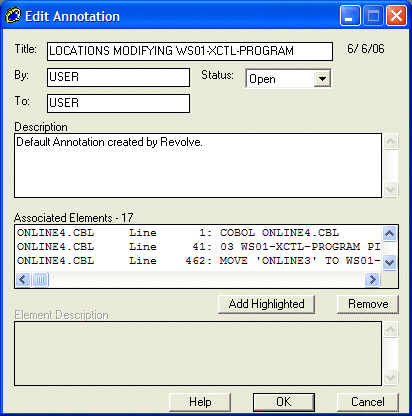
Figure 3-3: Edit Annotations
- In the Description field, enter the text:
Enhancement Request for all locations modifying WS01-XCTL-PROGRAM
- Click OK.
- In the Annotation window, double-click the Details
folder.
This is where programmers will check to see why this annotation was created.
- Double-click the Connected to folder.
- Select any component that is contained in the Connected to
folder.
- Click View Source Code
 .
.
Notice that the source code is available for the contents of the annotation.
You can implement modifications in the Annotation tool and link to other tools
and browsers to extend analysis.
- From the Window menu, select the Close All
Windows menu option.
In this session you:
- Created an annotation
- Viewed the annotation
- Edited the annotation
If you want to take a break before going on to the next session, you can
close the project; or you can close Revolve with or without
closing the project.
Return to the Tutorials Map and choose which session to go on to next.
Copyright © 2006 Micro Focus (IP) Ltd. All rights reserved.