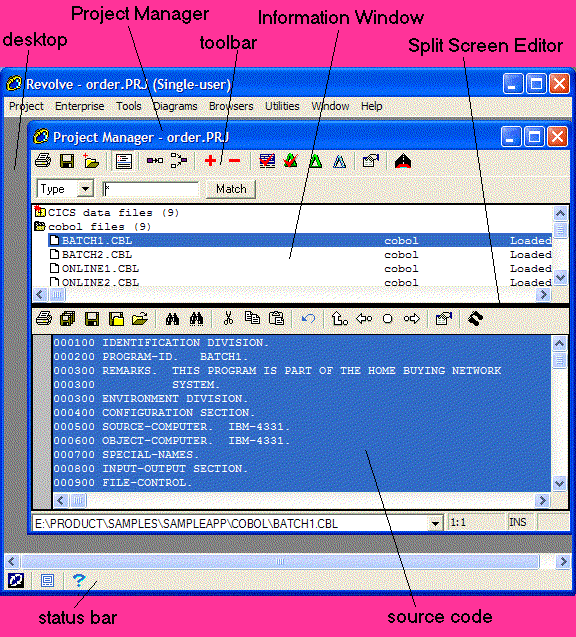
Figure 2-1: The Interface
This chapter describes the environment that you will be working in. After reading this chapter you should be able to navigate some of the most commonly used features.
The Revolve interface consists of tools, browsers, and dialogs that are invoked from the Revolve Desktop. Tools and browsers are designed around a series of common window features that make using Revolve both flexible and consistent.
Figure 2-1 shows the interface.
Figure 2-1: The Interface
The desktop houses all of Revolve's features that enable your system analysis. It is displayed when Revolve is invoked. The menus and tool bars accessible from the desktop enable you to create and open projects, as well as invoke the necessary features needed to address your analysis. All of the windows, tools, views, browsers, and dialogs used in conjunction with this environment are contained in the desktop.
Keep in mind that your analysis tasks are not restricted to one interface at a time. Because Revolve's features are contained in the desktop and function in a common way, your analysis in one tool or browser can be extended by accessing other tools and browsers. See the section on the Speed Menu for more information.
The Enterprise menu gives you access to the post-metering facilities provided by Revolve. On the Enterprise menu you can click:
Most of the tools and browsers use an information window to display results based on the criteria specified in the Match edit bar and selected options. Expandable folders are used to display results and information. Relevant project items, depending on the analysis that was performed, appear as parent folders in the same vertical column and at the same hierarchical level. When a parent folder is expanded, additional information is displayed in indented child folders. See Figure 2-2 below.
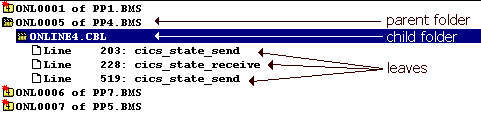
Figure 2-2: The Information Window
The folder format is as follows:
 - a parent line which has not been expanded. The "+" indicates
that Revolve has retrieved database information for this
item that will appear as subsequent or child folders when double-clicked.
- a parent line which has not been expanded. The "+" indicates
that Revolve has retrieved database information for this
item that will appear as subsequent or child folders when double-clicked.
 - a parent line which has already been expanded and contains child
folders.
- a parent line which has already been expanded and contains child
folders.  - a line which has been expanded and whose children are currently
displayed.
- a line which has been expanded and whose children are currently
displayed.  - a line which is not expandable. Commonly referred to as a leaf.
Folders are expanded by double-clicking with the mouse. Also use expand
one level  , expand completely
  ,
and collapse all
,
and collapse all  to expand and collapse folders.
The Match edit bar provides features that load project items into tools or browsers for system analysis. The Match edit field enables you to create search criteria, based on the name of a component, that identifies items in the project database and loads them into the current tool or browser. The following are special characters that you can use to create high-level search criteria:
| Use This: | To Do This: |
|---|---|
| * | Use this character as a wildcard to find all items with similar names. For example, if WS* is entered into the Match edit field in the Variables browser and Match is clicked, the information window displays all the variables with names that begin with WS. In most cases, if the wildcard character is used alone as a match criteria, the information window fills with all items in the project as they pertain to the specific browser or tool. For example, if you click Match in the Variables browser with only the * entered into the Match edit field, all variables in the project are returned. |
| ? | Use this to construct a pattern where ? stands for a single arbitrary character. For example, WS? identifies all items whose names consist of WS and another character, like WS1 or WSA. |
| | | Use the or bar to enter multiple matching patterns for one query. For example, *month*|*year* returns all items that have either month or year in their names. |
Note: The functionality described above differs in the Text browser, in that any characters entered into the Match edit field will be considered part of the actual text string that you're searching for.
In some cases, a pull-down list box is displayed on the Match edit bar. This enables you to specify how the results in the information window are organized or what types of items are searched for in the project. If you change the selection in this list after Match has been clicked, you need to click Match again to apply the new setting to the information being displayed.
When the Match button is clicked, the specified criteria are applied to the project and the results are displayed in the information window. In a Tools or Browser window, the number of matches is displayed on the Match edit bar. For example, the text, "64 Variables matching "default*"" is displayed after you enter default* in the field and click Match. Be aware that very complex queries can result in no matches. If you receive a "no match" return for criteria that you're certain have matches, reduce the number and complexity of your search patterns.
In addition to the Match edit bar, many tools and browsers
have their own Option dialogs. Click Options  on
the tool bar of the tool or browser you are using and customize the settings
according to your needs. Options enable you to modify the project search criteria
as well as how items are displayed in the information window. Often new settings
are automatically applied to the project when you click OK
and the results are instantaneously returned. However, some browsers require
that you click Match again.
on
the tool bar of the tool or browser you are using and customize the settings
according to your needs. Options enable you to modify the project search criteria
as well as how items are displayed in the information window. Often new settings
are automatically applied to the project when you click OK
and the results are instantaneously returned. However, some browsers require
that you click Match again.
The toolbar contains buttons for the operations you use most commonly. While several buttons are common across all windows, many are related to the tool or browser they are contained in. When you place the cursor on top of a button its name is displayed in floating text.
Going back and forth between using the mouse and the keyboard can become
tedious. To make your analysis easier, features located on the toolbar are
also accessible from your keyboard. Holding the Ctrl key
down and pressing the Context  key on your keyboard
displays a pop-up menu with functionality corresponding to the current windows's
toolbar.
key on your keyboard
displays a pop-up menu with functionality corresponding to the current windows's
toolbar.
The speed menu enables you to quickly access other features that are applicable to the selected items. It can be displayed in two ways:
keyboard key.For example, select multiple items displayed in a tool by clicking and dragging the mouse over the list of items. Then right-click to see the available options. Select Information. The selected items are loaded into applicable browsers to extend your analysis.
The following functions are accessible from the speed menu.
| Select this: | To do this: |
|---|---|
| Select | Make the selected item the scope of analysis. After doing this, the item is displayed at the bottom of the desktop. |
| Highlight | Highlight the item's occurrence in the source. |
| Capture Results | Add the selected components to an item in the Capture Results dialog. |
| Go To | View the source code for the selected element in the Source view. |
| Information | Load the selected element into a proper browser. |
| Add to active Taskpad | Add the selected component(s) to a taskpad which you have opened and set as active. |
| Add to worksheet | Add the selected item(s) to a worksheet. |
| Export to taskpad | Copy the selected item(s) to a taskpad. |
| Display in set viewer | Open a Set View window with the selected item(s) displayed. |
| Copy to clipboard | Add the selected item(s) to the clipboard, for copying elsewhere. |
| Tools | Load the selected element into a tool. |
| Diagrams | Load the selected element into a diagram (graphical view). |
| Browsers | Load the selected element into the Browser of choice. |
You can also copy the selected elements onto the local clipboard by clicking Ctrl-C on the keyboard. This is useful for loading project information into external tools for editing or sending to recipients.
When View Source Code  is clicked, the Split
Screen Editor opens within the current window. It displays the source code
for the selected element in the information window.
is clicked, the Split
Screen Editor opens within the current window. It displays the source code
for the selected element in the information window.
Click Print  to print the information displayed
in the tool or browser. The generated hard copy will contain either a graphical
or textual representation of the information displayed in the tool or browser.
Information contained in unexpanded folders will not be printed. The following
options are available in the Print dialog:
to print the information displayed
in the tool or browser. The generated hard copy will contain either a graphical
or textual representation of the information displayed in the tool or browser.
Information contained in unexpanded folders will not be printed. The following
options are available in the Print dialog:
When this is checked and the Print button is clicked, a Print to File dialog is displayed allowing you to save the window as a .prn file into a specified directory.
Revolve prints to grey scale unless this option is selected. Color Output allows for highlighted or selected items to appear in the hard copy just as they appear in the window.
This option prints out a legend for the View that is being printed. Legends
define symbols and specifications for the specific, invoked View. To print
legends for views that are invoked in the Split Screen Editor click Print
in the editor and use that Print dialog to print the legend.
Specifies for hard copy pages to be collated.
Specifies form feed. This is generally not needed and will allocate a blank page at the end of the print job.
Highlighting marks source code elements in selected colors for quick reference
and easy identification. To highlight project items from any tool or browser,
right-click on the item and select Highlight on the speed
menu. All the source code represented by leaves is highlighted in
the specified color. You can then click View Source Code
or right-click and select Go To to see the highlighted
source code.
The User tab on Utilities > Options enables you to specify a highlighting color. To remove highlighting for an item, right click the element and select Clear.
The Modification Driver is used to support the transition between source code analysis and implementing modifications. With this feature, you can automatically tag columns, and insert text, comments, and blocks of text into selected project source code files. This is useful for incorporating identical modifications to groups of files.
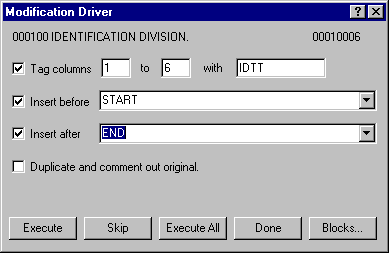
Figure 2-3: Modification Driver
In addition to inserting text strings and tagging columns, the Modification Driver enables you to insert defined blocks into your source files. Click Blocks in the Modification Driver dialog to open the Modification Driver Code Blocks dialog box. The Block Definition field is where you type or paste in the contents of the code block. Once this is completed and the Block Name is specified, click Add. The block is defined and can be used in the current analysis. If you want to save this block and make it accessible during other analysis tasks, click Save As to save the block to your local system. The Block Name is given an .rvb extension and saved to the directory that you indicate in the Save As dialog box. The Load button enables you to load existing blocks back into the Modification Driver.
To insert the block of code into your source file, check the Insert before or Insert after check boxes in the Modification Driver dialog, and enter the block name in the adjacent field prefaced with %%. For example, to insert the block named SAMPLE.RVB, type %%SAMPLE. Then Execute the Modification Driver for the selected files.
The Capture Results dialog is invoked by clicking Capture Results
 . Capturing results enables you to add selected items to annotations,
POP files, and TAG files, or copy to the clipboard.
. Capturing results enables you to add selected items to annotations,
POP files, and TAG files, or copy to the clipboard.
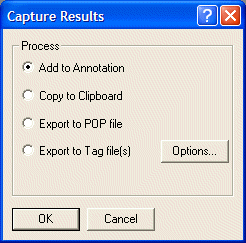
Figure 2-4: Capture Results
Refer to the online help for more details.
Copyright © 2006 Micro Focus (IP) Ltd. All rights reserved.