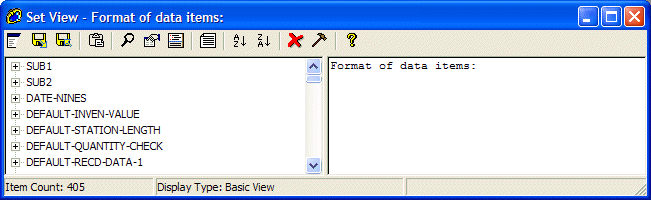
Figure 12-1: Example Set View
This chapter describes using the analysis tools to produce sets, and how you work with the sets.
The analysis tools search for points of interest that match the criteria that you specify. Typically, each analysis tool searches for points of interest based on one specific attribute, such as the names of data items, their type and size, their values, their usage and so on. Many tools accept an input set, usually containing data items or statements, on which to work. Most tools create an output set containing the points of interest that match the specified criteria, and some tools move the resulting set into the worksheet.
Figure 12-1 shows an example view of a set. The points of interest in the set are listed in the left-hand pane. The right-hand pane shows a history of how the set reached its current state. You can also optionally view relevant source code.
Figure 12-1: Example Set View
There are single-step tools that search for one type of point of interest, and composite tools that are a combination of other tools. Some composite tools are supplied, but you can also create your own. You can also create batch processes, which specify a series of tools (either single-step or composite) to be run one after another.
By default, only some analysis tools are listed in the Analysis
Tools palette. You can show or hide whichever tools you want, so that
you see only those tools that you need. To show or hide tools, click
 Options in the Analysis Tools palette and
go to the Tool Palette Editor tab.
Options in the Analysis Tools palette and
go to the Tool Palette Editor tab.
Note: Tool palette selections are reset for every project. You can copy the project\enterprise\*.aa2 file containing your selections from one project to another, but be aware that if the new project does not have the same composite tools, they will not work properly in the new project.
When you run an analysis tool, you can specify how to search for the points of interest in various ways:
When you run an analysis tool, by default it searches all items from the whole of the project. Searching the whole project can take a significant time, so you might want to restrict the scope to specific programs.
To define the global scope of the search, click
Options
in the
Analysis Tools palette, go to the Scope
tab, and specify the scope you want.
You define a more precise scope for a tool by dropping a set onto the tool. The tool then searches only those items in the set or items derived from them when trying to match against the tool settings.
The tools search for points of interest matching the criteria that you specify. The criteria are known as the tool's settings. So, before running a tool, you might need to change the settings.
With some tools you change the settings by selecting options, and with other tools you enter your own settings or import a text file of settings. Importing a text file of settings can be quicker than entering the settings in a dialog. A text file of settings can also be shared, saving everyone time and ensuring consistency. Look up Settings in the help index for details on how to edit settings and how to prepare a text file for importing.
The new settings remain in force for this session or until you change them again. If you want to preserve the settings, use the Configuration Wizard and save them in a group of settings. Note that the worksheet channel will use the new settings when it is run from the Analysis Tools window, but will use the default settings if it is implicitly run by using an Add to worksheet option from a hover menu or a menu button.
Tip: By default, tools run without asking you to
specify the settings. To change this, click Options
in the
Analysis Tools palette, go to the Analysis Tools
Options tab and check Edit settings before running a
tool.
Customize the settings for groups of tools using the Configuration wizard. These settings remain in place even if you close the current session. The Configuration wizard takes a copy of the default settings (or whichever previously configured settings you select) and then you make changes. For details on how to do this, look up Configuration Wizard in the help.
Tip: You can swap between groups of settings or return to the default settings at any time by selecting Enterprise > Settings. The group of settings currently in use is shown at the bottom of the Analysis Tools palette.
A composite tool contains a sequence of tools each with their own settings and can also contain steps that combine sets in various ways. Some composite tools are supplied, but you can create your own too.
You can create a composite tool by hand, by adding whichever tools you want to the composite tool. To do this, you right-click in the Analysis Tools palette and use New Composite Tool. For full details, look up Composite tool in the index of the help.
Alternatively, you can create a composite tool from an existing set, so that the new tool can reproduce the process you used to create the original set. This is very useful if the analysis process you use to find a set points of interest is complicated and you want to be able to repeat that process consistently. You can then use the composite tool for other projects and in group projects, and thereby save effort and ensure consistency. To create a composite tool this way, you right-click on the audit trail of the existing set and click Create Tool. Note that if you produced the set using many, complex, stages, the composite tool might take a considerable time to run. By examining the structure of the composite tool, you might find duplicated operations that you could optimize before using the tool on larger projects. The Stack tool would be useful for this. See Stack tool in the index of the Help.
You can also create a new composite tool by copying an existing one. This is useful if the current tool already does a lot of the things you want, but you just need to change a few settings. To copy a composite tool, right-click on it in the Analysis Tools palette, click Copy Composite Tool and save the tool with a new name. You can then edit it as required.
When you create a composite tool, the current settings of the included tools are captured as the default settings of the new composite tool. If you later change the settings of the stand-alone version of a tool you included, only the stand-alone version changes and not the copy that you included in the composite tool.
You can edit a composite tool to change the tools included in it or to change the settings of those included tools.
To change the included tools, double-click the tool, or right-click it and select Properties, to use the Composite Tool Editor, which displays the sequence of tools and operations within the composite tool. You can then add or delete tools as required.
To change the settings of the tools included in the composite tool, double-click the composite tool first and then double-click the included tool. You can then change the included tool's settings. For details, look up Composite tool in the index of the help.
A batch process contains a series of tools that is run in sequence on the current project scope. The main differences between composite tools and batch processes are:
You create and maintain your batch processes using the Batch Process Editor; to find this, right-click on the Batch Processes tab in the Analysis Tools palette and select New Process. You can:
When you are creating or editing a process, you can:
After you have finished defining a new process, and you click Save, you can specify a name for the new batch process, the name of the file where you want it to be stored, and its scope.
There are also facilites to delete a batch process, copy a batch process and view and change the details that you specified when you originally saved it.
For full details of how to create and maintain batch processes, look up Batch process in the index of the help.
Each time you run a tool, a fresh set is produced. This means that you can always rethink and start again if you run a tool and the resulting set is not what you expected.
You can create sets from a number of starting points:
in Analysis
Tools, select the Scope tab and specify the
programs to search. You can also expose a set to further refining by an analysis tool, by dragging the set onto the tool and specifying the required criteria. The contents of the resulting set depends on the tool.
You can manipulate sets in the following ways:
The history of the set is maintained in the right-hand pane, so that you can see how you arrived at the current set. The history states how you first generated the set, the analysis tools you subsequently used on the set, and the other sets or subsets you combined with this set. To see the criteria that you specified for an analysis tool, double-click the name of the analysis tool in the right-hand pane.
You can combine a whole set with another set, using the following set operations:
| Set operation: | Result: |
|---|---|
| Intersect | Removes from the target set any candidates that are not also in the dragged set. The resulting target set contains only the candidates that are common to both sets. |
| Union | Adds the contents of one set to another or to the worksheet. |
| Subtract | Removes the contents of one set from another or from the worksheet. |
To combine a whole set with another set, pick up the whole set by
pointing to  in the Set View, and dragging it to the target set. If you hover
over the target set before dropping the dragged set onto the target set, a menu
pops up for specifying how to combine the sets.
in the Set View, and dragging it to the target set. If you hover
over the target set before dropping the dragged set onto the target set, a menu
pops up for specifying how to combine the sets.
Alternatively, instead of hovering and waiting for the menu to appear you can use a key in conjunction with dragging with the mouse, as follows:
| Cursor: | Set operation: | Mouse + key: |
|---|---|---|
 |
Intersect | Drag |
 |
Union | Drag |
 |
Subtract | Alt + drag |
You can combine a subset with another set using the same set operations as for combining a whole set: intersect, union or subtract.
To combine a subset, you select just the set entries you want and drag those to the target set. You can hover over the target set and choose the required set operation. Alternatively, you can use a key combination with the mouse.
Note: Set operations on an arbitrarily selected subset destroy the integrity of the resulting set. The resulting set is no longer considered pure. It is no longer a product of manipulating complete sets using known criteria, and this step cannot be precisely recorded in the history of the set in the right-hand pane of the Set view. This means that you cannot reproduce the set automatically, but you have to repeat the manual step if you want this set again.
We recommend keeping sets only temporarily, because once you have identified some genuine points of interest, they need to be in the worksheet. Sets are temporary, whereas the worksheet is the permanent record of the points of interest. Sets are partial information, whereas the worksheet is a complete persistent database that is immediately updated whenever you make any changes. Also, only the group worksheet enables you to share information, and you cannot share sets.
Although sets are temporary, you can keep them from one session to another if need be. You can:
Use named sets for sets that you will want to refer to and use while analyzing the project.
When you name a set, the set is stored to disk with the name you specify and the suffix .set. It is stored in the project directory. You can then:
For details on how to name a set and how to delete a named set, look up Named set in the index of the help.
Use saved sets when you need to keep a set between sessions but don't need to keep it for the life of the project.
When you save a set, it is stored by default in the project directory.
When you reload a saved set, the saved set is loaded into the current Set View. This means that the name of the saved set does not appear in the window title, but the name of the previous set remains. If the previous set was a named or saved set, you can redisplay or reload it later.
To delete a saved set, close the Set View and delete the file in Windows.
You can add a set or subset to the worksheet in the same way as you combine other sets and subsets. You can also take selected worksheet entries and make them into a set or combine them with an existing set.
You use the Worksheet channel tool to move sets to and from the worksheet. You can:
 .
. You can also:
When you move items to the worksheet the result is by default a union of the set or subset and what was in the worksheet. Alternatively you can choose to move only the intersecting items or only the non-intersecting items. You are told how many candidates or non-candidates are added. Any candidates in the set or subset that are already non-candidates in the worksheet, remain non-candidates. They do not get reinstated.
When you use the worksheet channel, the default worksheet is created if no worksheet exists for this project. If only the default worksheet exists, then it is opened. If you have enabled multiple worksheets, the most recently used worksheet is opened. If there is no last used worksheet, the default worksheet based on the project name is opened. For further information about multiple worksheets, see the section Multiple Worksheets in the chapter Using Worksheets.
You can also highlight the candidates in the set that are
already in the worksheet. To do this, use Options
in the
Analysis Tools and check Colorize items that exist
in the worksheet on the Set View Options tab.
The Project Reports set of tools is designed to generate an easy-to-navigate set of HTML pages that can be viewed either on a website or with the Revolve HTML Browser. These HTML pages contain information about the components within a project, including how they relate to each other and the data files used.
You can view the reports with your normal browser, by navigating to index.htm in the destination directory. Alternatively, you can open the HTML Browser within Revolve. The advantage of using the HTML Browser is that you can choose from split-screen and other Revolve viewer options as you browse the report pages. To invoke the browser from within Revolve, run the analysis tool XML/ HTML Project reports, View reports.
For more information on RSP see the Help (under Tools Menu > Scripts > HTML Reports from the Contents).
The report generation process has two phases. Firstly, a set of XML files is generated, which contain all the information required to create the reports. Secondly, the XML files are translated into a set of HTML pages, using the Xerces and Xalan tools from Apache and a set of default stylesheets. You can modify these stylesheets to change the final appearance of the reports. Once generated, the main entry point for the reports is index.htm in the root of the destination directory.
For more information on the Xerces and Xalan tools, see the Apache XML Project web site.
To use the Project Reports tools, click Analysis Tools on the Enterprise menu. The tools are:
Performs the whole operation, including an option to view the reports in the HTML Browser.
Generates only the XML files.
Invokes the XML to HTML translation process.
Invokes the HTML Browser and displays the reports.
By default, all XML and HTML files are placed in the project directory. XML files are placed in a directory named XML_project and HTML files are placed in HTML_project, where project is the name of your project.
You can change the default directory settings and the content of what is generated by using the configuration options. The following options are available:
Allows you to specify an alternative directory to contain the generated XML files. To use the default setting, leave this field blank.
Allows you to specify an alternative directory to contain the generated HTML files. To use the default setting, leave this field blank.
Allows you to specify an alternative XML translation configuration file. This file is used by the translation process to locate the XSL files and specify index and page sizes. See Customizing Reports for more information.
Generates JPEG images for the Inventory view for COBOL and JCL items, as well as for any screens (bms/ mfs) in the project. These images are used in the final reports as both illustrations and as an alternative way to navigate between pages. Note that this setting can significantly increase generation times and requires extra disk space. This setting is on by default.
Adds a link to a report to allow the source code to be invoked in an external viewer. The external viewer that is used is the default application for that file type on the system that is viewing the files. This setting is off by default.
Note that no checks are made to ensure that the source code is present. It is the responsibility of the system administrator to ensure that these files are available. See Advanced Configuration Options for information on settings that can be used to help with linking to source code.
Loads generated reports into an HTML browser when the generation process has finished. This setting is off by default.
All displayed integers, for example, line counts, are punctuated using the default settings of the system on which the reports are generated. Decimal places are not reported.
You can, optionally, set additional configuration options by using a configuration file.
A template configuration file called template_xmlrpts.cfg is provided in the config directory. If you want to use this template, put it in your project directory and rename it project_xmlrpts.cfg, where project is the name of your project. You need to do this for all projects which you want to use the configuration file.
An example of a configuration file is:
[types]
User created type report 1|http://server/usertypereport1.htm
[issues]
User created issues report 1|http://server/userissuereport1.htm
[documentation]
User document 1|http://server/doc1.htm
[substitutions]
d:\source|\\server\share
Where the options are:
The Types section allows you to add extra information to the types section of reports. You can provide links to any user-defined documentation, and have them appear on the types summary page. The links are specified in the format of displayed text|link. In the example above, the text displayed will be "User created type report 1" and it will link to http://server/usertypereport1.htm. You can make multiple entries.
The Issues section allows you to add extra information to the issues section of reports. You can provide links to any user-defined documentation, and have them appear on the issues summary page. The links are specified in the format of displayed text|link. In the example above, the text displayed will be "User created issues report 1" and it will link to http://server/userissuereport1.htm. You can make multiple entries.
The Documentation section allows you to add links to the documentation section of reports. This section is for you to add any miscellaneous documentation to reports. The links are specified in the format of displayed text|link. In the example above, the text displayed will be "User document 1" and it will link to http://server/doc1.htm. You can make multiple entries.
The Substitutions section allows you to change the destination of the source file links. You can use this option when not every user with a browser has the source code on their machine. By default, if the Allow viewing of source in external editor configuration option is selected, the link will be whatever is specified in the Revolve project.
For example:
d:\source|\\server\share
This will replace all occurrences of d:\source with \\server\share. Instead of a code link in a report linking to d:\source\program.cbl, it will link to \\server\share\program.cbl. Note that this facility only works with the beginning of filenames. No support is currently provided for replacing sections within the filename.
All of the HTML report files are generated using XSLT. This is a process which translates XML files into HTML pages using template XSL files as the basis for the generated output.
You can change the look of the generated pages to suit your needs by changing the XSL files. The location and name of these files is set in the translation configuration file called config\projxml.cfg. See your Consulting representative for details of how to make changes to this file. There are two sections to this configuration file: mappings and index options.
This section details the names of the XSL files to use for each particular component type, as well as those for the indexes, summaries, and framesets. The names of the entries are:
| Mapping | Function |
|---|---|
| prog_no_source | Detail report for programs with no source |
| system_code_import_control-card | Detail report for control cards |
| system_code_import_copybook | Detail reports for copybooks |
| system_code_import_include | Detail report for JCL include |
| system_code_import_macro | Detail report for macros |
| system_code_import_proclib | Detail report for procs |
| system_component_assembler | Detail reports for assembler programs |
| system_component_bms | Detail reports for bms files |
| system_component_cics-table_fct | Detail reports for fct files |
| system_component_cobol | Detail reports for COBOL programs |
| system_component_ims_dbd | Detail reports for IMS DBD files |
| system_component_ims_mfs | Detail reports for IMS MFS files |
| system_component_ims_psb | Detail reports for IMS PSB files |
| system_component_jcl | Detail reports for JCL files |
| system_component_pli | Detail reports for PLI files |
| system_data_file | Detail reports for data files |
| system_data_table | Detail reports for data tables |
| system_executable_transaction | Detail reports for CICS transactions |
| generic | Generic detail report for any other component type |
| index | Template for all the index pages |
| summary | Template for the type summary / listing pages |
| frameset | Template for the various framesets used |
| navigation | Template for the navigation pages |
| typelist | Template for the type summary page (which lists all the various types) |
| dataaccesslist | Template for the main data access page |
| documentation | Template for the documentation page |
| entry | Template for the initial entry page (index.htm) |
| issuesummary | The main issues summary page |
| issuedetails | Template for the issue details pages |
You can use these options to determine how much is displayed on each listings page, and the number of items to include under index items. There are two entries:
| Index Option | Function |
|---|---|
| maxitemsperpage | Defines the maximum number of items to have on any summary page |
| maxitemsperindexentry | Defines the maximum number of items to have under each index entry |
Copyright © 2006 Micro Focus (IP) Ltd. All rights reserved.