

| Introduction | Server Configuration | |

You must install both the mainframe server and the workstation components. The first part of this chapter deals with the mainframe server installation, the second part deals with the workstation components installation.
To install the Mainframe Access Product Suite:
This section documents the requirements of the IBM mainframe.
The mainframe must be running a version of the IBM MVS operating system commonly called MVS or OS/390, and have either a version of IBM VTAM or TCP/IP, or Interlink TCP/IP installed. The Mainframe Access Product servers are installed as a stand-alone application.
The Mainframe Access Product Suite supports either the APPC communication protocols for receiving requests from the client platforms, or TCP/IP Version 3.1, 3.2, 3.4, Open Edition, or 4.0 from IBM, or TCP/IP Version 3.1, 4.1 or 4.2 from Interlink Computer Sciences to be installed on the mainframe. You do not need VTAM if you are only using TCP/IP.
The MFA E/Option requires version 3.6 or higher of Endevor.
The CICS Mainframe Access server requires that the mainframe is running a version of IBM CICS.
Currently, IBM TCP/IP Version 3.1, 3.2, 3.4 Open Edition and 4.0 are the only TCP/IP protocols supported by the CICS Mainframe Access server. If you are using TCP/IP, the CICS TCP/IP Socket Interface from IBM must also be installed.
If you are using CICS 3.3 or later it is recommended that all the CICS server programs are defined as EXECKEY(USER) in your PROGRAM definitions.
To install the Mainframe Product Suite servers, you must start the workstation installation program which will guide you through the install process. The installation program will guide you through a series of dialog boxes, which will collect the necessary information to generate the installation procedures. Each dialog box has additional help associated with it, and can be invoked by depressing the help button. This will invoke the internet browser on your machine (either Netscape or Internet Explorer) to display the help information.
To begin:
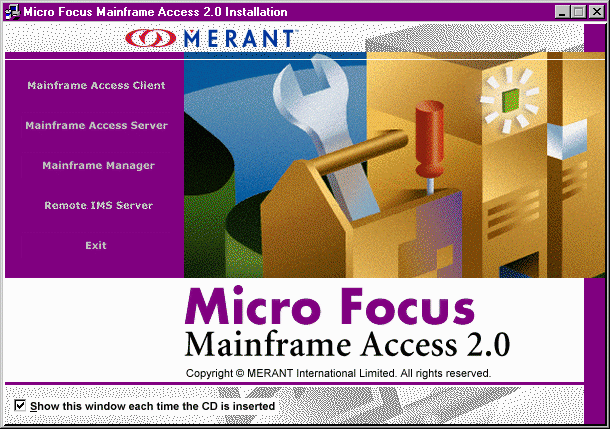
For first-time installers of MFA:
For previous installers of MFA:
Important security note: If you are using Top Secret as your security system, then you must define the MFA server as a facility to Top Secret. Failure to do this will cause an outstanding reply to be required from the console for the MFA server, thus making it appear that the client application has hung.
Important security note: If you are using ACF/2 as your security system, then you must define the MFA server with privileges "JOB STC" to ACF/2.
Once the required binary files have been transferred and the JCL submitted, as described in the generated notes at the end of the installation program, have completed, then several useful jobstreams will reside in the mainframe INSTLIB dataset. These include:
| MVS server installation jobs that have been submitted, but may be re-run, when necessary, in the future: | |
| $MVSJOB | sample JCL to start up the MFA server, if you are running it as a jobstream. The usual method to start it up is by copying the FILESHR2 member to SYS1.PROCLIB, and using the S FILESHR2 console command. |
| $MVSSEC | assemble and link default or RACF (SAF based) security exits. |
| $MVSFTAB | assemble and link default filename/dsname mapping table. |
| $MVSLSC | if you are wish to have your own customized translation table, then in the client Drag and Drop program you must select the mainframe codepage to use (use the configure environment pulldown). Then you must provide the customized codepage on the mainframe. This mainframe codepage must be a 1-to-1 correspondence between the ASCII and EBCDIC translation tables, in other words, no duplicate values are allowed. To do this, edit the member MFLSCTRN, located in the INSTLIB dataset, and alter the first 2 codepages to your desired values. Make sure you copy both the ASCII to EBCDIC part and the EBCDIC to ASCII part, and place these 2 translate tables in the proper order (ASCII to EBCDIC first). Submit the jobstream $MVSLSC when you have finished editing and saving the MFLSCTRN changes. By default, the workstation codepage is transmitted to the mainframe during the establishment of the connection. This may not be desired for non-North American users. To bypass this, set the "Use codepage" configure environment field in Drag and Drop. |
| $MVSLSC | if you wish to alter the default external program interface information located in MFLSCPGM, such as the mainframe source control information, then change the desired values in MFLSCPGM, and re-submit $MVSLSC. |
| $MVSLSC | if you wish to write your own interface to your own in-house system source control system, then alter the example MFLSCIHS source code provided, and re-submit $MVSLSC. |
| $MVSLSC | if you are using CCC/LCM from Platinum, then you may wish to alter the default parameters for communicating with it. Alter the MFTABLCM source provided, and re-submit $MVSLSC. |
| $MFATCP | assemble and link the TCP/IP registration tables, if TCP/IP is being used. |
| $MFAENBL | process activation keys to enable concurrent user levels for the MVS and MVS E/Option servers. |
| MVS server installation files to be copied: | |
| APPLSMFA | VTAM APPL definition. Copy to SYS1.VTAMLST as the proper member name. |
| FILESHR2 if the default server name was used, or name you specified if another name was desired. | Start-up JCL. Copy to SYS1.PROCLIB or your system procedure library with the MVS server started task name specified during the installation process. |
If you are installing for the E/Option for the Endevor server environment, review, modify as necessary and run the following jobs. Review the output of the jobstreams you submit, checking the return codes and re-submit as necessary. Note: member $ENDJOB can be used to start up the server as a simple jobstream
| MFA E/Option server installation jobs to be submitted: | |
| $ENDGEN1 | assemble and link the CIGINI MFA E/Option customer modifiable module. Note: do not run $ENDGEN1 if you have the Chicago Interface Group's Fastlist product. The CIGINI file would correctly be picked up from the Fastlist installation. If you do happen to run this job by mistake, simply delete the CIGINI module that is created by the jobstream from the MFA E/Option load library. Also, if you receive the message "FST0700E in exit 5: CIGFEX05 initialization file processing failed", then this is a givaway that Fastlist is indeed installed, and the MFA version of CIGINI must be deleted. |
| $ENDGEN2 | apply the required Endevor PTF to the Endevor CONLIB. You must contact Computer Associates for the correct PTF for your release level. Refer to the following section on completing the MFA E/Option installation. If CONLIB is in the link-pack area, do not forget to do a link-pack area refresh once the patch has been applied. |
| $ENDGEN3 | update Endevor with the processor to initiate the MFA server |
| $ENDGEN4 | create and add the MFGENSCL control element to Endevor |
| MFA E/Option server installation jobs that have been submitted, but may be re-run, when necessary, in the future: | |
| $ENDJOB | sample JCL to start up the MFA E/Option server, if you are running it as a jobstream. The usual method to start it up is by copying the FILESHRE member to SYS1.PROCLIB, and using the S FILESHRE console command. |
| $ENDSEC | assemble and link default or RACF (SAF based) security exits. |
| $ENDTCP | assemble and link the TCP/IP registration tables, if TCP/IP is being used. |
| MVS E/Option server installation files to be copied: | |
| APPLSMFB | VTAM APPL definition. Copy to SYS1.VTAMLST as the proper member name. |
| FILESHRE if the default server name was used, or name you specified if another name was desired. | Start-up JCL for the MFA E/Option server. Copy to SYS1.PROCLIB or your system procedure library with the MVS E/Option server started task name specified during the installation process. |
If you are installing for the CICS server environment, review, modify as necessary and run the following jobs. Review the output of the jobstreams you submit, checking the return codes and re-submit as necessary.
| CICS server installation jobs that have been submitted, but may be re-run, when necessary, in the future: | |
| $CICTCP | assemble and link the TCP/IP registration tables, if TCP/IP is being used. |
| $CICENBL | process activation keys to enable concurrent user levels for the CICS server. |
| CICS server installation DCT, FCT, PPT, and PCT tables to be imported: | |
| If you maintain CICS resource definitions using CICS macros: | include the definitions found in the $@CICDEF member in the proper CICS tables. Note: If you are installing the sample program test files, add the member $@CICDFS. |
| If you maintain CICS resource definitions using RDO: | import the definitions found in the $@CICRDO member. To add the DCT entries extract only the DCT macro entries found in the $@CICRDO member and assemble them into your DCT table. Note: If you are installing the sample program test files, add the member $@CICRDS. |
| CICS server installation JCL to be modified: | |
| Add the following DD statements to your CICS start-up: | //MFAMSG DD SYSOUT=*
|
Sometimes, when a user powers off their machine, or stops the animator in the middle without closing the mainframe datasets that they are accessing, the mainframe MFA server will hold these datasets as open, as it does not know that the client has gone away. Now, you can set up TCP/IP so that it will determine after a specified number of minutes, that the client has gone away, and will free up the mainframe MFA subtask, thus releasing any held resources. To do this, the user must update their mainframe TCP/IP profile to look something like this. This example will use 10 minutes as the interval to wait. Have the system programmer in charge of TCP/IP update the TCPIP.PROFILE.TCPIP dataset (or whatever their profile dataset is called) to have a section in it look like this:
KEEPALIVEOPTIONS
   INTERVAL 10
   SENDGARBAGE TRUE
ENDKEEPALIVEOPTIONS
You may need to add the Librarian LOADLIB to the STEPLIB DD statement for the MFA server.
Certain global configuration options are located in the INSTLIB member MFLSCPGM. You may need to alter one or more of these parameters and submit the $MVSLSC member for these changes to take affect.
You may need to add the Panvalet LOADLIB to the STEPLIB DD statement for the MFA server.
Certain global configuration options are located in the INSTLIB member MFLSCPGM. You may need to alter one or more of these parameters and submit the $MVSLSC member for these changes to take affect.
Certain global configuration options are located in the INSTLIB member MFTABLCM. You may need to alter one or more of these parameters and submit the $MVSLSC member for these changes to take affect.
The Mainframe Access Product Suite must be installed. All prerequisites related to the Mainframe Access Product Suite must be satisfied to run the MFA E/Option.
You must be running one of CA-Endevor release 3.6, 3.7, 3.7.1, 3.7.2, or 3.8
Two MFA servers must be set up: one server will handle all non-Endevor file access; the other server will be dedicated to handle Endevor requests. In a two MFA server environment, the MFA server start-up JCL jobname on the jobcard does not need to have read and write access to all files.
In an environment with two MFA servers, a second VTAM APPLID must be established for the MFA E/Option server. Refer to the MERANT Mainframe Access Product Suite for MVS - Installation and Usage Guide for an explanation of establishing a second MFA server.
Note: do not run $ENDGEN1 if you have the Chicago Interface Group's Fastlist product. The CIGINI file would correctly be picked up from the Fastlist installation. If you do happen to run this job by mistake, simply delete the CIGINI module that is created by the jobstream from the MFA E/Option load library. Also, if you receive the message "FST0700E in exit 5: CIGFEX05 initialization file processing failed", then this is a givaway that Fastlist is indeed installed, and the MFA version of CIGINI must be deleted.
$ENDGEN1, contained within INSTLIB, is used to create the MFA E/Option CIGINI control file. The CIGINI file contains information needed by the MFA E/Option to perform dynamic allocation. $ENDGEN1 will create a load module called CIGINI which will be stored in the load library.
The following describes the modification required for the CIGIN ddname: the PRODUCT LOADLIB is the name of the MFA E/Option load library allocated by the installation. This value should be in quotes. Submit the job for execution. You should receive a zero return code after executing this job.
You must APF-authorize the MFA E/Option load library, the MFA server load library and the Endevor CONLIB. In addition, any Endevor processor load libraries accessed must also be APF-authorized. These processor load libraries usually have a low-level qualifier of PRCSLOAD.
You must define the MFA E/Option to the Endevor processor authorization list. The Endevor processor authorization list is a list of programs that can run APF-authorized out of an Endevor processor. By default, Endevor will always invoke programs as non-APF-authorized. Make sure that any processor load libraries accessed, are APF-authorized.
The Endevor processor authorization list is updated by applying an optional Endevor PTF using the AMASPZAP (SUPERZAP) utility. The following shows the Endevor release along with the corresponding Endevor PTF that will add the MFA E/Option server program (MFLSCSV) to the Endevor processor authorization list. It is the customer's responsibility to obtain the correct Endevor PTF from Computer Associates.
If CONLIB is in the link-pack area, do not forget to do a link-pack area refresh once the patch has been applied.
| Endevor Release | PTF Number |
| 3.6 | C9220040 |
| 3.7 | C9470150 |
| 3.7.1 | C9470150 |
| 3.7.2 | 00000481 |
| 3.8 | OC00481 |
You must define the MFA E/Option to Endevor by performing a series of Endevor administration tasks. The section Additional MFA E/Option Customization discusses all MFA E/Option and Endevor administration tasks. To complete those tasks, you must:
If you wish to use VTAM APPC instead of TCP/IP, then select the appropriate link to obtain detailed instructions on configuring APPC with CCI for your environment.
The TCP/IP registration daemon is not required for any MFA environment now that TCP/IP DirectConnect is available. If you are using TCP/IP and still plan to use the registration daemon for connections to the mainframe, either in conjunction with or in place of the direct connection feature of CCITCP, then you need to install, set up and start the CCI registration daemon on a dedicated workstation. To do this you must perform the following tasks.
For TCP/IP installations, the CCITCP registration daemon (CCITCP2) must be running on a server class machine (Windows NT, OS/2 or UNIX) somewhere on the network and must be addressable by the Mainframe Access Product servers. The Mainframe Access Product servers do not provide the services of the CCITCP2 daemon. The exception to this is the direct connect feature of the MVS server. By specifying a static port number, that has been assigned by the system administrator, the MVS MFA server can operate with or, without the use of a CCI daemon.
| CCITCP2 /D |
| PING daemon name |
| PING daemon IP address in the form nnn.nnn.nnn.nnn |
Mainframe Express users must use the MFE Websync function to install any new MFA client software.
If you wish to install the MFA Data Access Services, commonly known as Drag and Drop, then enter the following commands. It is useful to install the MFA clients to a common shared LAN-based location in order that all users use the same executables, as the installation progran will remember the location of where the executables are stored, and allow the MFA PTF package installation process to pick up this location information to update all users simultaneously.This setup program will additionally install the MFA Compare and Synchronize Monitor.
change to the CD-ROM drive and, enter the
following command:
|
Mainframe Express users must use the MFE Websync function to install any new MFA client software.
If you have already installed the MFA Data Access Services, or Drag and Drop, then it is not necessary to continue with this Compare and Synchronize installation as the modules have been installed. If you wish to install the MFA Compare and Synchronize Monitor, commonly known as the Monitor, then enter the following commands. It is useful to install the MFA clients to a common shared LAN-based location in order that all users use the same executables, as the installation progran will remember the location of where the executables are stored, and allow the MFA PTF package installation process to pick up this location information to update all users simultaneously.This setup program will additionally install the MFA Drag and Drop.
change to the CD-ROM drive and, enter the
following command:
|
The client for DataConnect is distributed with Micro Focus Workbench and Mainframe Express. For Workbench users only, in order to access the mainframe, the userid and password must be obtained by the workstation DataConnect component. In order for this to happen, you must replace the FHRDRPWD.GNT module in UTILS.LBR with the one provided on the MFA installation CD-ROM. Mainframe Express users do not have to do this, as it has been done for them. If you are using Workbench 4.0.xx, Workbench/2000 or MVS/Workbench and wish to activate DataConnect, then you must do the following:
change to the CD-ROM
drive and, enter the following commands:
Change to the disk that COBOL is installed on and, enter the following commands:
Note that the above commands have spaces on both side of the equal sign
FS.LBR also contains a dummy FHRDRPWD.GNT. Please delete it from FS.LBR using the LIBRARY utility. This is of particular importance to MVS Workbench users. |
Previously, in order to make the TCP/IP support work for MFA, you needed to have a long running daemon program running somewhere on your network, that communicated with both the client applications as well as the mainframe servers. Since this required a workstation machine to typically be up and running all of the time, this could be viewed as a limitation, as the mainframe MFA server could become inaccessible, simply by having this daemon machine in an unusable state. You now have direct access to the mainframe, without the need for this daemon program running. This is the preferred method.
You now have a choice on how to run MFA, from the TCP/IP point of view:
In order to use the client applications with a CCITCP2 daemon process to access the mainframe MFA server, you must ensure that the following actions have been performed, either manually, or during the installation of the various components, such as CCI and the MFA server.
| MFAREG00 LOCAL=TCPIP,NAME=MVSA.MFA4MVS,INETADDR=(100,200,150,250) |
In order to use the client applications without a CCITCP2 daemon process to access the mainframe MFA server, you must ensure that the following actions have been performed, either manually, or during the installation of the various components, such as CCI and the MFA server.
| MFAREG00 LOCAL=TCPIP,PORT=yyyy |
| MFNODE:xxx.xxx.xxx.xxx,MFPORT:yyyy |
In order to use the client applications with both a CCITCP2 daemon process and direct connect support to access the mainframe MFA server, you must ensure that the following actions have been performed, either manually, or during the installation of the various components, such as CCI and the MFA server.
| MFAREG00 LOCAL=TCPIP,PORT=yyyy |
| MFAREG00 LOCAL=TCPIP,NAME=MVSA.MFA4MVS,INETADDR=(100,200,150,250) |
| MFNODE:xxx.xxx.xxx.xxx,MFPORT:yyyy |
At various times, MERANT will bring out PTF packages for the MFA product line that will include both updates and bug fixes. During the mainframe server installation, you were prompted for your e:mail userid. If you entered it, then you will be automatically informed by e:mail when a PTF package is available. If you did not enter it and you wish to be informed when these PTF packages become available, simply enter your e:mail userid during the PTF package update process.
PTF packages contain both mainframe updates, as well as workstation client executable and documentation updates. If you have internet access, then the PTF package installation process will automatically download the PTF package from the MERANT ftp site. If you do not have internet access, you will need to obtain the PTF package from your account representative, or from a workstation that has access to ftp://ftp.merant.com/middleware/mfa. There you will find the latest PTF package. Download it to the workstation that the original MFA server install was performed on, in the C:\MicroFocusMFA subdirectory.
The PTF package installation process is almost entirely automated. To begin:
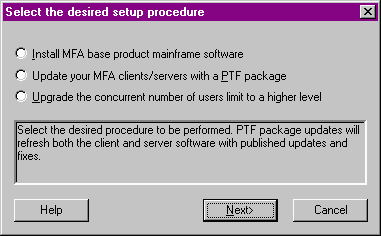
MFA keeps a count of concurrent users. You may wish to increase this count at some time. To do this, you must purchase and obtain a new MFA concurrent user key. Then you must apply this key to the mainframe server. To do this:
At various times, MERANT will bring out PTF packages for the MFA product line that will include both updates and bug fixes. If you registered to be notified, via the Register for updates menu item, then you will be automatically informed by e:mail when a PTF package is available. If you did not enter it and you wish to be informed when these PTF packages become available, simply register your e:mail userid using the Register for updates start menu item, under the Mainframe Access start programs item. In either case, you may always select the Update MFA clients start menu item, and it will obtain the latest PTF package, and update your workstation with any necessary changes.
PTF packages contain both mainframe updates, as well as workstation client executable and documentation updates. If you have internet access, then the PTF package installation process will automatically download the PTF package from the MERANT ftp site. If you do not have internet access, you will need to obtain the PTF package from your account representative, or from a workstation that has access to ftp://ftp.merant.com/middleware/mfa. There you will find the latest PTF package. Download it to the workstation that the original MFA server install was performed on, in the C:\MicroFocusMFA subdirectory.
The Update MFA clients installation process is almost entirely automated. To begin:
At various times, MERANT will bring out PTF packages for the MFA product line that will include both updates and bug fixes. If you registered to be notified, then you will be automatically informed by e:mail when a PTF package is available. If you wish to be informed when these PTF packages become available, simply register your e:mail userid using the Register for updates start menu item, under the Mainframe Access start programs item.
To register for updates:
When the Mainframe Access Server installation is completed, you should proceed with configuring the mainframe and your workstation for communications as described in the next chapter. Also mainframe security discussed in the next chapter. These procedures are set forth in the chapter following the discussions on communications setup.
Copyright © 1999 MERANT International Limited. All rights reserved.
This document and the proprietary marks and names
used herein are protected by international law.
| Introduction | Server Configuration | |