 or
or
 in the top right corner
of the window and click the item you want help on.
in the top right corner
of the window and click the item you want help on.This chapter explains the tasks required for setting up and maintaining the metering process.
Your tasks as Administrator are:
The Metering Administration program enables you to do most of these tasks. You can restrict access to this program by setting a password for it. Use Options on the View menu and go to the Password tab. On Windows NT, Windows 2000, and Windows XP Professional you need to log in with administrator privileges to see the Password tab.
Details of exactly how to do these tasks and which buttons to click are
in the Help. You can usually click
or
in the top right corner
of the window and click the item you want help on.
As Administrator, your tasks are to:
Do not give usage counters to all the users. They do not need a usage counter to process code that has already been metered.
Use  Usage
Counters to display the information on the usage counters currently
attached to your PC. You can then select the ones you want and click
Enable or Disable as appropriate. Figure 2-1 shows a sample
Usage Counter Status window.
Usage
Counters to display the information on the usage counters currently
attached to your PC. You can then select the ones you want and click
Enable or Disable as appropriate. Figure 2-1 shows a sample
Usage Counter Status window.
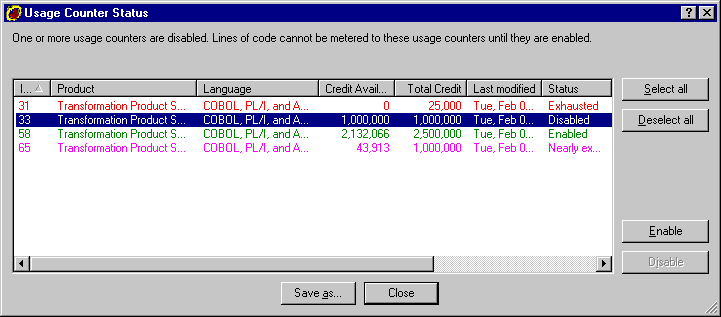
Figure 2-1: Usage Counter Status Window
The sample Usage Counter Status window shows:
Note: If you or the users have problems with a usage counter not being recognized, look up usage counter in the index of the help for suggestions on how to solve this.
You can use the Metering Administration software without attaching a usage counter, but several features, such as creating new metering control files, will be disabled.
A metering control file records the number of lines metered for each program. You can have as many metering control files as you want, but note that this can lead to problems, as already discussed in the chapter Responsibilities and Decisions. As Administrator, your tasks are to:
 New to do this.
You must attach a usage counter to enable this functionality.
New to do this.
You must attach a usage counter to enable this functionality.
Use  Security
controls to limit write access to the metering control file.
Figure 2-2 shows an example of default security controls.
Security
controls to limit write access to the metering control file.
Figure 2-2 shows an example of default security controls.
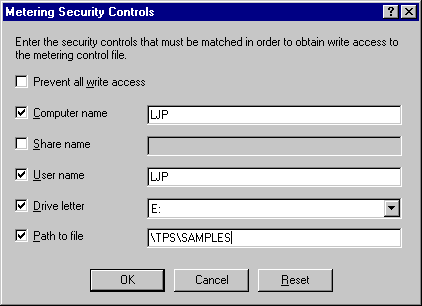
Figure 2-2: Metering Security Controls Window
The example security controls mean:
For full details on the security controls, click
in the top right corner
of the window and click the setting you want help on.
As Administrator, you are responsible for maintaining any metering control files you have decided to use, and for ensuring their integrity and validity.
Your tasks are to:
 Open to view each metering control
file in turn.
Open to view each metering control
file in turn.
 Merge to do this. You must attach a usage counter to
enable this functionality. If you no longer want to use a particular metering
control file, but want to keep the files for archival purposes, we recommend
you disable all write-access to the file in order to prevent accidental
metering of new code to this old file.
Merge to do this. You must attach a usage counter to
enable this functionality. If you no longer want to use a particular metering
control file, but want to keep the files for archival purposes, we recommend
you disable all write-access to the file in order to prevent accidental
metering of new code to this old file.
The metering control file is automatically backed up whenever the file changes. There are up to nine backup files, called factory.bd1 through factory.bd9. Since the backup files are held in the same directory as the metering control file that they back up, this backup mechanism is not a substitute for a good backup strategy. Be sure to make regular backups of your metering control files.
You can view the available backup files using Backups on the View menu.
Figure 2-3 shows a sample metering control file. Some summary information on the file is shown at the top of the window, such as the name and location of the file, and the security controls on it, which in the case below show that the file is only readable and not updatable. The text explaining the security status of the metering control file varies according to the settings you apply, as explained above in Setting Up and Protecting the Metering Control File.
The list at the bottom of the window shows information on each metered file, including when each file was last metered and the serial number of the usage counter that was last used.
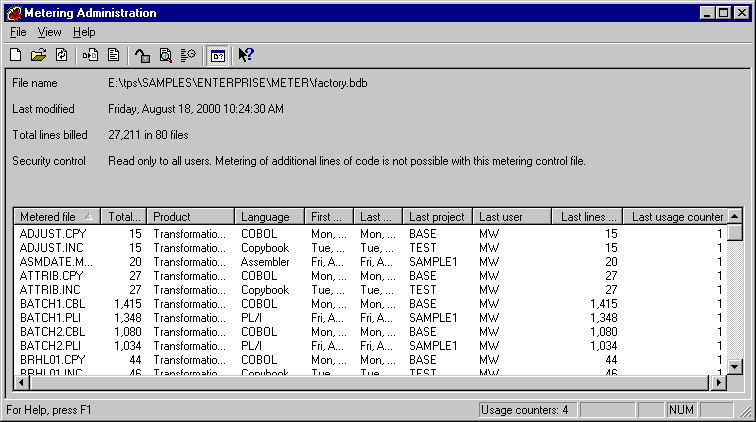
Figure 2-3: Metering Control File Window
As Administrator, you are responsible for the security of the usage counters.
Your tasks are to:
The metering control file cannot be updated without an enabled usage counter, so disconnecting or disabling all usage counters also protects the file.
As Administrator, you are responsible for monitoring the metering activity. You can display the metering transaction log and view the state of the usage counters. In addition, you can view the metering control files and produce reports on them in several formats.
Use
 Transaction log to display the metering transaction log.
The Transaction log is usually called factory.aud and its default directory is the same as the metering control file's directory. It contains a history of metering transactions. Whenever someone meters some code, a record is made of the number of lines of code in each file that were metered, when they were metered, and against which usage counter.
The transaction log can cover any range of activity you require, such as one transaction log for each metering control file, or one for each user.
The format of the transaction log is:
Metered file
Lines in file
Product
File type
Transaction Date (YYYYMMDD HH:MM:SS)
Project
User
New lines
Usage counter
For example:
ORDER.CBL,509,TPS,COBOL,20020204
11:43:17,ORDER.PRJ,LJP,509,56Use Usage
Counters to display the Usage Counter Window.
This displays information on all usage counters currently attached to your PC. From here you can monitor the status and the credit levels on the usage counters. Look up status in the index of the help for the meaning of each usage counter status.
You can direct Metering Administration to open and display the most recently used metering control file on startup by clicking on Open the most recent file when starting the software which is in the Options dialog on the View menu. Without this option, no metering information is displayed on startup and you have to open the metering control file for yourself. The metering control file is called factory.bdb.
The metering control file keeps a record of the total lines metered for each program file. Note that the lines metered might exceed the lines charged to the usage counter, since you can charge some lines to one counter and some to another.
Use  Report to produce a metering report from the currently open
metering control file.
Report to produce a metering report from the currently open
metering control file.
The metering report can be produced in several formats. By default it is called Factory.xxx where the file extension .xxx depends on the file type of the report you produce, and it is usually held in the same directory as the metering control file.
There are several report file types to choose from, depending on how you want to process the report:
Use this to view the report with a Web browser that supports tables. One table per HTML page will be displayed, with summary information included.
As above and if your metering control file contains records for more than 5000 metered files, the tables will automatically be split after each increment of 5000 files, and an index page will be generated.
We recommend this format for very large (over 15,000 files metered) metering control files.
Use this to view the report with a web browser that does not support tables.
As above and if your metering control file contains records for more than 5000 metered files, the page will automatically be split after each increment of 5000 files, and an index page will be generated.
Use this option for printers and text editors such as Notepad.
As above and if your metering control file contains records for more than 5000 metered files, the file will automatically be split after each increment of 5000 files, and an index file will be generated.
Use this option for 80 column printers and text editors such as Notepad. The format of this information is the same as that for Text, except that First metered and Last lines metered are omitted, and other columns may be truncated to make the information fit on the page.
Use this if you want to import the report into your preferred reporting tool, such as Excel or Access. You can optionally launch the target application if you check Open report after saving in the reports dialog.
The format of the metering report file is:
Filename
Total lines metered
Product
File type
First metered (YYYY/MM/DD HH:MM:SS)
Last metered (YYYY/MM/DD HH:MM:SS)
Last project
Last user
Last lines metered
Last usage
counter
For example:
ORDER.CBL,509,TPS,COBOL,2002/02/04
11:43:17,2002/02/01 11:43:17,ORDER.PRJ,LJP,509,56As above and if your metering control file contains records for more than 5000 metered files, the file will automatically be split after each increment of 5000 files, and an index file will be generated.
Use this if you want to import the report into an application that can read XML documents. You can also view the XML document in a Web Browser. If your Web Browser also supports XSL, then you can use XSL to format the XML document. An example XSL file is supplied with Metering Administration.
You can choose the report type by keying the filename and extension directly, by selecting the appropriate extension or by choosing the report format. You sort the report by selecting an option from the Sort field drop-down list, and choosing either the Ascending or Descending radio button.
Copyright © 2002 Micro Focus International Limited. All rights reserved.
This document and the proprietary marks and names
used herein are protected by international law.