But the change package facility can also track ongoing changes to elements — changes made at different times, and in different workspaces. To support this capability, AccuRev defines a change package entry in a more general way than a patch:
A change package entry for an element consists of all the real versions in the element’s version graph between a specified basis version and a specified head version. Between-ness is determined both by direct predecessor-successor connections (created, for example, by Keep) and by merge connections (created by Merge). Patch connections are not considered in this determination; the basis version itself is not part of the change package entry.
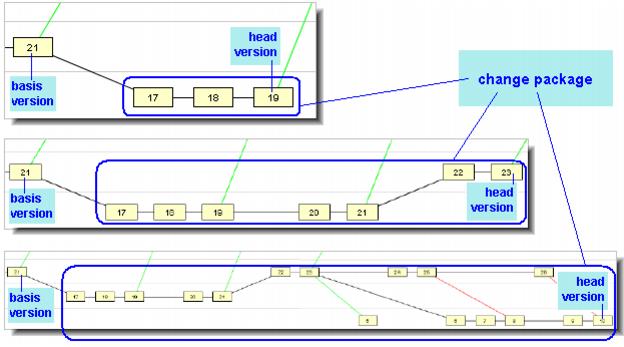
A change package entry for an element consists of the element’s entire version graph up to the specified head version, minus the entire version graph up to the specified basis version. For these purposes, the version graph includes direct predecessor-successor connections and merge connections, but not patch connections.
We’ll use the ordered pair [B,H] to indicate this change package entry.
Now, suppose a new change is to be combined with the existing change package entry [B,H]. There are several cases, each handled differently by AccuRev:
|
•
|
Case 1: [B,H] + [H,X] — This simple case typically arises when you think you’re done with a task and record your work as change package entry [B,H] — but it turns out that more work on the same element is required. So if you (or a colleague) start where you left off, with version H, and make changes up to version X. Then, you want to incorporate the new set of changes [H,X] into the same change package.
|
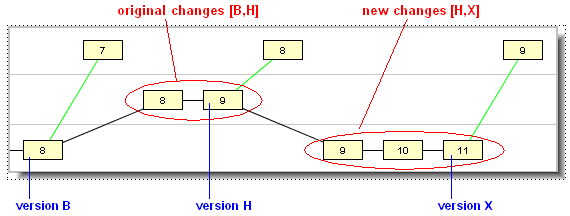
[B,H] + [H,X] = [B,X]
Accordingly, AccuRev updates the change package entry automatically — keeping B as the “Basis Version” and changing the “Version” from H to X.
|
•
|
Case 2: [B,H] + [J,X] (where H is an ancestor of J: “change package gap”) — This case typically arises when you do work on a task at two different times, and someone else has worked on the same element in between.
|
When AccuRev tries to combine the change [B,H] and the change [J,X] into a single change package entry, it detects that version H and version J are not the same, but that H is a direct ancestor of J. Thus, there is a simple “gap” in the potential combined change package entry (in this example, consisting of your colleague’s versions 9 and 10).
|
•
|
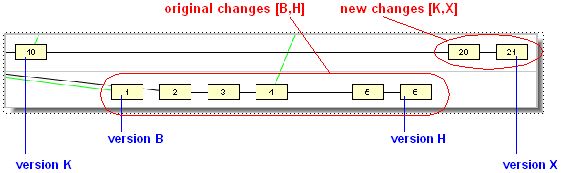
Case 3: [B,H] + [K,X] (where H is not an ancestor of K: “change package merge required”) — This case typically arises when developers in workspaces that do not share the same backing stream try to use the same change package. There is no simple “gap” between the existing change package entry and the new one — which means there is no way to combine them into a single change package entry, according to definitions in Complex Change Package Entries.
|

A problem can occur when the first person then wants to make additional changes to the same file under Issue #1. The changes from Issue #2 are now an unwanted dependency for Issue #1: They might not have anything to do with Issue #1, but they must be included by “spanning the gap” in any subsequent promote operation. 
AccuRev treats contiguous versions of a file as a segment. Each segment can be tracked and handled independently. That way, multiple promotes for Issue #1 can be tracked, and having a “gap” caused by an intervening promote of Issue #2 does not cause a problem. You can think of each segment almost as a separate patch (not the AccuRev patch command, but a generic, development patch).
If a text file has multiple segments because it has been promoted against different issues and you want to compare only the versions of a file that were promoted against the same issue, you can accomplish this by using the Diff Across All Segments option. When you use this feature, the diff shows all changes to the file that were promoted against a single issue while ignoring any changes to the file that were promoted against a different issue.
To understand the purpose of the Diff Across All Segments option, imagine the following scenario:
|
2.
|
A co-worker makes changes to the file for unrelated reasons and promotes the file against a different issue, say issue 7.
|
|
4.
|
You can view all the edits that you have made to the file by opening issue 5, selecting the Changes tab, selecting the file, and choosing Diff Across All Segments. In this case, AccuRev displays a diff that shows only those changes made to the file that were promoted against issue 5.
|
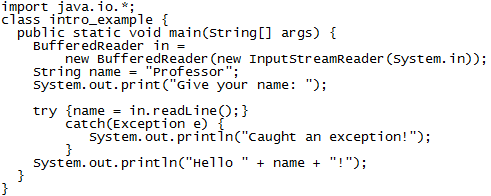
You then promote intro_example.java to issue 5. At this point, a co-worker, who has been assigned to add comments to source code, edits intro_example.java and adds comments so that the edited file now appears as follows: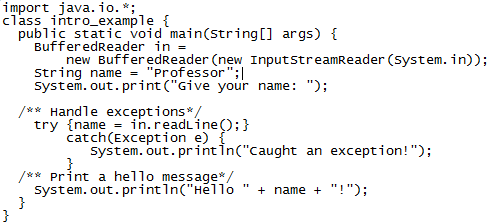
Your co-worker now promotes intro_example.java against issue 7.
At this point, you make more edits to intro_example.java in order to create a Spanish version of the file and you once again promote the file against issue 5.
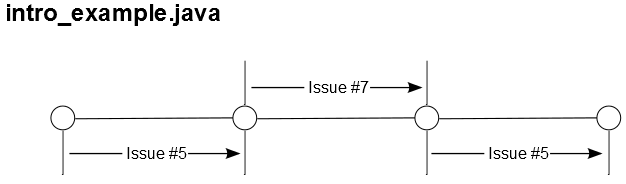
To view all the edits you have made to intro_example.java, and only those edits, you would take the following steps:
|
1.
|
Select Issues > Open Issue.
|
|
2.
|
|
3.
|
Select the Changes tab.
|
The file intro_example.java appears with a plus sign (+) aside it, indicating that the file contains multiple segments:
|
4.
|

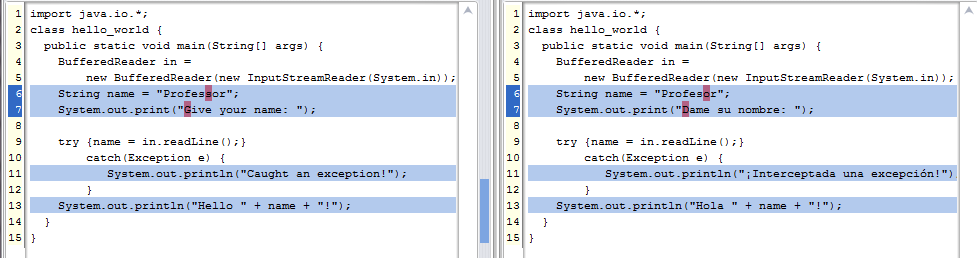
Note: Under some conditions, changes made to a file that were promoted against a different issue may appear when you perform a Diff Across All Segments operation. This can occur when the changes that were promoted against a different issue were contiguous to changes promoted against the same issue.
The Diff Across All Segments option is inactive for files that contain only a single segment. For more information about other types of diff operations in AccuRev, see Chapter 7 Diff, Merge, Patch, and the Change Palette.
How do you display the changes that have been made to a change package? Use the Change Package History icon on the Issues toolbar:
This brings up a list of all changes that have been made to the change package, including promotions, and elements that have been added (cpkadd) or removed (cpkremove). 
An issue record's change package differs from its user-defined fields (Status, Severity, Description, etc.). When you change the value of a user-defined field, the  Save button is enabled in the edit-form toolbar. You can discard the change by closing the edit-form tab without performing a Save. But the commands that create, modify, and delete change package entries take effect immediately. There is no way to discard such changes, and you do not need to explicitly save them. (You can Remove a change package entry altogether, but you can't undo the adding of a new change to an existing entry.)
Save button is enabled in the edit-form toolbar. You can discard the change by closing the edit-form tab without performing a Save. But the commands that create, modify, and delete change package entries take effect immediately. There is no way to discard such changes, and you do not need to explicitly save them. (You can Remove a change package entry altogether, but you can't undo the adding of a new change to an existing entry.)Change packages do not participate in AccuWork's issue-history capability. Modifications to a change package do not appear in the Issue History subtab of an Issue form, although you can use the Change Package History feature described above.
Note: Whenever you remove an element version from a change package, either from the GUI or from the CLI cpkremove command, you should immediately follow the operation with a Send to Issue on the removed element, to prevent it showing up as an Unaffiliated Change.
Whenever element versions are not associated with any issue, they are considered unaffiliated. Such element versions can lead to confusion, so AccuRev provides a way to view and deal with unaffiliated changes in the GUI.

There are two ways to deal with unaffiliated changes: short-term and long-term. If you are working under a deadline and just need a way to deal with these files so that they don't keep you from promoting everything in a stream, you can simply right-click this row and select Send to Issue. You then can either assign these unaffiliated changes to a new issue that you create on the fly, or send them to an existing issue if an appropriate one already exists. (An “appropriate” issue might be a catch-all issue that you always use to hold miscellaneous unaffiliated changes. Or, it might be an issue that you know makes logical sense for these particular changes.)
To examine the unaffiliated versions in detail and deal with them, you should right-click the stream and select Show Active Issues.
From the resulting display, you can right-click the unaffiliated elements, explore their history, and then take appropriate actions to correct their unaffiliated status. For example, you can use Send to Issue and then promote, or promote the files to an issue while promoting from this stream to its parent.