This chapter describes the management of APS facilities and
libraries.
Regulate customization facility usage
The
APS Customization Facility lets developers modify and extend APS rules and
create supplemental, reusable user rules called macros. You can regulate the
use of of the APS Customization Facility using the Customization Facility
Control System. This control system lets you enable or disable customization
control and create and maintain a rule list.
The default setting for customization control is enable. This means the
control system is on and developers cannot define or access user macros.
However, APS supplied macros remain usable. If you disable customization
control, developers can define user macros. A third alternative lets you turn
the control system off and create a rule list. For more information, see
Working with Rule List below.
To enable or disable customization control, do the following:
- Access the Customization Control Menu as follows:
- Enter 4 in the Option field. APS displays the
Utilities menu.
- Enter 2 in the Option field. APS displays the
Custom Utilities menu.
- Enter 1 in the Option field. APS displays the Admin
and Config Facility menu.
- Enter 5 in the Option field. APS displays the
Customization Control menu. Alternatively enter =4.2.1.5 from any APS
screen.
- On the Customization Control Menu enter 1 in the Option
field. APS displays the Customization Control Activation screen.
- Complete the fields on this screen as follows:
Field
|
Description
|
|
Command |
| on |
Enable customization control. |
| off |
Disable customization control. |
| change |
Change the control system password. |
|
|
Password |
Type the password included with your APS software. |
|
New Password |
If you entered change in the Command field, type a new
password. |
A rule list is a list of user macros developers can access. Rule list
are applicable to all projects and groups. You can add to and delete from this
list as necessary. To create and maintain a rule list, do the following:
- In the USERMACS library, create a control file that contains
statements specifying which macros developers can access. You can code one or
more statements in a single control file. For example:
//INPUT proj.grp.USERMACS
MACLIB1
MACLIB2
$MACRO1
$MACRO2
These statements place every macro defined in MACLIB1and MACLIB2 as
well as macros $MACRO1 and $MACRO2 in the rule list.
- Access the Customization Control menu as follows:
- Enter 4 in the Option field. APS displays the
Utilities menu.
- Enter 2 in the Option field. APS displays the
Custom Utilities menu.
- Enter 1 in the Option field. APS displays the Admin
and Config Facility menu.
- Enter 5 in the Option field. APS displays the
Customization Control menu. Alternatively enter =4.2.1.5 from any APS
screen.
- From the Customization Control Menu, enter 2 in the
Option field. APS displays the Rule List Maintenance screen.
- Complete the fields on this screen as follows:
Field
|
Description
|
|
Command |
| create |
Create a rule list |
| add |
Add macros to an existing rule list. |
| delete |
Delete macros from an existing rule list. |
|
|
Password |
Type your password. |
|
Control File |
Specify the fully qualified name of the control file.
|
|
Output File |
Specify the fully qualified rule list filename. This file must
be named MACROLST and reside in the APS CNTL library. For example,
SYS1.APS5000.CNTL.MACROLST |
|
Options
|
| v |
To generate a detailed report of macros
processed into the rule list. |
|
- Press Enter to generate the rule list.
- Access the Project Dataset Configuration screen as follows:
- On the APS Main Menu, enter 4 in the Option field.
APS displays the Utilities menu.
- Enter 2 in the Option field. APS displays the
Custom Utilities menu.
- Enter 1 in the Option field. APS displays the Admin
and Config Facility menu.
- Enter
3 in the Option field. APS displays the Project Dataset
Configuration screen. Alternatively, you can type =A.4.2.1.3 from other
APS screens.
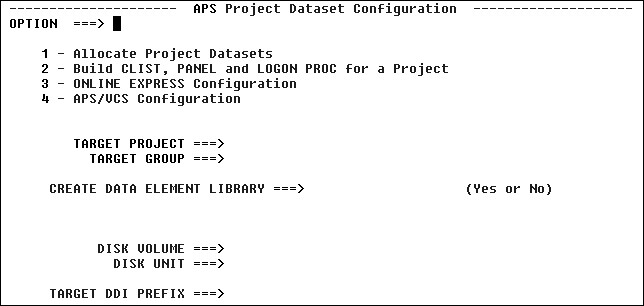
- On Project Dataset Configuration screen, type 1 in the
Option field.
- Complete the Project Dataset Configuration screen fields as follows:
Field
|
Description
|
|
Target Project |
The first level qualifier that identifies the name of the new
project. For example, myproj. It must be 1-8 alphanumeric characters; the first
character must be alphabetic. |
|
Target Group |
The second level qualifier that identifies the name of the new
group. For example, mygrp. It must be 1-8 alphanumeric characters; the first
character must be alphabetic. |
|
Create Data Element Library |
| no |
Default. During installation APS automatically creates a
Data Element library. We recommend that you have just one Data Element library
so that you can easily maintain centralized control of your data elements. |
|
|
Disk Volume |
Enter a valid volume serial number. |
|
Disk Unit |
Valid values are: 3330, 3340, 3350, 3380, 3390 disk |
|
Target DDI Prefix |
The project and group qualifiers of the DDIFILE dataset for
the new project and group. Default: target-project.target-group.
|
- Press Enter. APS displays the Allocate Project Datasets screen.
- On the Allocate Project Datasets screen, enter values for the
following DDI Options fields:
Field Name
|
Value
|
|
Create DDIFILE |
yes or no. |
|
Target DDI Prefix |
Accept default values or override. |
|
Number of Records |
Appropriate number for new project and group. Calculate the
number of records as follows: Eight records per DBD, three records per PSB, and
for VSAM subschemas, two records per DDISRC member. |
|
Number of Secondary |
Default: blank (0); you can override. |
|
VSAM Volume |
Your VSAM volume ID. |
|
Replace DDIFILE |
yes or no. |
- Press Enter to submit the batch jobs that create the DDIFILE and the
new project and group.
- After both jobs complete, display the APS Project Dataset
Configuration screen.
- On the APS Project Dataset Configuration screen, select option B to
build the APS3000 CLIST, skeleton logon procedure, and panel for the new
project and group.
The DDI file is a VSAM
KSDS file defined with keys (38,0). You can unlock or initialize the DDIFILE,
back it up to a sequential file or restore it from a backup using the DDIFILE
Utilities screen. Before using the DDIFILE utilities screen, you must complete
specific import tasks. All DDIFILE utilities require the use of the DDIFILE
prefix. Except for unlock, all DDIFILE utilities run standard access method
services (AMS) IDCAMS.
APS allocates a DDI file during installation. You can use the initialize
DDI function to allocate additional DDI files. To do so, perform the
following:
- Access the APS DDIFILE Utilities screen as follows:
- From the APS Main Menu enter 4 in the Option field.
APS displays the Utilities menu screen.
- On the Utilities menu screen, enter 3 in the Option
field. APS displays the APS DDIFILE Utilities screen. Or type =a.4.3
from other APS screens.
- Enter 2 in the Option field on the DDIFILE Utilities
screen or type =a.4.3.2 from the APS Main Menu.
- Complete the fields on the DDIFILE Utilities screen as follows:
Field
|
Description
|
|
Number of Records |
We recommend the following:
200 records based on 8 records per DBD
3 records per PSB
2 records per DDISRC member. |
|
Number of Secondary |
Specify any secondary records. |
|
VSAM Volume Id |
Specify the volume where the ddifile is located. |
|
Replace any Existing DDIFILE |
yes
no |
You can delete
DBDs, PSBs, subschemas, and VSAM file descriptions from an existing DDIFILE. To
do so, modify the JCL for the DDIFILE Report, DB01 as follows:
- Edit member SSMXDB01 in &APSPRE.ISPSLIB to create a file with the
ddname DELFILE and LRECL=80. This file resides in APSFTWRK.
- Run the DDIFILE report (DB01).
- Edit DELFILE by typing a non-blank character in column 1 of the
entity to be deleted. DELFILE lists all entities in the DDIFILE and is
structured as follows:
Column
|
Description
|
|
2 |
Entity name |
|
33 |
Entity types:
D=DBD
P=PSB
S=Subschema
V=VSAM file |
- Rerun the DDIFILE report to delete the entities.
Application edits are a centrally-stored collection of user-defined
field edit routines. Use the Application Edit List Facility to maintain
application edits. This facility allows you to:
- Add edits to an application edit list.
- Create a new application edit list.
- Update or delete an edit in an application edit list.
You can maintain multiple lists to group similar application edits. For
example, you can group social security number, employee number and department
number edits under the list name PERSONAL, while part number and supplier
number edits can be grouped under the list name INVENTORY. For specific
information on how to create application edits, see the APS User's Guide
chapter Paint Character Screens.
To perform any of the tasks listed above, do the following:
- Access the APS Field Edit screen as follows:
- From the APS Main Menu enter 4 in the Option field.
APS displays the Utilities menu screen.
- On the Utilities menu screen, enter 2 in the Option
field. APS displays the Custom Utilities screen.
- On the Custom Utilities screen, enter 1 in the
Option field. APS displays the APS Administration screen.
- On the Administration screen , enter 4 in the
Option field to displays the APS field edit screen.
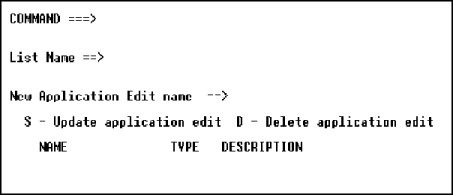
- To create a new application edit list, type a unique name in the List
name field.
- Type a new application edit name in the field of the same name and
press Enter. APS displays a message that it has created a new list name.
- Re-enter the new application edit name and press enter. APS displays
the Application Editing screen, where you can define the application edit.
- To update or delete an edit, enter s (to update) or d
(to delete) next to the desired edit name. If you enter an s, APS
displays the Application Editing window where you can update the
edit.Application edits list:maintaining
The APS SQL Subschema Maintenance Utilities allow you to:
- Browse object definitions stored in your DB2 catalog and the APS
common data area without using QMF.
- Extract DDL code from the APS common data area.
- Generate reports on objects.
- Define, modify, inquire, delete, and generate SQL subschemas.
- Change job cards.
- Access the DB2 interactive facilities.
You can analyze
the impact of changes prior to updating the DB2 system catalog using the APS
DB2 Browse Facility. This facility allows you to browse object definitions in
the DB2 catalog or the APS common data area or both combined. You can also
delete common data area objects. The APS common data area is a staging area
that is separate from the IBM DB2 system. APS conducts all development and
maintenance in the common data area.
Every object has one or more browse screens. Browse screens for each
object type have the same format and functionality. The browse screen fields
are described below.
Field
|
Description
|
|
Name |
The name of the object. |
|
Creator |
The TSO ID of the object creator. |
|
VV |
The system where the object resides. Values are:
00= APS
common data area.
01= DB2 system catalog. |
|
Created |
For DBP objects, this field identifies the year, month, and day
object was created. |
|
Last Modified |
For DBP objects, this field identifies the year, month, day, hour,
minute the object was last modified. |
|
Gendate |
For DBP objects, this field identifies the year, month, and day
when last generated into the DB2 system catalog. |
|
ID |
For DBP objects, this field identifies the TSO ID of the person
who last modified the object. |
To browse objects, perform the following steps:
- Access the Subschema Maintenance Utilities screen as follows:
- From the APS Main Menu, enter 4 in the Option
field. APS displays the APS Utilities screen.
- Enter 4 in the Option field. APS displays the SQL
Subschema Maintenance Utilities screen.
- Enter b in the Option field. APS displays the DB2/DBP
Browse menu.
- Enter the number corresponding to the object you want to browse in
the Command field. APS displays a list of objects in the common data
area.
- Complete the fields on the Browse screen as follows:
Field
|
Description
|
|
Prefix |
Optional. Enter a full or partial TSO ID to display objects
created under a particular TSO ID or group of TSO IDs sharing a prefix.
|
|
Command |
Enter a command. Valid values are:
| relate |
Generates the DBP Common Data Area Relationship Report.
See See Generating DBP Common Data Area Relationship
Reports for syntax information. |
| ISPF commands |
Line commands. When MODE is DBP, you can use the DELETE
command to delete object definitions from the APS common data area. APS deletes
only the specified object definition; no associated objects are deleted. |
|
|
Mode |
Specify a display mode. Valid values are:
| dbp |
Default. Displays objects stored in the APS common data
area. |
| sys |
Displays objects stored in the DB2 system catalog
(authorization required). |
| merge |
Displays objects stored in the APS common data area and
in the DB2 system catalog (authorization required). |
|
|
Scroll |
| page |
Scroll one page at a time. |
| half |
Scroll one half page at a time. |
| csr |
Scroll one page from the cursor
position. |
|
- Enter end in the Command field to exit the Browse
screen.
You use the DDL extract
facility to display the generated object type where you can extract DDL code
from specific object types. You can also specify whether you want to browse the
DDL source code and recover previous DDL source versions from an imported
object.
To extract DDL code, perform the following steps:
- Access the Subschema Maintenance Utilities screen as follows:
- From the APS Main Menu, enter 4 in the Option
field. APS displays the APS Utilities screen.
- Enter 4 in the Option field. APS displays the SQL
Subschema Maintenance Utilities screen.
- Enter e in the Option field. APS displays the DDL
Extract menu.
- Type the number corresponding to the object type you want to extract
DDL code for in the Command field.
- Enter the names of the project, group, type and member your are using
to store the DDL code. You must specify an existing 80-byte partitioned
dataset.
- To browse extracted DDL code, select an extract option on the DDL
Extract screen and type Y in the BROWSE field and press Enter. APS
displays the dataset containing the DDL code.
- Enter end in the Command field to exit the DDL Extract
screen.
You can generate reports that are useful for determining the effect to
the common data area and DB2 system of dropping or modifying an object. You can
generate reports on a storage group, database, table space/database, or table
or view. Most reports list objects in groups, illustrating object
relationships. Generate reports as follows:
- Access the SQL Subschema Maintenance Utilities screen as follows:
- From the APS Main Menu, enter 4 in the Option
field. APS displays the APS Utilities screen.
- Enter 4 in the Option field. APS displays the SQL
Subschema Maintenance Utilities screen.
- On the SQL Subschema Maintenance Utilities screen, enter r in
the Option field. APS displays the Export Menu.
- Enter the number that corresponds to the object you want to generate
a report for.
- Type end in the Command field and press enter to exit
the Export Menu or press the applicable PF key.
Use the Reports facility to generate the following reports:
Object Definition Report. You can generate this report for each object
type. This report has one or more of the following parts:
- An object detail report. May include one or all common data area
objects.
- An object history report. May include one or all common data area
objects.
- An object text report.
All object definition reports are of the same format and are
functionally identical. One example serves to describe all object definition
screens as follows:
Field
|
Description
|
|
Command |
| submit |
Generate a batch report. |
| end |
Return to the Export Menu. |
|
|
Storage Group Name |
In this case, type the storage group name. Depends on the object
type you want to report on. Type all to specify an object detail report on
all. |
|
History Only |
| N |
Default. Do not generate an object history report. Note: A
history report is identical in format to the Browse Storage Group screen. |
| Y |
Generate only an object history report. |
|
|
Text |
| Y |
Generate an object text report. A text report is identical in
format to the Storage Group Description screen. |
| N |
Default. Do not generate text report. |
|
|
Job Class |
Type your job class. |
Dependency Report lists objects associated with a specified object in
the common data area. APS generates this report when you specify DBP in the
Mode field on the Drop DB2/DBP Reports screen. Screen fields are described
below.
Field
|
Descriptio
|
|
Command |
| Submit |
Generate a batch report. |
| End |
Return to the Export Menu. |
|
|
Mode |
| DBP |
Default. Generate a DBP Dependency report |
| SYS |
Generate DB2 Drop Analysis report. |
|
|
Job Class |
Type your job class. |
|
Storage Group Name |
Type the storage group name. |
|
Database Name |
Type the database name. |
|
Table Space Name
Database Name |
Type both a table space name and a database name. |
|
Table Name and Table Creator |
Type a table name and type the table creator's TSO ID. |
|
View Name and View Creator |
Valid only when generating a DB2 Drop Analysis report. |
DB2 Drop Analysis lists DB2 objects associated with a specified DB2
object. Note: Another report is available, not from the Reports facility, but
from other screens. This report, the DBP Common Data Area Relationship report,
is an online listing of all common data area objects related to or used by a
specified object or subschema. For more information, see See
Generating DBP Common Data Area Relationship Reports.
The DBP Common Data Area Relationship report is an online list of all
objects in the common data area related to or used by a specified object or
subschema. Related objects are objects dependent upon or containing the
specified object both above and below the hierarchy. Related objects are listed
in groups illustrating dependency. Objects used by other objects, for example,
tables used by a view, are listed in the order used. You can generate a DBP
Common Data Area Relationship report for storage groups, databases, table
space, subschemas, tables, or indexes.
Object definitions: To generate a DBP Common Data Area Relationship
report, enter the relate command in the Command field of any
Browse screen. The syntax for this command is:
-r[elate]
-r[elate] objecttype=objectname
-r[elate] objecttype=objectname USE[S] objecttype
r[elate] objecttype USED [BY] objecttype=objectname
Copyright © 2002 Micro Focus International Limited. All rights reserved.
This document and the proprietary marks and names
used herein are protected by international law.