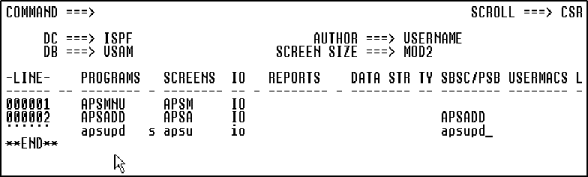
Figure 4-1: APSAPPL Application Definition
In this section, you view the application system components and their relationships in the Application Painter. You then add the third application program and screen and the program subschema.
The Application Painter lets you quickly:
Start this procedure where the last one ended -- in the APS Application Painter, where the APSAPPL application is defined.
Figure 4-1: APSAPPL Application
Definition
You have completed the application definition. You are now ready to set your screen design options and paint the Parts Update screen in the APS Screen Painter.
The Application Painter has an online help facility that you can select from the action bar, or access from the screen by pressing PF1.
After you define your application components and relationships, you typically use the Application Painter to transfer to other APS Painters, print reports, and generate, compile, and link your application entities.
Copyright © 2002 Micro Focus International Limited. All rights reserved.
This document and the proprietary marks and names
used herein are protected by international law.