In this chapter, you learn about field edits and assign them to the
fields on your screens.
Goal
In this section you learn about what field edits are and the different
types of edits you can create. You also access the Field Edit Facility in the
Screen Painter.
Field
edits let you define the display and storage characteristics for I/O fields.
Field edits can validate input data and format that data for storage and
output. You can assign characteristics, such as an internal picture, output
picture, edit mask, or date format. Or, you can use field edits to test for
specific values or a range of values.
The internal data representation specifies storage characteristics for
data in a field. Input and output data representations let you specify the type
of data that users can enter or that a field can display. For example, an input
data representation for a field may permit a user to enter numbers from 1 to
1,000; an output data representation may require that data display a dollar
sign, decimal point, and two places following the decimal point.
Depending on the type of field you create -- character, numeric, or date
-- you assign field edits that define the data representations for the field.
APS supports the following field edits:
- Internal field edit values specify the COBOL picture characteristics
for storing data the end user enters. These include:
- Alphabetic, character, or numeric data type
- Internal length
- Binary or packed format
- Sign specification
- Right justification
- Input field edit values specify format and data requirements that the
end user must adhere to when entering data into the field. These include:
- Required data
- Input mask
- Julian, Gregorian, or system date type
- Minimum/maximum input requirements
- Testing for blank spaces or special characters
- Testing for numeric data
- Testing for specific values
- Zero-fill when blank
- Output field edit values specify the format requirements for
displaying the data. These include:
- Output mask
- Output picture
- Julian, Gregorian, or system date type
- Right justification
- Commas
- Zero suppression
- Floating, leading, and trailing symbols
- Values or conversion values ensure only certain values are entered.
You can test for:
- A specific value or range of values for input data
- Conversion values for input and output data representation to
define how data is stored and converted for output
- Application edit routines specify additional edits or tests for input
or output data. Edit routines can be paragraphs, subprograms, or APS macros
that you create. Or, you can select a predefined application edit routine from
a centralized listing of edit routines maintained by your APS Administrator.
When users fail to enter data correctly, you can display an error
message that explains the problem. You can define two error messages, one for
when the end user enters invalid data, and one for when the end user neglects
to enter data that is required.
Procedure
Start this procedure where the last one ended -- in the Application
Painter.
- On
the Application Painter screen, select the APSU screen by entering s in
the selection field and press Enter. The Parts Update screen displays.
- To
access the Field Edit Facility, type fe in the Command field and
press Enter. The Field Selection screen displays.
Checkpoint
You are in the Field Edit Facility and are ready to assign edits to each
of your screen fields.
Help
The Screen Painter has an extensive help facility for field edits that
you can select from the action bar, or access from your screen by pressing
F1.
Hints
You
can also code your own edit routines and apply them to multiple screens across
any number of application systems. APS field edits ensure that entries match
specified definitions. Some fields, however, require specialized testing. For
example, if a field has alternate formats, no single field edit can confirm the
validity of all possible entries. In such a case, you can write an application
edit that verifies all legal entries. Or, you can select a predefined edit from
a centralized application edit listing.
Error
messages can be global messages that display for all screen fields, or specific
messages that display for individual fields. Messages defined for a specific
field override the global messages. You can also define conditions for
bypassing input edits under certain conditions.
Goal
In this section, you assign the following field edits to the Parts
Update screen.
|
Field
|
Type
|
Edit(s)
|
|
FUNCTION |
Character |
Require data entry. |
|
PART-NBR |
Numeric |
Store data as an 8-digit number.
Require data entry.
Remove special characters .
Define output picture as ZZZZZZZ9.
|
|
UNITS-INSTOCK |
Numeric |
Store data as a 2-digit number.
Allow only data between 0 and 50.
Move zeros to field if data not entered.
Remove special characters.
Specify an error message that says VALID VALUES FOR UNITS ARE 0
THROUGH 50.
Define output picture as Z9.
|
|
BASE-PRICE |
Numeric |
Store data as a 4-digit number with 2 decimal places.
Move zeros to field if data not entered.
Remove special characters.
Define output picture as ZZZ9.99. |
Procedure
Start this procedure where the last one ended -- in the Field Selection
screen. The Field Selection screen displays the screen fields for your screen,
and lists any edits specified.
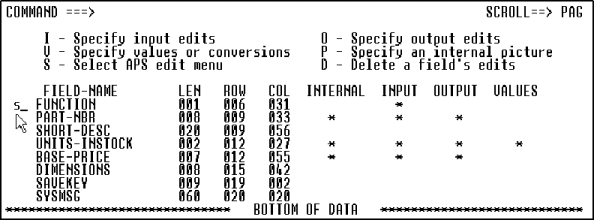
Figure 7-1: Summary Field Edit
Listing
- To select the Function field for edit specification, type s in the
selection field to the left of FUNCTION and press Enter, as shown in
Figure 7-1. The Edit Selection screen indicates the
edits currently specified for the field.
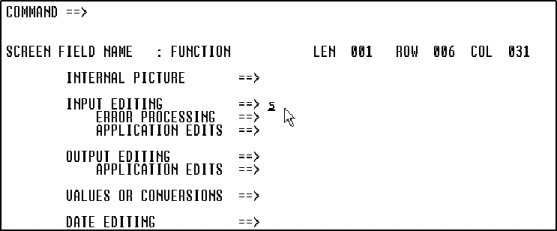
Figure 7-2: Select Field to Assign Edits
- To
specify input criteria for the field, type s in the Input Editing
field and press Enter. The Character Input screen displays, where you can
specify input edits for any field with an internal picture defined as
alphabetic or character.
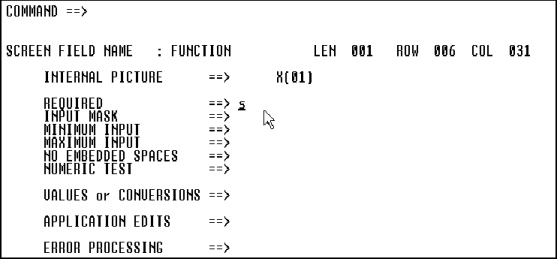
Figure 7-3: Specify Input Criteria for
Character Fields
- To require data entry for this field, type s in the
Required field and press Enter.
- Press F3 twice to save the edit and return to the Field Selection
screen, where you see the edit for the Function field reflected.
- To select the Part Number field for edit specification, type
s in the selection field to the left of PART-NBR and press Enter. The
Edit Selection screen displays.
- To
automatically access the applicable screens for assigning the required edits,
do the following:
- Type s in the Internal Picture field.
- Type s in the Input Editing field.
- Type s in the Output Editing field.
Then press Enter. The Internal Picture screen displays.
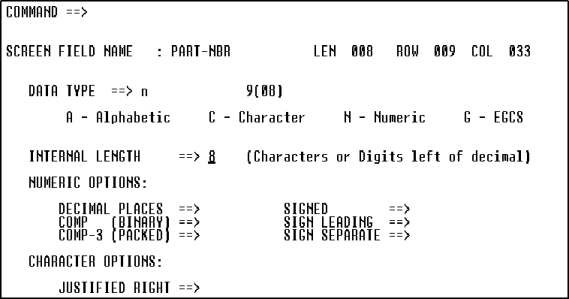
Figure 7-4: Generate a COBOL Picture for
Internal Storage
- To store the data as an 8-digit number, type n in the Data
Type field and type 8 in the Internal Length field.
Optionally press Enter to view the edits.
- Press F3 to save these edits. Because you defined the field as
numeric and you selected Input Editing on the Edit Selection screen, the
Numeric Input screen automatically displays.
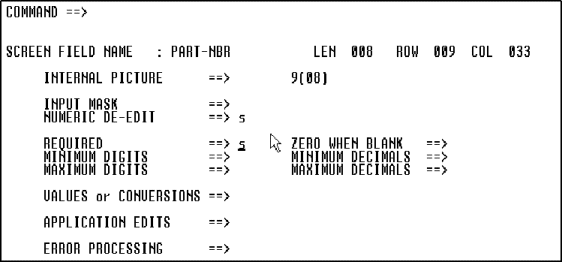
Figure 7-5: Specify Input Criteria for a
Numeric Field
- To remove special characters from the input data, type s in
the Numeric De-Edit field.
- To require data entry for this field, type s in the
Required field. Optionally press Enter to view the edits.
- Press
F3 to save these edits. Because you defined the field as numeric and you
selected Output Editing on the Edit Selection screen, the Numeric Output screen
automatically displays.
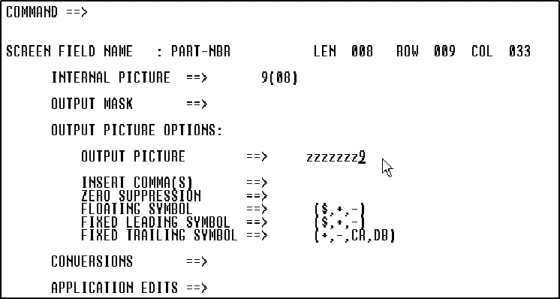
Figure 7-6: Specify Output Criteria for a
Numeric Field
- To assign the COBOL output picture, type zzzzzzz9 in the
Output Picture field. Optionally press Enter to view the edits.
- Press F3 twice to save these edits and return to the Field Selection
screen, where you will see your edits reflected.
- To select the Units In Stock field for edit specification,
type s in the selection field to the left of UNITS-INSTOCK and press
Enter. The Edit Selection screen displays.
- To automatically access the applicable screens for assigning the
required edits, do the following:
- Type s in the Internal Picture field.
- Type s in the Input Editing field.
- Type s in the Output Editing field.
Then press Enter. The Internal Picture screen displays.
- To store the data as a 2-digit number, type n in the Data
Type field and type 2 in the Internal Length field.
Optionally press Enter to view the edits.
- Press F3 to save these edits. The Numeric Input screen automatically
displays.
- To remove special characters from the input data, type s in
the Numeric De-Edit field.
- To move zeros to the field if data is not entered, type s in
the Zero When Blank field. Optionally press Enter to view the edits.
- To automatically access the additional screens for assigning the
required edits, do the following:
- Type s in the Values or Conversions field.
- Type s in the Error Processing field.
- Press
F3 to save these edits. Because you selected Values or Conversions on the
Numeric Input screen, the Values or Conversions screen automatically displays.
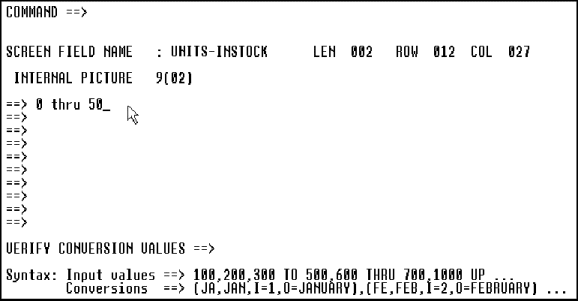
Figure 7-7: Assign a Valid Range of
Values
- To assign a range of acceptable input values, type 0 thru 50
on the first value entry line. Optionally press Enter to view the edit.
- Press F3. Because you selected Error Processing on the Numeric Input
screen, the Error Processing screen automatically displays.
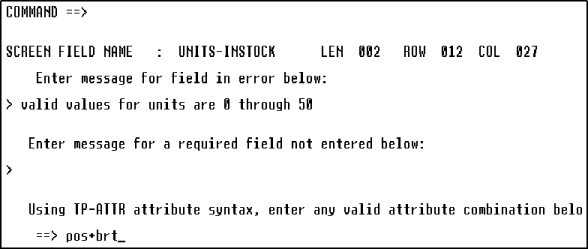
Figure 7-8: Define an Error Message for
Invalid Data
- To assign the error message, type valid values are 0 through
50 below the Enter Message for Field in Error line.
- To position the cursor at the field when invalid data is entered, and
to assign a bright intensity to the error message, type pos+brt below
the Using TP-ATTR Attribute Syntax line. Optionally press Enter to view
the edits.
- Press F3 twice. The Numeric Output screen automatically displays.
- To assign the COBOL output picture, type z9 in the Output
Picture field. Optionally press Enter to view the edits.
- Press F3 twice to save these edits and return to the Field Selection
screen, where you will see your edits reflected.
- To assign a field to display the error message you assigned, type
parm in the Command field and press Enter.
- Type sysmsg in the Error Message Display Field field.
Optionally press Enter to view the edit.
- Press F3 to return to the Field Selection screen.
- To select the Base Price field for edit specification, type
s in the selection field to the left of BASE-PRICE and press Enter. The
Edit Selection screen displays.
- To automatically access the applicable screens for assigning the
required edits, do the following:
- Type s in the Internal Picture field.
- Type s in the Input Editing field.
- Type s in the Output Editing field.
Then press Enter. The Internal Picture screen displays.
- To store the data as a 4-digit number with 2 decimal places, type
n in the Data Type field, type 4 in the Internal
Length field, and type 2 in the Decimal Places field.
Optionally press Enter to view the edits.
- Press F3 to save these edits. The Numeric Input screen automatically
displays.
- To remove special characters from the input data, type s in
the Numeric De-Edit field.
- To move zeros to the field if data is not entered, type s in
the Zero When Blank field. Optionally press Enter to view the edits.
- Press F3. The Numeric Output screen automatically displays.
- To assign the COBOL output picture, type zzz9.99 in the
Output Picture field. Optionally press Enter to view the edit.
- Press F3 twice to save these edits and return to the Field Selection
screen, where you will see your edits reflected.
- Press F3 repeatedly until you return to the APS Main Menu.
Checkpoint
You have assigned the field edits to your screen fields. You are ready
to import your database definitions, a required step before you define the
program.
Help
You
can delete field edits in one of the following ways:
- To delete all field edits for all fields on the screen, access the
Field Selection screen, and then type delete all in the Command
field and press Enter. At the prompt, verify that you want to delete all field
edits.
- To delete all field edits for a specific field, access the Edit
Selection screen for the field, and type d next to the field name. At
the prompt, verify the deletion.
- To delete a specific field edit for a specific field, access the Edit
Selection screen for the field, and type d to the right of the field
edit name and press F3. At the prompt, verify the deletion.
Hints
To
copy edits from another field, access the Edit Selection screen for the field
you are copying field edits to, and then enter copy in the
Command field. The Copy Function screen displays. Enter the field name
you are copying edits from; it must be the same length as the current field.
The current field inherits the edits of the copied field, and loses any prior
edits.
On
the Parm screen you can define two error messages, one for when the end user
enters invalid data, and one for when the end user neglects to enter data that
is required that display for all screen fields. Any messages defined for a
specific field then override these global messages. You can also define
conditions for bypassing input edits under certain conditions on this
screen.
Copyright © 2002 Micro Focus International Limited. All rights reserved.
This document and the proprietary marks and names
used herein are protected by international law.