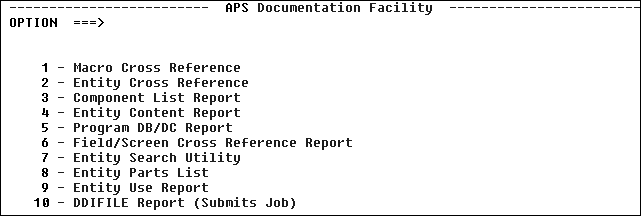
Figure 8-1: Access the Documentation Facility
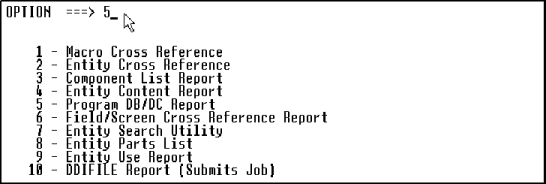
Figure 8-2: Select Reports that Document the Application
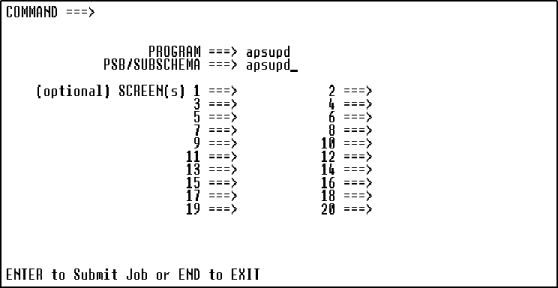
Figure 8-3: Request the Report for the Program Subschema
In this chapter, you learn about the Importer Facility and import a database.
In this section, you learn about importing database definitions using the APS Importer Facility.
The Importer Facility translates information about your database definitions and their associated copybook records into a format usable for generating and precompiling through APS. The APS Importer Facility transfers database information such as data definitions and/or database subschemas to make them available to your APS programs. You can import IMS PSBs and DBDs, SQL DDL statements, VSAM files, and IDMS subschemas.
If necessary, your APS programs can access multiple database targets. In that case, you can create and import two separate subschemas. For example, you can import both VSAM file information and a subschema for SQL, and then combine the two into one subschema.
When you import your database definitions, the Database Definition Interface (DDI) formats the database information to use with APS programs. The Importers:
To import the VSAM file definitions for this tutorial, you first write DDI statements and then import the file definitions. The DDI statements associate the VSAM files with their COBOL copylib record descriptions.
The VSAM Importer translates information about VSAM files and their associated copylib record into a format usable for generating and precompiling through APS. For each VSAM file record, there is a copylib file that contains a COBOL record description. These copylib files are in your project.group.COPYLIB.
We imported the VSAM database for you. You can verify the import process.
In this section, you verify the import process for this tutorial by printing the Program DB/DC Report, one of the reports provided by APS.
APS provides a set of reports that help you understand your application and its various components. You can use these reports as you develop an application to determine the status of your work and the tasks left to complete. Some reports help you to troubleshoot problems in an application that you are developing, or to determine the impact of a proposed change. Others help you to verify the results of your work. Once you have fully implemented an application, use the APS reports to document it so that developers who later maintain or enhance the application can easily understand it in detail.
One of the reports most-used by developers is the Program DB/DC Report, which documents the screens and subschemas used by a program.
The Program DB/DC Report has three sections:
Start this procedure where the last one ended -- in the APS Main Menu.
Figure 8-1: Access the Documentation Facility
Figure 8-2: Select Reports that Document the Application
Figure 8-3: Request the Report for the Program Subschema
The VSAM file report is generated. You can now define the program specifications in Online Express.
APS provides a number of other reports describing application entities such as applications, screens, data structures, programs, scenarios, and report mock-ups. Through criteria you select, you can see the reports in a number of categories and formats.
Copyright © 2002 Micro Focus International Limited. All rights reserved.
This document and the proprietary marks and names
used herein are protected by international law.