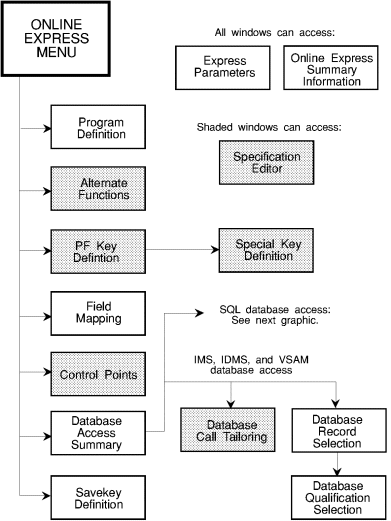
This chapter contains information on navigating in Online Express, SQL database access, screens, and control points.
Define teleprocessing and user-defined functions for character programs; this screen initially displays the function codes entered on the Program Definition screen.
|
Access from: |
Online Express Menu or any primary screen, enter 2 in the Command field. |
|
Transfer to: |
Previous, or invoking, screen, press F3. |
|
|
Program Definition screen, enter 1 in the Command field. |
|
|
PF Key Functions screen, enter 3 in the Command field. |
|
|
Field Mapping screen, enter 4 in the Command field. |
|
|
Control Points screen, enter 5 in the Command field. |
|
|
Database Access screen, enter 6 in the Command field. |
|
|
Savekey Definition screen, enter 7 in the Command field. |
|
|
Specification Editor screen, enter E in the Function field. |
|
Field |
Description
and Values |
||||||||||||||||||||||||||||||||||||||||
|---|---|---|---|---|---|---|---|---|---|---|---|---|---|---|---|---|---|---|---|---|---|---|---|---|---|---|---|---|---|---|---|---|---|---|---|---|---|---|---|---|---|
|
Program Input |
Function codes from the Program Definition screen are automatically displayed. Add your own function code, 8-character maximum. |
||||||||||||||||||||||||||||||||||||||||
|
Function |
Processing action. Valid codes are: |
||||||||||||||||||||||||||||||||||||||||
|
|
|
||||||||||||||||||||||||||||||||||||||||
|
Reserved Function |
Object of action coded in function field. Valid actions and their objects are: |
||||||||||||||||||||||||||||||||||||||||
|
|
|
||||||||||||||||||||||||||||||||||||||||
|
Row Input |
|
Display and select from a list of columns for each database access on the Column Selection screen, and then update criteria by applying functions or specifying Into destinations on the Column Selection Update screen. View column information on the Column Information screen.
|
Access the Column Selection screen from: |
Database Access Summary screen, enter C in the selection field. |
|
|
Subselect Specification screen, enter S in both the column and record selection fields. |
|
|
Union Summary Menu screen, enter C in the selection field. |
|
Transfer to: |
Column Selection Update, press F3. |
|
|
Column Information, enter ? in the column selection field. |
|
Access Column Selection Update screen from: |
Column Selection screen, press F3. |
|
Transfer to: |
Previous screen, press F3. |
|
|
Column Information screen, enter ? in the column selection field. |
|
|
SQL Functions, enter F in the selection field. |
|
Access Column Information screen from: |
Column Selection screen, enter ? in the column selection field. |
|
|
Column Selection Update, enter ? in the column selection field. |
|
|
SQL Qualification Specification, enter ? in the column selection field. |
|
Transfer to: |
Previous, or invoking, screen, press the Enter key. |
|
Field |
Description
and Values |
||||||||
|---|---|---|---|---|---|---|---|---|---|
|
Distinct |
Enter YES to eliminate duplicate rows. |
||||||||
|
Function |
Built-in functions:
Or, enter a valid SQL function. Or, enter F in the selection field to select a SQL function from the SQL Functions screen. |
||||||||
|
Column Name |
Lists the columns to be acted on when call is executed. The columns are returned into corresponding host variables if the call is a SELECT, or they are updated with the values in the host variables if the call is an UPDATE or STORE. |
||||||||
|
COBOL Name |
Override default host variable by typing INTO for SELECTs or a literal for UPDATEs or STOREs. |
Insert user-defined logic at standard program control points.
|
Access from: |
Online Express Menu or any primary screen, enter 5 in the Command field. |
|
Transfer to: |
Previous, or invoking, screen, press F3. |
|
|
Specification Editor, enter E in the Action field. |
|
Field |
Description
and Values |
||||||||||||||||||||||||||||||
|---|---|---|---|---|---|---|---|---|---|---|---|---|---|---|---|---|---|---|---|---|---|---|---|---|---|---|---|---|---|---|---|
|
Action |
Processing action. See below for values. |
||||||||||||||||||||||||||||||
|
Exit Name |
Object of Action coded. Valid Actions and their Exit Names are:
|
Override the Online Express default correlation name when you specify a JOIN on the Correlation Names screen. Choose your own names, with values up to four characters.
|
Access from: |
Database Access Summary screen, enter N in the selection field. |
|
Transfer to: |
Database Access Summary screen, press F3. |
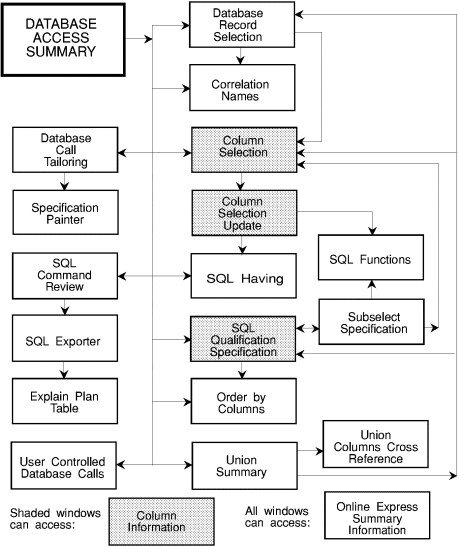
This screen displays a composite picture of the database accesses and can be used as a menu to access other database access specification screens.
|
Access from: |
Online Express Menu or any primary screen, enter 6 in the Command field. |
|
Transfer to: |
Previous screen, press F3. |
|
|
Any primary screen, enter its numeral in the Command Field. |
|
|
Column Selection screen, enter C in the selection field. |
|
|
Correlation Names screen, enter N in the selection field. |
|
|
Database Call Tailoring screen, enter T in the selection field. |
|
|
Database Qualification screen, enter K in the selection field. |
|
|
Database Record Selection screen, enter S in the selection field. |
|
|
Order By Columns screen, enter O in the selection field. |
|
|
SQL Command Review screen, enter V in the selection field. |
|
|
SQL Qualification Specification screen, enter Q in the selection field. |
|
|
Union Summary Menu screen, enter U in the selection field. |
|
|
User-Controlled Database Calls screen, enter *USER in the Command field. |
|
Field |
Description
and Values |
||||||||||||||||||||||
|---|---|---|---|---|---|---|---|---|---|---|---|---|---|---|---|---|---|---|---|---|---|---|---|
|
Selection Field |
Enter code for line commands or for transferring to another screen:
|
||||||||||||||||||||||
|
Function |
Optionally associate the following functions with one of the adjacent Action values: *QUERY |
||||||||||||||||||||||
|
Action |
|
||||||||||||||||||||||
|
Qualifier |
|
||||||||||||||||||||||
|
Nesting |
Indicates whether an access is nested within a loop call. The default nesting level number displays:
You may override the nesting level with a lesser value. |
||||||||||||||||||||||
|
Blk |
Default is 1 assigned for first loop call only; indicates which database access loop is associated with the repeated block on the screen. To override default, blank it out; optionally assign 1 to another loop access. |
Modify the processing of database calls. Each modifiable call has its own corresponding Call Tailoring screen.
|
Access from: |
Database Access Summary screen, enter T in the selection field. |
|
Transfer to: |
Database Access Summary screen, press F3. |
|
|
Specification Editor, enter E in the Action field. |
|
Field |
Description
and Values |
||||||||||||||||||||
|---|---|---|---|---|---|---|---|---|---|---|---|---|---|---|---|---|---|---|---|---|---|
|
Action to be Tailored |
|
||||||||||||||||||||
|
Control Points |
Access control points displayed for Modify, Store, Erase, and Obtain. |
||||||||||||||||||||
|
Action |
|
||||||||||||||||||||
|
Control Point Name |
Object of Action coded. Valid actions and their objects are:
|
||||||||||||||||||||
|
Status Matrix |
Override default status codes for any status flag with one of the following:
|
||||||||||||||||||||
|
Error Message |
Defaults to standard Online Express messages. Other valid values are a text error message or user-defined macro name, without delimiters; 44 characters maximum.
|
||||||||||||||||||||
|
Error Message Type |
|
||||||||||||||||||||
|
Abort on Error |
|
Specify the access qualifications of the Obtain of any record.
|
Access from: |
Database Access Summary screen, enter K in the selection field. |
|
|
Database Record Selection screen, enter S in the selection field. |
|
Transfer to: |
Previous screen, press F3. |
|
Field |
Description
and Values |
||||||||||||
|---|---|---|---|---|---|---|---|---|---|---|---|---|---|
|
Selection Field |
|
||||||||||||
|
TY |
Type of field. Values displayed:
|
||||||||||||
|
OP |
|
||||||||||||
|
Value |
COBOL data name, variable, or literal on which to qualify field. |
||||||||||||
|
Len |
Length of field. Qualify on a VSAM partial key by overriding the full length with a partial length. |
||||||||||||
|
Bool |
To specify Boolean qualification, type AND or OR in the field. |
Define database accesses on the record selection list presented by the Database Record Selection screen. You can define multiple accesses for a maximum of 50 records. JOINs and UNIONs are supported for SQL.
|
Access from: |
Database Access Summary screen, enter S in the selection field. |
|
|
Union Summary Menu, enter S in the selection field. |
|
Transfer to : |
Previous screen, press F3. |
|
|
Database Qualification screen, enter S in the selection field. |
|
Field |
Description
and Values |
||||||||||||||
|---|---|---|---|---|---|---|---|---|---|---|---|---|---|---|---|
|
Action |
Specify one or more database accesses for a record. Database accesses correspond to and complete the definition of database processing functions. Specify DB accesses that correspond to DB functions as follows:
|
Specify generation options.
|
Access from: |
Online Express Menu or any primary screen, enter P in the Command field. |
|
Transfer to: |
Previous screen, press F3. |
|
Field |
Description
and Values |
||||
|---|---|---|---|---|---|
|
Control Point Comments |
|
||||
|
Interscreen Moves |
|
||||
|
Database Calls |
|
||||
|
Clear Screen with LOW-VALUES |
|
||||
|
Use SYSMSG Field |
PM only.
|
||||
|
Display Union Support Info |
|
||||
|
Generate to Program Painter |
|
Map screen or screen fields to program fields; specify the database record fields that correspond to the screen or screen fields.
|
Access from: |
Online Express Menu or any primary screen, enter 4 in the Command field. |
|
Transfer to: |
Previous screen, press F3. |
|
|
Program Definition, enter 1 in the Command field. |
|
|
Alternate Functions screen, enter 2 in the Command field. |
|
|
PF Key Functions screen, enter 3 in the Command field. |
|
|
Control Points screen, enter 5 in the Command field. |
|
|
Database Access screen, enter 6 in the Command field. |
|
|
Savekey Definition screen, enter 7 in the Command field. |
|
Field |
Description
and Values |
||||||
|---|---|---|---|---|---|---|---|
|
Screen Field |
Automatically supplied. An (RB1) appearing after a screen name indicates the field is in a repeated block.
|
||||||
|
Selection Field |
|
||||||
|
I/O/B |
|
||||||
|
Program Field |
Database field name that supplies or accepts data from screen or screen field.
|
|
Command |
Description |
|---|---|
|
* |
Asterisk command. Duplicate the names of all screen or screen fields in the Program Field, except function, savekey, and system message fields. Enter B in I/O/B field. Note: Command does not overwrite any program field name previously entered.
|
|
D and I |
Line commands. Specify continuation for qualifying a program field.
|
|
FE |
Access the GUI Painter or the Screen Painter Field Selection screen to display field edits.
|
|
L linenumber |
Positions a specific line at the top of screen.
|
|
PRE[FIX] fieldprefix [beginlinenumber[endlinenumber]] |
Prefix program field with named prefix. An * for beginlinenumber or endlinenumber means the first or last line.
|
|
RES[ET] [beginlinenumber[endlinenumber]] |
Reset screen by blanking out I/O/B and Program Field fields. An * for beginlinenumber or endlinenumber means the first or last line.
|
Define teleprocessing and user-defined functions for GUI menu controls.
|
Access from: |
Online Express Menu or any primary screen, enter 2.1 in the Command field.
|
|
Transfer to: |
Previous, or invoking, screen, press F3. |
|
|
Program Definition screen, enter 1 in the Command field. |
|
|
Pushbutton Functions screen, enter 2.2 in the Command field. |
|
|
Field Mapping screen, enter 4 in the Command field. |
|
|
Control Points screen, enter 5 in the Command field. |
|
|
Database Access screen, enter 6 in the Command field. |
|
|
Savekey Definition screen, enter 7 in the Command field. |
|
|
Specification Editor screen, enter E in the Function field. |
|
Field |
Description
and Values |
||||||||||||||||||||
|---|---|---|---|---|---|---|---|---|---|---|---|---|---|---|---|---|---|---|---|---|---|
|
Menu Item |
Menu controls automatically display. |
||||||||||||||||||||
|
Function |
Processing action. Valid codes are:
|
||||||||||||||||||||
|
Reserved Function |
Object of action coded in function field. Valid actions and their objects are:
|
View summary information about your application, including application, program, screen or screen, and subschema names, and update statistics.
|
Access from: |
Any Online Express screen, enter OXINFO in the Command field. |
|
Transfer to: |
Previous screen, press F3. |
Select screens for program specifications.
|
Option |
Description |
|---|---|
|
1 |
Display Program Definition screen to specify program information and functions. |
|
2 |
Display Alternate Functions screen to define application and TP functions. |
|
3 |
Display PF Key Functions screen to assign PF key functions. |
|
4 |
Display Field Mapping screen to map screen fields to program fields. |
|
5 |
Display Control Points screen to add application-specific logic. |
|
6 |
Display Database Access Summary screen when database access specifications exist; display Database Record Selection screen to specify database access. |
|
7 |
Display Savekey Definition screen to specify savekey storage requirements. |
|
SC |
Invoke APS Screen Painter or APS GUI Painter to change a screen field or screen control. |
|
P |
Display Express Parms screen to set generation options and display Union support. |
|
Command |
Description |
|---|---|
|
COPY programname |
Copy specifications of an existing Online Express program. |
|
FE |
Access the GUI Painter or the Screen Painter Field Selection screen. |
|
GEN |
Save program specifications, write program to Program Painter, and generate and compile program. |
|
REPORT|REP |
Submit batch job to generate Program Definition report, which documents all specifications entered on Online Express screens. |
|
SC |
Transfer to the Screen Painter or GUI Painter. |
Specify row retrieval order by adding, deleting, or rearranging the order of columns.
|
Access from: |
Database Access Summary screen, enter O in the selection field. |
|
|
Union Summary Menu screen, enter O in the Command field. |
|
Transfer to: |
Previous screen, press F3. |
| Field |
Description
and Values |
||||||||||||
|---|---|---|---|---|---|---|---|---|---|---|---|---|---|
|
Loop Max |
Define maximum number of SQL processing loops; maximum is 99999. |
||||||||||||
|
Selection Field |
|
||||||||||||
|
Column Name |
Online Express default is displayed. Add, delete, or type over column name to reorder. |
||||||||||||
|
Seq |
|
||||||||||||
|
Index |
|
|
Commands |
Description |
|---|---|
|
LISTCOL |
Display the columns. |
Associate any function (except the Alias function) to PF keys.
|
Access from: |
Online Express Menu or any primary screen, enter 3 in the Command field. |
|
Transfer to: |
Previous screen, press F3. |
|
|
Program Definition screen, enter 1 in the Command field. |
|
|
Alternate Functions screen, enter 2 in the Command field. |
|
|
Field Mapping screen, enter 4 in the Command field. |
|
|
Control Points screen, enter 5 in the Command field. |
|
|
Database Access screen, enter 6 in the Command field. |
|
|
Savekey Definition screen, enter 7 in the Command field. |
|
|
Special Key Definition screen, enter SPC in the Command field. |
|
|
Specification Editor, enter E in the Function field. |
|
Field |
Description
and Values |
||||||||||||||||||||||
|---|---|---|---|---|---|---|---|---|---|---|---|---|---|---|---|---|---|---|---|---|---|---|---|
|
Function |
Processing action. Valid codes are:
|
||||||||||||||||||||||
|
Reserved Function |
Object of action coded in function field. Valid actions and their objects are:
|
|
Commands |
Description |
|---|---|
|
* |
Copy functions defined for PFKEY01 through PFKEY12 to PFKEY13 through PFKEY24. |
Specify basic program information and functions.
|
Access from: |
Online Express Menu or any primary screen, enter 1 in the Command field. |
|
Transfer to: |
Previous screen, press F3. |
|
|
Alternate Functions screen, enter 2 in the Command field. |
|
|
PF Key Functions screen, enter 3 in the Command field. |
|
|
Field Mapping screen, enter 4 in the Command field. |
|
|
Control Points screen, enter 5 in the Command field. |
|
|
Database Access screen, enter 6 in the Command field. |
|
|
Savekey Definition screen, enter 7 in the Command field. |
|
Field |
Description
and Values |
||||||||||||||||||||
|---|---|---|---|---|---|---|---|---|---|---|---|---|---|---|---|---|---|---|---|---|---|
|
Function Field |
Name of function code field from associated screen or screen. |
||||||||||||||||||||
|
Function Codes |
Specify one or more predefined function codes to be allowed by program.
|
||||||||||||||||||||
|
Row Function Field |
Field associated with each record of a repeated block. End user enters row function codes in this field. |
||||||||||||||||||||
|
Row Function Codes |
Predefined row function codes to be allowed by program:
|
||||||||||||||||||||
|
SYSMSG Field |
System message field specified in Screen Painter. |
Specify savekey storage requirements. This screen displays automatically calculated savekey storage requirements; specify either screen fields or the program Commarea to fulfill the requirements.
|
Access from: |
Online Express Menu or any primary screen, enter 7 in the Command field. |
|
Transfer to: |
Previous screen, press F3. |
|
|
Program Definition screen, enter 1 in the Command field. |
|
|
Alternate Functions screen, enter 2 in the Command field. |
|
|
PF Key Functions screen, enter 3 in the Command field. |
|
|
Field Mapping screen, enter 4 in the Command field. |
|
|
Control Points screen, enter 5 in the Command field. |
|
|
Database Access screen, enter 6 in the Command field. |
Associate any function (except Alias ) to the ENTER, CLEAR, or PA1-3 (CICS only) keys.
|
Access from: |
PF Key Functions screen, enter SPC in the Command field. |
|
Transfer to: |
PF Key Functions screen, press F3. |
|
|
Specification Editor, enter E in Option field. |
|
Field |
Description
and Values |
||||||||||||||||||||||
|---|---|---|---|---|---|---|---|---|---|---|---|---|---|---|---|---|---|---|---|---|---|---|---|
|
Option |
Processing action. Valid codes are:
|
||||||||||||||||||||||
|
Reserved Function |
Object of action coded in function field. Valid actions and their objects are:
|
Write local program stubs and paragraphs for user-defined functions and control point logic.
|
Access from: |
Alternate Functions screen, enter E in the Function field. |
|
|
PF Key Functions screen, enter E in the Function field. |
|
|
Special Key Definition screen, enter E in the Option field. |
|
|
Control Points screen, enter E in the Action field. |
|
|
Database Call Tailoring screen, enter E in the Action field. |
|
Transfer to: |
Previous screen, press F3. |
To code program stubs, follow these rules:
View the SQL that will be generated for a SQL call.
|
Access from: |
Database Access Summary screen, enter V in the selection field. |
|
Transfer to: |
Database Access Summary screen, press F3. |
|
|
SQL Exporter screen, enter SAVE in the Command field. |
|
Command |
Description |
|---|---|
|
SAVE |
Save the SQL and pertinent S-COBOL and access the SQL Exporter screen, where you can access SPUFI or XDBSQL and test execute the call. |
Apply SQL functions against columns. You can choose a function from a list of all SQL functions, to apply against columns in SELECTs or SUBSELECTs.
|
Access from: |
Column Selection Update screen, enter F in the selection field. |
|
|
Subselect Specification screen, enter S in the function selection field. |
|
Transfer to: |
Previous screen, press F3. |
To select a function, type S in the selection field preceding that function. You may also supply additional arguments for the CHAR, DECIMAL, and SUBSTR functions.
Create a HAVING clause, which restricts the columns processed by a GROUP BY clause.
|
Access from: |
Automatically displays when you specify GROUP BY syntax on the Column Selection Update screen. |
|
Transfer to: |
The next screen in the call definition, press F3. |
|
Field |
Description
and Values |
|---|---|
|
Operator |
=|EQ Equal to |
|
Value(s) |
COBOL data name, variable, column name, or literal. To continue on subsequent a line, enter I on the current line, type OF on the new line in the Operator field, and enter a qualifier in this field. |
|
Bool |
AND or OR |
Save the SQL generated by the call, or access SPUFI or XDBSQL to test execute the call.
|
Access from: |
SQL Command Review screen, enter SAVE in the Command field. |
|
Transfer to: |
SQL Command Review screen, press F3. |
|
Field |
Description and
Values |
||||||
|---|---|---|---|---|---|---|---|
|
Option |
|
||||||
|
Target Dataset for Option 1 |
Information required to save the SQL. |
||||||
|
Replace Like-Named Members |
|
||||||
|
Save Plan Table Entry |
|
Qualify the database accesses by specifying access qualifications for a record Obtain.
|
Access from: |
Database Access Summary screen, enter Q in the selection field. |
|
|
Union Summary Menu screen, enter Q in the selection field. |
|
Transfer to: |
Column Information screen, enter ? in the selection field. |
|
|
Database Access Summary screen, press F3. |
|
|
Subselect Specification screen, enter S in the selection field. |
|
Field |
Description
and Values |
||||||||||||||||
|---|---|---|---|---|---|---|---|---|---|---|---|---|---|---|---|---|---|
|
Selection Field |
|
||||||||||||||||
|
Parenthesis Field |
Enter a left parenthesis to begin a group of qualification conditions. Enter a right parenthesis in the Boolean field on a subsequent line. |
||||||||||||||||
|
Corr |
Table correlation name for joined tables. Default names are A through P. Specify your own names (maximum 4 characters) on the Correlation Names screen. |
||||||||||||||||
|
Operator |
=|EQ Equal to |
||||||||||||||||
|
Value(s) |
COBOL data name, variable, SQL column name, literal, or SUBSELECT on which to qualify field. |
||||||||||||||||
|
Boolean |
Valid on two or more columns. Specify AND or OR in the field. |
Specify a subselect clause for a column.
Note: Make sure that the column and record are specified in order to display the column list and to ensure that the SQL function you select is compatible with the data type of the column you select.
|
Access from: |
SQL Qualification Specification screen, enter S in the selection field or SUBSELECT in Value(s) field. |
|
Transfer to: |
Column Selection screen, enter S in the column selection field. |
|
|
SQL Functions screen, enter S in the function selection field. |
|
|
SQL Qualification Specification screen, press F3. |
|
Field |
Description
and Values |
|---|---|
|
Function |
Type a SQL function, or leave this field blank and enter S in the selection field to access the SQL Functions screen, where you can select the desired function. |
|
Column |
Type the column name, or leave blank and enter S in the selection field to access the Column Selection screen, where you can select the desired column. A ? in the selection field displays the Column Information screen with information about the column named in this field. |
|
From Record |
Enter S next to the record from which to specify a SUBSELECT. |
|
Where Qualification |
Specify access qualification based on the column entered and the condition outlined by the Oper and Value fields. |
|
Column |
Type the column name, or leave blank and enter S in the selection field to access the Column Selection screen where you can select the desired column. |
|
Oper |
=|EQ Equal to [NOT] BETWEEN |
|
Value |
Specify value, if appropriate. |
Note these general rules about SUBSELECTS:
The Union Summary Menu leads you through the definition and summary of any UNION clauses you specify in you application. This screen summarizes the SELECT statements that form UNION clauses you specify.
|
Access from: |
Database Access Summary screen, enter U in the selection field. |
|
Transfer to: |
Database Access Summary screen, press F3. |
|
|
Database Record Selection screen, enter S in the selection field. |
|
|
SQL Qualification Specification screen, enter Q in the selection field. |
|
|
Column Selection screen, enter C in the selection field. |
|
|
Order By Columns screen, enter O in the Command field. |
|
Fields |
Description
and Values |
||||||||||||||
|---|---|---|---|---|---|---|---|---|---|---|---|---|---|---|---|
|
Union or Union All |
|
||||||||||||||
|
selection field |
|
||||||||||||||
|
Literal Id |
Identify which UNION statement was matched in retrieving a row. Enter a literal constant; 8-character maximum. |
If you specify a mismatch of column data types or lengths, the Union Columns Cross Reference screen displays. To correct the mismatch, transfer to Column Selection Update (enter C in the selection field of Union Summary Menu ) and make the correction.
Observe the following general rules for UNIONs:
You can assign database accesses to a function and execute it within custom code.
|
Access from: |
Database Access Summary screen, enter *USER in the call Function field, and USER in the Command field. |
|
Transfer to: |
Database Access Summary screen, press F3. |
Assign database accesses to function *USER and execute it as follows:
The control points that apply to your program vary from program to program, depending on which functions you define for the program. To execute logic at control points, you display the Control Points screen, which displays all control points that exist in your program. The complete list of control points is as follows:
The following flowcharts illustrate the location of the control points in APS-generated programs.

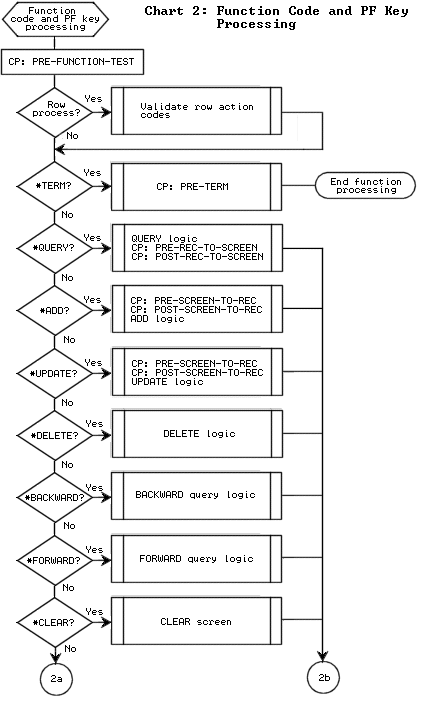
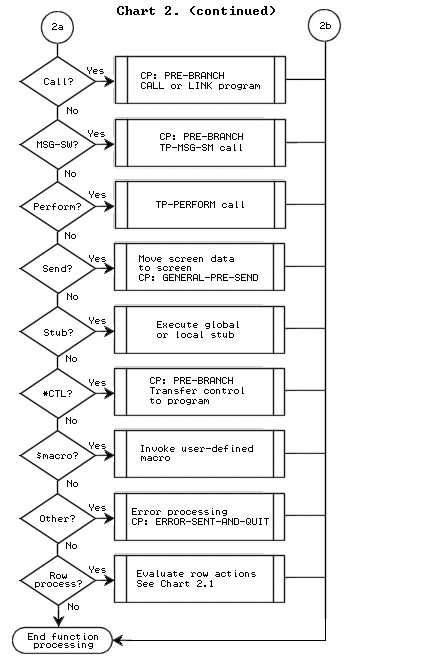
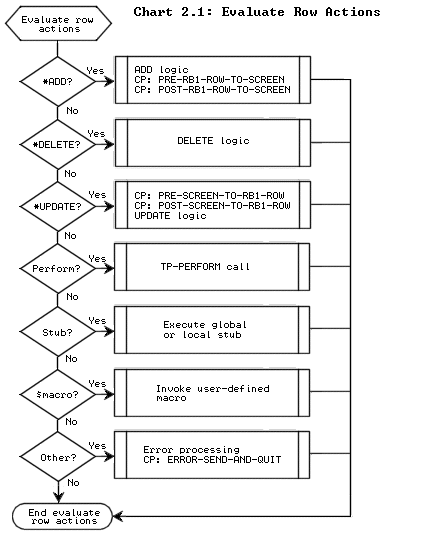
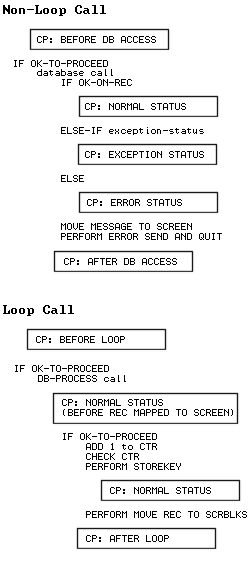
You can also execute custom logic at any of several APS-provided database call control points, selected from the Database Call Tailoring screen. The database control points are as follows:
|
Control Point |
Location |
|---|---|
|
BEFORE DB ACCESS |
Before a non-loop database call executes |
|
BEFORE LOOP |
Before a loop database call executes |
|
NORMAL STATUS |
Before Online Express maps looped records to the screen |
|
NORMAL STATUS |
After Online Express maps any records to the screen |
|
EXCEPTION STATUS |
After the database call returns a status flag with the Exception status code |
|
ERROR STATUS |
After the database call returns a status flag with the Error status code |
|
AFTER DB ACCESS |
After a non-loop database call executes |
|
AFTER LOOP |
After a loop database call executes |
The following flowchart illustrates the location of these control points in APS-generated programs.
Copyright © 2002 Micro Focus International Limited. All rights reserved.
This document and the proprietary marks and names
used herein are protected by international law.