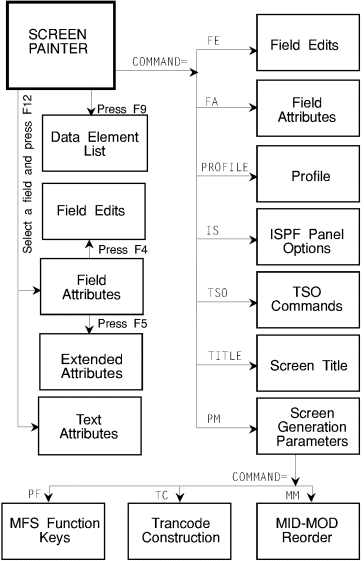
This chapter contains information on screen navigation, screen creation and design options, field attributes, field edits, modifying and generating screens, and IMS and ISPF Dialog support functions.
Use the Screen Painter to create and modify screens, and to assign field attributes, field edit functions, and generation parameters. Some guidelines are:
To specify editing session options, type profile in the Command field. Select editing session options, as follows:
|
Option |
Description |
||||
|---|---|---|---|---|---|
|
Command Location |
Specify where the Command field appears--enter TOP for the top-left corner or BOTTOM for the bottom-left corner. |
||||
|
Caps on/off |
|
||||
|
Nulls on/off |
|
||||
|
Keys on/off |
|
||||
|
Display field name |
|
To assign field attributes, position cursor on specific I/O field or text field and press PF12, or enter FA in command field to transfer to Field Attributes screen.
|
Attribute |
Description
and Values |
||||||||||||||
|---|---|---|---|---|---|---|---|---|---|---|---|---|---|---|---|
|
Name |
I/O field name; maximum 16 characters. |
||||||||||||||
|
Length |
Display field only; to change field length, move the cursor to the Xs designating the field and space over or delete the Xs representing the field, or extend the field with more Xs. |
||||||||||||||
|
Intensity |
|
||||||||||||||
|
Type |
|
||||||||||||||
|
MDT |
Applies to IMS and CICS only. ON Default. Always keep modified data tag on, whether or not the end user modifies field; default for I/O fields. Turn tag on when end user modifies field; default for text fields. |
||||||||||||||
|
Value |
Initial value for screen field; maximum is field length or 27 characters, whichever is less. |
||||||||||||||
|
Num Lock |
|
||||||||||||||
|
Light Pen |
|
||||||||||||||
|
Init cursor |
|
||||||||||||||
|
Color |
|
||||||||||||||
|
Highlight |
|
||||||||||||||
|
Modify |
IMS only.
|
To assign field edits do the following:
| Option |
Description |
|---|---|
|
Edit Selection |
Display the Edit Selection screen to see a summary of edits for that field and transfer to other edit specification screens. |
|
Internal Picture |
Display the Internal Picture screen to specify the internal storage format. |
|
Input Editing |
Display the Character Input or Numeric Input screen, depending on whether the internal picture specification is character or numeric, to assign input field edits. |
|
Error Processing |
Display the Error Processing screen to specify error messages and attributes to display when the data for the field fails input edits. |
|
Application Edits |
Display the Application Editing screen to create your own edit routine to process input data. |
|
Output Editing |
Display the Character Input or Numeric Input screen, depending on whether the internal picture specification is character or numeric, to assign output field edits. |
|
Values Or Conversions |
Display the Values or Conversion screen to specify a valid value or range of values for input data, or conversion values for either input or output data. |
|
Special Edits |
Display the Special Edits screen to select predefined date, user-defined date, of time field edit specifications. |
Select the Application Editing prompt on any Field Edit screen and complete the following options:
|
Option |
Description |
|---|---|
|
Type |
Indicate whether this application edit is a paragraph, subprogram, or APS macro. Default is P(aragraph). |
|
Name |
Enter a descriptive name for the application edit; maximum 32 characters. |
|
Arguments |
To pass a screen field or error flag, prefix the name with the screen name and a hyphen. Enter the following arguments separated by commas and enclose literals in single quotation marks: |
|
Paragraph |
Data names or literals that pass to the paragraph through a PERFORM with arguments statement in the generated program. |
|
Subprogram |
Data names that appear on the CALL USING statement in the generated program. |
|
APS macros |
Customization Facility macro terms, literals, and numeric literals. Do not enclose arguments with double quotation marks. |
|
Execute Before/After APS Edits |
Specify when the program executes this application edit: before or after the normal APS field edit routine. Default is B(efore). |
|
Paragraph COPYLIB or |
Specify an associated COPYLIB member or a paragraph or the associated USERMACS member name for an APS macro. |
|
Working-Storage COPYLIB Member |
Specify a Working-Storage COPYLIB member to be included in the program Working-Storage section. |
Alternately, select a predefined edit from the Application Edit List as follows:
| Field |
Description and Values |
|---|---|
|
Field Name |
Specify any field on the screen, including a field in a repeated block, to bypass. |
|
Value(s) |
Specify the value or values that let end users bypass input edits. Valid COBOL reserved words are SPACES, LOW-VALUES, and HIGH-VALUES. |
|
Additional Value(s) |
Enter as many additional bypass values that can fit on the line; separate each value with a comma. |
|
Program Function Keys |
Type S in the selection field to indicate which PF keys the end user can press to bypass the input edits. |
|
Internal Option |
Description
and Values |
||||||
|---|---|---|---|---|---|---|---|
|
Data Type |
|
||||||
|
Internal Length |
Enter the number of characters. The default is the screen field length. |
||||||
|
Justified Right |
Enter S to generate right justification on the COBOL picture. |
|
Input Option |
Description
and Values |
|---|---|
|
Internal Picture |
Enter S to transfer to the Internal Picture screen to change the storage format. |
|
Required |
Enter S to indicate that the end user must enter a value in the field. |
|
Input Mask |
Enter the pattern or mask to accept input data and separators. Or, enter S to transfer to the Masking screen and specify the mask in the Input Mask field. |
|
Minimum Input |
Enter the length of the shortest valid entry. Default is zero. |
|
Maximum Input |
Enter the length of the longest valid entry. Default is field length. |
|
No Embedded Spaces |
Enter S to reject characters separated by spaces. |
|
Numeric Test |
Enter S to allow only numeric data. |
|
Output Option |
Description
and Values |
|---|---|
|
Internal Picture |
Enter S to transfer to the Internal Picture screen to change the storage format. |
|
Output Mask |
Enter the pattern or mask to position data and separators. Or, enter S to transfer to the Masking screen and specify the mask in the Output Mask field. |
|
Output Picture |
Enter the output COBOL picture. Or, enter S to transfer to the Output Picture screen and specify the mask in the Picture field. You cannot assign an output picture if you use an output mask. |
|
Right Justify |
Enter S to generate right justification for the output format. |
(input1, input2, ..., inputN, I=internalvalue, O=outputvalue)
|
Field |
Description
and Values |
||||||||
|---|---|---|---|---|---|---|---|---|---|
|
Storage Format |
If you do not specify a Storage Format, select the System Date Display option. |
||||||||
|
In/Out Format |
Enter the format number. Formats 1 through 6 are valid input formats. Formats 1 through 4 contain two styles; the field length determines which is assigned. |
||||||||
|
Date Required |
Enter S to indicate that the end user must enter a value in the field. |
||||||||
|
Error Processing |
Enter S to transfer to the Error Processing screen. |
||||||||
|
System Date Displayed |
Enter S to capture the system date. |
|
Field |
Description
and Values |
||||||
|---|---|---|---|---|---|---|---|
|
Internal Picture |
Enter s to transfer to the Internal Picture screen to specify the COBOL picture characteristics. |
||||||
|
Storage Format |
Specify the internal storage format mask. This format must equal the Internal Picture length. |
||||||
|
Input Format and |
Valid mask characters are Y (year), M (month), D (day), and special characters if the field is not defined numeric. Restrictions are:
Month, day, and year must be in the same order in both the Input and Output Formats. |
||||||
|
Date Required |
Enter s to indicate that the end user must enter a value in the field. |
|
Field |
Description
and Values |
||||||||
|---|---|---|---|---|---|---|---|---|---|
|
System Date Data |
Enter one of the following:
|
|
Internal Option |
Description
and Values |
|---|---|
|
Data Type |
Specify N for numeric field. |
|
Internal Length |
Enter the number of digits that precede the decimal point. The default is the screen field length. |
|
Decimal Places |
Enter the number of digits that follow the decimal point. |
|
COMP (Binary) |
Type S to store input data in binary format. Not valid with signed data. |
|
COMP-3 (Packed) |
Type S to store input data in packed format. Not valid with signed data. |
|
Signed |
Type S to store the input data with either a positive or negative value. Not valid with a binary or packed format. |
|
Sign Leading |
Type S to store the sign at the left of the number. Not valid with a binary or packed format. |
|
Sign Separate |
Type S to store the sign in a separate byte from the number. Not valid with a binary or packed format. |
|
Input Option |
Description
and Values |
|---|---|
|
Internal Picture |
Enter S to transfer to the Internal Picture screen to change the storage format. |
|
Input Mask |
Enter the pattern or mask to accept input data and separators. Or, enter S to transfer to the Masking screen and specify the mask in the Input Mask field. |
|
Numeric De-Edit |
Enter S to validate that the data is numeric and to remove special characters. Select this option if you specify an output COBOL picture. |
|
Required |
Enter S to indicate the end user must enter a value in the field. |
|
Zero When Blank |
Move zero to the internal picture if no data is entered. Not valid with required fields or fields with input masks. |
|
Minimum Digits |
Enter the smallest number of digits required before the decimal point. Default is zero. Not valid with an input mask. |
|
Field |
Description
and Values |
|---|---|
|
Minimum Decimals |
Enter the smallest number of digits required to follow the decimal point. Default is zero. |
|
Maximum Digits |
Enter the largest number of digits allowed before the decimal point. Default is the maximum number that fits in the internal picture. Not valid with an input mask. |
|
Maximum Decimals |
Enter the largest number of digits allowed to follow the decimal point. Default is the maximum number that fits in the internal picture. |
|
Output Option |
Description
and Values |
|---|---|
|
Internal Picture |
Enter S to transfer to the Internal Picture screen to change the storage format. |
|
Output Mask |
Enter the pattern or mask to position data and separators. Or, enter S to transfer to the Masking screen and specify the mask in the Output Mask field. |
|
Output Picture |
Enter the output COBOL picture. Or, enter S to transfer to the Output Picture screen and specify the mask in the Picture field. You cannot assign an output picture if you use an output mask. |
|
Insert Comma(s) |
Enter S to format data with commas in appropriate positions. |
|
Zero Suppression |
Enter S to generate the zero suppression symbol. |
|
Floating Symbol |
Enter a $, +, or - symbol to generate a floating dollar, plus sign, or minus sign to the left of the first digit. |
|
Fixed Leading Symbol |
Enter a $, +, or - symbol to generate a fixed dollar, plus sign, or minus sign in the leftmost position. |
|
Fixed Trailing Symbol |
Enter a $, +, or - symbol to generate a fixed dollar, plus sign, or minus sign in the rightmost position. |
value
lowvalue TO|THRU highvalue
lowvalue UP
highvalue DOWN
|
Field |
Description |
||||||||
|---|---|---|---|---|---|---|---|---|---|
|
Storage Format |
Specify the internal storage format mask. Valid characters are HH (hour), MM (minute), SS (second), *s and special characters if the field is not defined numeric. The storage format must equal the Internal Picture length. |
||||||||
|
Input Format and |
Type the input and output format masks. Valid mask characters are HH (hour), MM (minute), SS (second), *s, and special characters if the field is not defined numeric. Append your mask with asterisks to indicate the AM and PM indicators that you specify, using a one-to-one correspondence. Hours, minutes, and seconds must be in the same order in both the Input and Output Formats. |
||||||||
|
Input Required |
Enter s to indicate that the end user must enter a time value in the field. |
||||||||
|
System Time Data |
Enter one of the following:
|
||||||||
|
AM Indicator |
Type the AM time indicator, such as a.m. or am. |
||||||||
|
PM Indicator |
Type the PM time indicator, such as p.m. or pm. |
Delete or space over Xs or extend field with additional Xs.
I/O field:
Text field:
I/O field:
Text field:
Space over field to be deleted or position cursor on field to be deleted and press PF6 twice.
Space over field to be deleted or position cursor on row (but not on an I/O field) to be deleted and press F6 twice.
| Parameter
|
Description and Values
|
|||||||||||||||
|---|---|---|---|---|---|---|---|---|---|---|---|---|---|---|---|---|
|
Prt Asm Mac Expn |
|
|||||||||||||||
|
No Assembler END |
|
|||||||||||||||
|
Retain Datanames |
|
|||||||||||||||
|
Exattr Modifble |
|
|||||||||||||||
|
SYSMSG |
|
|||||||||||||||
|
Intensity |
Change the intensity of all text fields.
|
|||||||||||||||
|
Color |
Change the color of all text fields.
|
|||||||||||||||
|
Blink |
Set only one field to T(rue) for text fields. Blinking, reverse video, and underline are mutually exclusive. |
|||||||||||||||
|
Parameter |
Description
and Values |
|---|---|
|
Associated Trans |
Specify an associated transaction ID; default is the first four characters of the screen name. |
|
Mapset Name |
Override an APS-generated name; maximum seven characters. To generate a multiple-map mapset that includes some or all screens, assign the same mapset name to the applicable screens in the application. The default mapset name reflects the number of characters in the screen name, as follows: 4-char name: screennameSET |
|
Line |
Starting line of the map on the physical screen; default is 001; value cannot exceed the screen depth. |
|
Parameter |
Description
and Values |
||||
|---|---|---|---|---|---|
|
Global Fld Unpro |
|
||||
|
Associated Pgm |
Name of the program receiving control from the screen; default program name is screenname. |
|
Parameter |
Description
and Values |
||||
|---|---|---|---|---|---|
|
Device Type |
Standard device characters for different model terminals and printers. Defaults are IBM-recommended device characters. |
||||
|
Cursor Feedback |
|
||||
|
DIF-DOF Name |
Override APS-generated name. Default reflects the number of characters in the screen name, as follows: 4-char name: screennameDF |
|
Parameter |
Description
and Values |
||||
|---|---|---|---|---|---|
|
Opr Logical Paging |
|
||||
|
MID Name |
Override APS-generated name. Default reflects the number of characters in the screen name, as follows: 4-char name: screennameMI |
||||
|
MID Default Values |
|
||||
|
MOD Name |
Override APS-generated name. Default reflects the number of characters in the screen name, as follows: 4-char name: screennameMO |
||||
|
MOD Fill Char |
Generate fill characters in the MOD segment statement. Valid characters are: --, NULL, PT, C, or any character value. |
||||
|
DSCA |
Override the Default System Control Area default value of X'00A0'. |
||||
|
"Labeled" Screen |
|
||||
|
Lines Per Page |
If device type is a printer, specify number of lines to print on a page. |
||||
|
Trancode: Literal |
Specify any literal value as the trancode. Default is the screen name. |
||||
|
Optional Fld Name |
Specify fieldname or MFS PFKEY to hold the trancode or operator logical paging command. Alternatively, enter *PF and assign the PF key value on the MFS Function Keys screen, or *TC and construct a trancode on the Trancode Construction screen. |
||||
|
MID Segment Exit: Number |
Generate the EXIT parameter on the MID segment statement with Number as the exit routine number and Vector as the exit vector number. Valid values are: Number 0 to 127 |
Arrange fields in the input message in an order other than their physical order on the screen as follows:
Assign trancodes, IMS commands, or logical paging commands to PF keys as follows:
Create a trancode as follows:
| Field |
Description and Values |
||||
|---|---|---|---|---|---|
|
Field Name |
Enter name of field or *PF. If you enter *pf, specify PF key values on the MFS Function Keys screen. |
||||
|
Default Literal |
Enter any literal. |
||||
|
Fill |
Enter the MID fill character for the associated field name or *PFKEY, as follows:
|
Generate native panel definition statements for the ISPF Dialog environment,as follows:
| Field |
Description and Values |
||||
|---|---|---|---|---|---|
|
Command Field |
Enter screen field name for the panel command field that allows end users to enter ISPF commands and prevents truncation errors when they use PF keys. Default is the first unprotected I/O field on the screen. This option generates the native )BODY CMD(variable) statement. |
||||
|
Long Message |
Enter SYSMSG, if specified on Screen Generation Parameters screen, or a screen field name for the panel long and short message fields. These options generate the native )BODY LMSG(variable) statement for the long message and the )BODY SMSG(variable) statement for the short message. |
||||
|
Help Panel |
Enter the name of the panel to display, if the end user requests help. This option generates the .HELP = panelname statement. |
||||
|
Pfkey Option |
|
Copyright © 2002 Micro Focus International Limited. All rights reserved.
This document and the proprietary marks and names
used herein are protected by international law.