Event Correlation Data Monitor
The data monitor type is chosen when you create a new data monitor. For information on how to create a data monitor, see Creating a Data Monitor.
This data monitor provides flow-volume level correlation between two different event streams. The data monitor specifies two filters to identify two sub-streams of events within the overall stream of events coming into Manager. It then reports how closely the volume of events in the two streams correlate, that is, when the volume of events in Stream 1 decreases, does the volume in Stream 2 increase, decrease, or just change with no relation to the changes in Stream 1? For example, if a network intrusion detection system (NIDS) were deployed in front of several web servers in a cluster, one might expect that the flow of reported events from each NIDS would be roughly equivalent. If the event flow from one of the NIDS suddenly rose or fell out of sync with the other NIDS, then it might indicate a possible problem.
|
Parameter |
Description |
|---|---|
|
Data Monitor Name |
A unique name for the monitor. |
|
Enable Data Monitor |
Enable the data monitor and collect data from the Manager. If cleared, the associated viewer configuration does not display any data. Depending on the permissions associated with the user group to which you belong, you may or may not have an option to Enable (deploy) or disable (un-deploy) the data monitor. For more information, see Enabling or Disabling a Data Monitor. |
|
Restrict by Filter |
Choose a filter resource with which to restrict the events that can affect the asset categories. |
|
Availability Interval |
Set the number of seconds to use as the interval between monitor updates. |
|
Select Field Set |
Specify a field set for use in data monitor drill-downs. When this data monitor is displayed, the user can double-click on a chart area or table row that represents an event to bring up a drill-down channel for that event. The field set specified here determines the columns (fields) shown in the drill-down channel. See also Monitoring Dashboards for information on data monitor drill-downs. |
|
Filter 1 |
Select a filter for the first event flow. |
|
Filter 2 |
Select a filter for the second event flow. |
|
Restrict by Filter |
Choose to restrict the data monitor to a particular filter. When restricting by filter, you focus on a filter that is of particular interest to you and also reduce the number of events the data monitor retrieves. |
|
Sampling Interval |
Enter the interval (in seconds) for performing correlation calculations. |
|
Number of Samples |
Number of samples to keep in memory to perform calculations. |
|
Availability Interval |
Set the number of seconds to use as the interval between monitor updates. |
|
Alarm Condition |
Condition on which to fire an alarm, for example: c > 90 && x > 0 && y > 0. In this example, c represents the correlation count from -100 to + 100, x and y represent the actual count of events. See Data Monitor Expressions for more information about the operators and functions supported in this and similar data monitor parameters that accept conditional expressions. |
|
Maximum Alarm Frequency |
Minimum time (in seconds) to wait before sending alarms for the same group. |
How correlation is calculated
The event correlation data monitor applies covariance and correlation calculations to describe how two variables are related.
Covariance is calculated by the following formula:
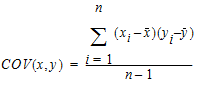
where:
x is the independent variable
y is the dependent variable
 is the mean of the independent variable x
 is the mean of the dependent variable y
Based on the covariance, correlation is then calculated by the following formula:

where
r(x, y) is the correlation of variables x and y
COV(x,y) is the covariance of variables x and y
sx is the sample standard deviation of the random variable x
sy is the sample standard deviation of the random variable y
Correlation standardizes the measure of interdependence between two variables and, consequently, tells you how closely the two variables move. The correlation measurement, called a correlation coefficient, will always take on a value between 1 and – 1:
-
If the correlation coefficient is 1, the variables have a perfect positive correlation. This means that if one variable moves a given amount, the second moves proportionally in the same direction. A positive correlation coefficient less than one indicates a less than perfect positive correlation, with the strength of the correlation growing as the number approaches one.
-
If correlation coefficient is 0, no relationship exists between the variables. If one variable moves, you can make no predictions about the movement of the other variable; they are uncorrelated.
-
If correlation coefficient is –1, the variables are perfectly negatively correlated (or inversely correlated) and move in opposition to each other. If one variable increases, the other variable decreases proportionally. A negative correlation coefficient greater than –1 indicates a less than perfect negative correlation, with the strength of the correlation growing as the number approaches –1.
The data monitor sampler takes all samples in memory and continually calculates correlation values using this formula. As an example, you could define an event correlation data monitor that displays a correlation between the number of times a network is being reconnoitered, and if that is related to the number of attacks that the network is receiving.