Example of a Scheduled Rule (Badge Swipes and Logins)
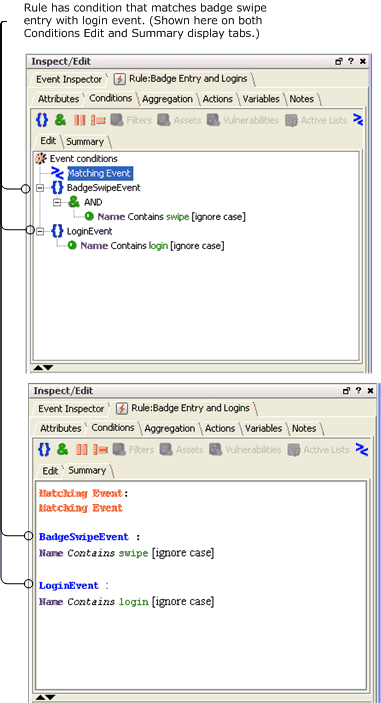
This example applies to standard rules. The following shows the conditions statements for a rule that correlates Badge swipe events that are sent to the Manager in a batch file once per day; with login events that are sent to the Manager frequently in real-time. The example rule looks for an event with “swipe” in the name and an event with “login” in the name.
Example Scheduled Rule: Condition Statements
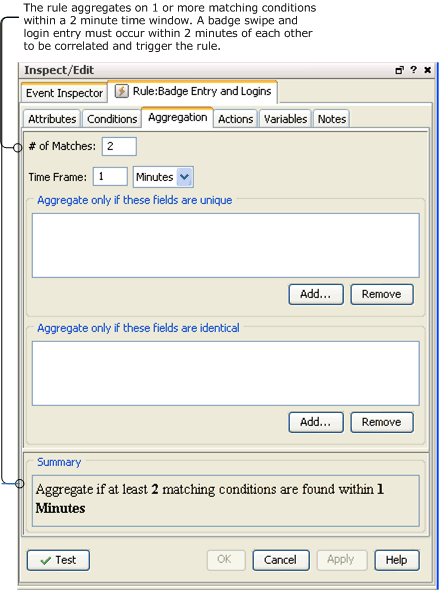
This rule sets an aggregation time window to correlate these events at 2 minutes. This means that a login event (end time) must occur within 2 minutes of a badge swipe event (end time) in order for the rule to be triggered.
Example Scheduled Rule: Aggregation
Note that if you deploy this rule in real-time rules, the rule is not triggered to capture the events you want to correlate. Although the badge swipe events are actually occurring within 2 minutes of login events (according to event end times), the Manager Receipt Time for badge swipe events is always hours later (whenever they are submitted as batched events). In this kind of scenario, the real-time rules engine would never correlate these events because the badge swipe events (with late Manager Receipt time) would be read in so much later.
If, however, you deploy this as a scheduled rule to run on a nightly basis, the rule is triggered and capture the correlated events. This is because the scheduled rules engine is designed to correlate historical data with live data.
To configure this as a scheduled rule, create a new folder (group) for it under Rules resources in the Navigator, link or move the rule into the folder, then edit the rule group to add a scheduled job (on Jobs tab). The job schedule defines when the rule runs. Once the job schedule is applied to the rule group, the rule is deployed as a scheduled rule.
To create and test the example rule:
-
Create a rule called Badge Entry and Logins.
-
On the Conditions tab for this rule, set a condition to look for two events joined by AND; an event with swipe in the event name and an event with login in the event name.
-
Save the new rule.
-
Create a new rule group folder called Badge Entry and Logins and link or move the rule into that folder.
-
Edit the Badge Entry and Logins rule group to add a scheduled job for the rule of the same name.
-
Save the new rule group.
The rule is deployed after you save the rule group with the scheduled job.
For testing purposes, schedule the job to start in 5 minutes from the current time and then use the ArcSight Test Alert connector to test sending events to the Manager with end times within two minutes of each other and different Manager receipt times. (For example, to model a real-world scenario: set Manager receipt time for badge swipes to several hours later than for logins.)
Make sure that the start time of your scheduled job is earlier than the event end times on your test events (so that the scheduled job is running to capture the events). You should see the scheduled rule triggered on correlated events.
Start Time on Example Scheduled Rule is Set Earlier than End Times of Events
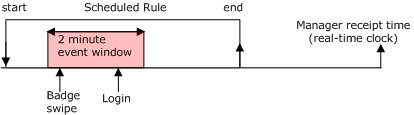
As a comparison, deploy the same rule in a real-time rules folder and send the test events again. Note that the same rule is not triggered by the real-time rules engine because it is not designed to correlate historical data.
In every scheduled run of a rule, only events arriving between that run and the earlier run are considered for input.