Adding Shortcuts for Frequently-Used Resources
This first task is not initiated on the Edit > Preferences dialog, but rather from various resource contexts in the Console. But the results of setting up shortcut keys on selected resources are shown on the Edit > Preferences > Managing Hot Keys dialog, as described here.
Where: Navigator > <Resource>
For example, choose Active Channels in the Navigator, and select an active channel such as /All Active Channels/ArcSight Administration/System Events Last Hour.
To add a shortcut to a resource:
-
Navigate to and select the resource for which you want to add a shortcut.
-
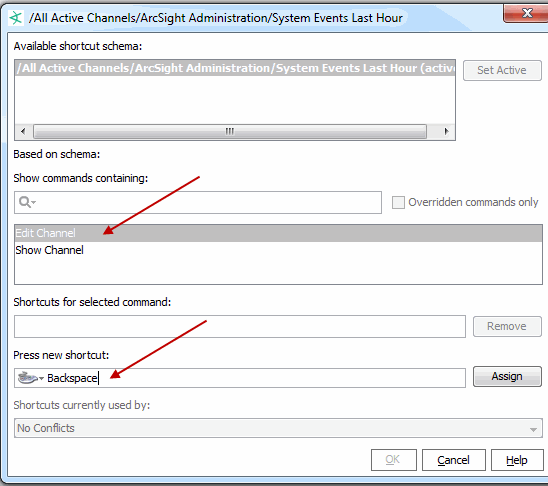
Right-click and choose Manage Hot Keys from the context menu to open the shortcut setup dialog for this resource.
-
Select the action you want to take with regard to the resource. Each resource has its own set of action, such as Edit <resource> and Show <resource>.
-
In the Press new shortcut field:
-
Optionally, click the button (
 ) to display a drop-down menu where you can set the type of shortcut to add (mouse, tab, and so forth) and set limits on keystrokes. For example, if you want to set the shortcut on this channel to Ctrl+C+H, change the keystroke limit from the default of 1, to 2 keystrokes.
 -
Type the keyboard sequence you want to associate with the command.
If the keyboard sequence you typed is not in use, a light gray
no conflictsmessage is shown in theShortcuts currently used byfield. For example, if you selectednavigator.rules, placed the cursor in thePress new shortcutfield, and typed Ctrl+Alt+X, you would get theno conflictsmessage.If you type a sequence that is already used by another shortcut, you get a message in the
Shortcuts currently used byfield stating which resource is currently using the shortcut. For example, the default shortcut fornavigator.rulesis Ctrl+Alt+L. If you typed Ctrl+Alt+R in thePress new shortcutfield, the message states that this sequence is already in use fornavigator.reports.)If you continue with the assignment, you get a prompt asking whether you want to remove the shortcut from the other resource and add it to this new one.
-
Click Assign to associate the shortcut with the resource.
-
Click OK to save your changes and close the dialog.
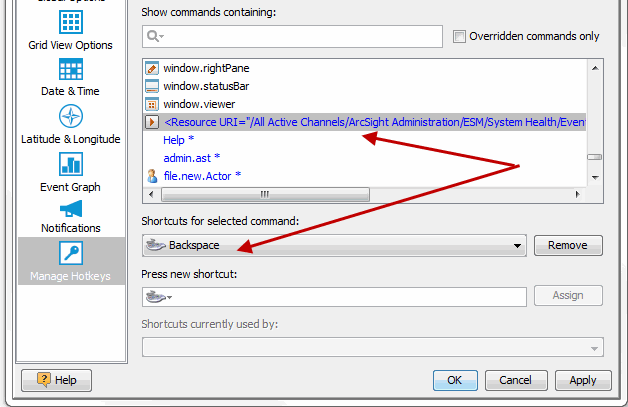
- Confirm your setting by selecting Edit > Preferences > Managing Hot Keys dialog.
- On the list of commands, locate the resource for which you created the shortcut. Resources are shown by their URIs.
-
Select the URI to display the associated shortcut, as in the following example: