Getting Started
Use the Threat Detector profiles to generate snapshots of events and investigate patterns of suspicious activity in your network. You can access the profiles from the Threat Detector use case, or directly from the Navigator panel, as described in the following procedures. If you are new to Threat Detector, try the use case first, as it provides a dashboard of the events that pertain to Threat Detector.
To use the Threat Detector use case:
- In the Navigator panel, select the Use Cases tab.
-
Navigate to the Threat Detector use case at:
All Use Cases/ArcSight Solutions/Threat Detector 2.10/Threat Detector -
Right-click the use case and select Open Use Case.
The resources that make up the use case are displayed.
-
Click the Threat Detector dashboard listed under Dashboards to display the events for the last seven days which satisfy the conditions of the Pattern Discovery profiles.
For an explanation of the profiles, see Overview.
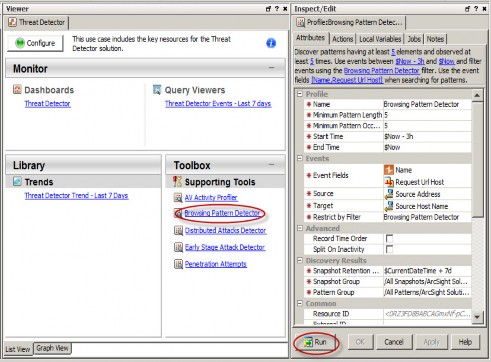
- Return to the use case and click one of the Pattern Discovery profiles listed under Supporting Tools to open the profile in the Inspect/Edit panel.
-
Review the profile settings, and then click Run at the bottom of the Inspect/Edit panel to take a snapshot of events.
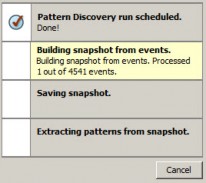
In the Viewer panel, the system processes the snapshot request and shows each process as the Pattern Discovery engine runs:
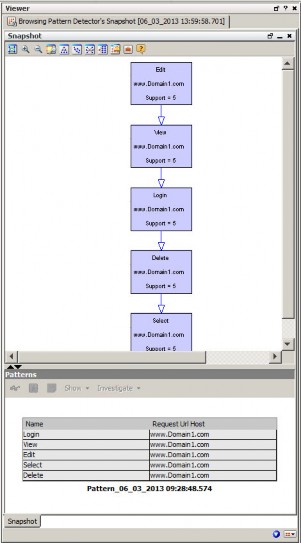
Following is a sample snapshot:
For detailed instructions on how to investigate patterns, schedule snapshots, and more, see Pattern Discovery.
To access the profiles from the Navigator:
- Open the ArcSight Console, select Pattern Discovery in the Navigator panel, and navigate to
/All Profiles/ArcSight Solutions/Threat Detector 2.10. - Right-click a profile, and select Take Snapshot.