Adding SmartConnector Filter Conditions
-
In the Navigator panel, choose the Connectors resource tree.
-
In the Connectors resource tree, right-click a SmartConnector and select Configure.
-
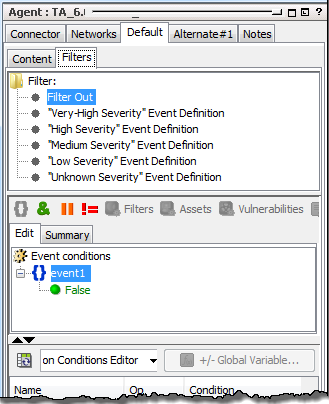
Go to the Default > Filter tab.
The Filters tab displays a lists the default filters for the SmartConnector.
-
Select a filter for which you want to customize a condition.
The Common Conditions Editor appears.
-
Right-click the event alias, event1, and select New Condition.
-
In the popup, select a data field from the drop-down menu and start defining your statement. For help with defining condition statements, see Common Conditions Editor (CCE), especially Condition Tree Command Buttons and Condition Tree Context Menu Commands.)
-
Select a logical operator on the drop-down menu. See Logical Operators for details.
-
Enter a value in the last text field to complete the conditional statement.
-
Click OK.