Debugging Filters to Match Events
You can use a filter debugger to test whether a selected filter matches a certain type of event and, if there are mismatches, to determine which filter conditions are not matching the event details.
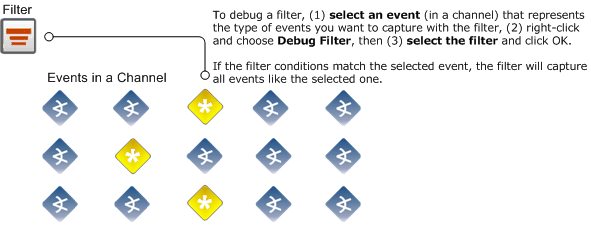
The filter debugger compares the conditions in a selected filter with the metadata that describes the selected event to determine whether the filter would capture such events. The filter definition is displayed to show the results of this comparison.
-
If the selected filter matches the event, the filter definition shows no errors or mismatches.
-
If the filter does not match the event, the filter definition highlights the mismatches between the filter conditions and the selected event with red-highlighted Xs.
Note: Red highlighted Xs in a filter as a result of filter debugging on an event do not necessarily indicate that the filter is invalid. Red highlights are shown here only to indicate where the selected filter does not match the selected event.
To debug a filter against an event:
-
Select an event in the viewer in an active channel against which you want to test a filter.
-
Right-click and select Debug Filter.

-
In Filter Selector, select the filter you want to test.
In a few moments, the Debug Filter dialog displays the filter’s event conditions with applicable indicators, as follows:
-
If the selected filter matches the event, the Debug Filter dialog displays the selected event with green checkmarks.
-
If the filter does not match the event, the Debug Filter dialog displays the selected event with red Xs.
The following example shows the debug filter results that found a combination of matches and mismatches:

In the example, you see an OR condition comparing two events. The evaluation process found no match in the first set of conditions and found matches in the second set of conditions. The particular filter we selected,
ArcSight Internal Events, happens to have a third condition to match another filter,ASM Events. However, this third condition was skipped since evaluation stopped once matches were found.
For more information about using the Event Inspector to investigate events, see Inspecting and Editing and Event Inspector.
See also Creating or Editing a Filter and Applying Filters.