Step 2 - Create a Rule that Uses Active List Values to Correlate User IDs
Now that we have an active list that maps various user IDs to unique user IDs (UUIDs), we can create a rule that makes use of the active list to correlate events coming from the same user with different user IDs (such as a badge swipe ID and a server login ID).
The following sections show how to define this example rule.
Attributes
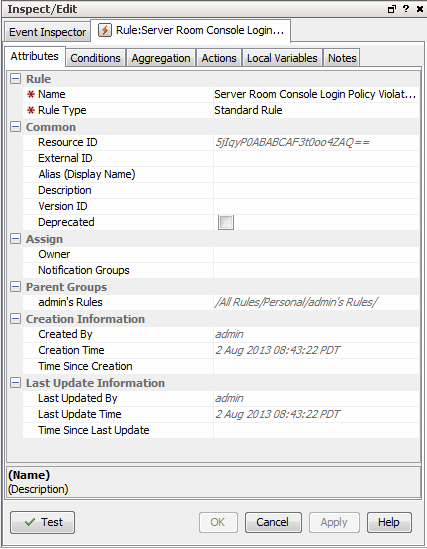
On the Attributes tab, provide a name for the rule: Server Room Console Login Policy Violations
Variable
Next, we’ll define a variable we can use to find unique user IDs (UUIDs) in the active list we created in the previous step (Step 1 - Build and Populate the Active List with User IDs).
To define a variable for finding unique UUIDs:
-
Click the Local Variables tab for your rule.
-
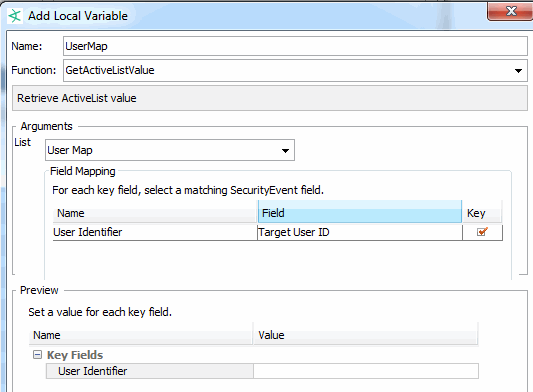
Click Add to begin. Provide these values for the variable definition.
Option
Specify this Value
Name
UserMapFunction
From the List category:
GetActiveListValueList
UserMapThis is the active list we created in the previous step (Step 1 - Build and Populate the Active List with User IDs).
User Identifier (Active List Key field mapping)
Target User IDUse the pull-down under “Field” to select
Target User IDevent field.For matching events, the rule uses the value in the
Target User IDfield as a lookup key in the active list.For example, if the
Target User IDis a login ID of “samstevens”, a badge ID of “badge0123”, or an e-mail address of “samstevens@example.com”, all of these resolve to a unique user ID of “SamanthaStevens” in the active list mapping. The variable value passed to the rule to be evaluated in a condition would be SamanthaStevens, the UUID for any of those user identifiers.The following example shows the variable definition on the Add Variable dialog.
-
Click OK to save the variable.
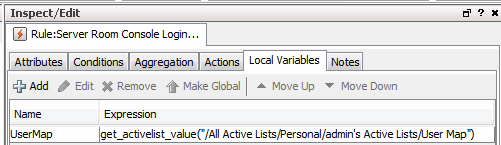
The new variable is listed on the Local Variables tab as shown:
Conditions
We define the rule conditions so that each time a server machine login occurs, the rule conditions are evaluated. (The ServerRoomConsoleLogin condition causes this to happen.)
Tip: For more information on using the Common Conditions Editor (CCE), see Common Conditions Editor (CCE) and Conditional Statements.
A comparison (Matching Event) is made between server room logins and badge swipe IDs in a 2-minute time window. The matching event uses our UserMap variable (see Variable) to get the unique ID from the active list we built in the previous step (Step 1 - Build and Populate the Active List with User IDs).
The rule is triggered in cases where you do not find a matching badge swipe ID for a user login.
We define the rule conditions as follows.
-
The
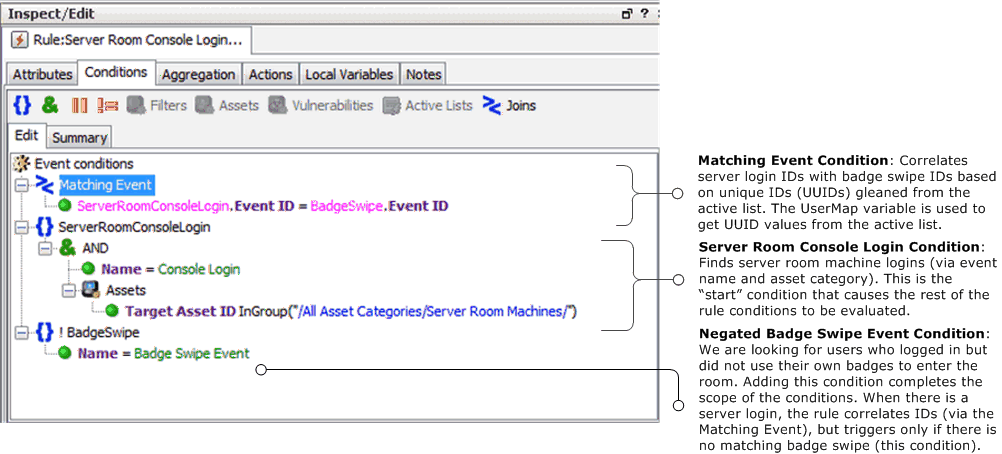
ServerRoomConsoleLogincondition finds server room machine logins via the event name and asset category. The summary of this condition is:SeverRoomConsoleLogin : ( Name = Console Login AND Target Asset ID InGroup("/All Asset Categories/Server Room Machines/") )This is the “start” condition that causes the rule conditions to be evaluated because it is looking for server logins.
-
We define a
Matching Eventcondition that correlates server machine logins (one type of user identifier) with badge IDs used for server room entry (another type of user identifier) based on the unique user ID (UUID) from the Active List.We do this by using the
UserMap.UUIDvariable we created for this purpose (see Variable).Matching Event: SeverRoomConsoleLogin.
UserMap.UUID= BadgeSwipe.UserMap.UUIDIf we find a badge ID matches for all server logins, the rule is not triggered. If there is a server login with no matching badge ID within our time window, the rule is triggered.
-
If someone logs in, we want to find a matching badge swipe ID for it. Since we are looking for users who logged in to servers but did not use their own badges to enter the room, we add a condition specifying that no badge swipe event (a negated
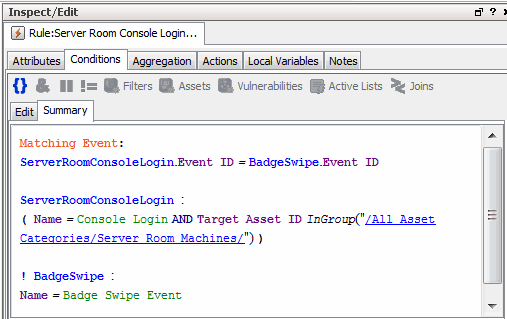
Badge Swipeevent) occurred for this user. So we add the event name called BadgeSwipe with condition Name = Badge Swipe Event, right-click the event name, and select Negated. This is to denote the event that did not occur. The summary of this condition is:! BadgeSwipe : Name = Badge Swipe Event
The following examples show the rule conditions definition (Edit panel) and summary (Summary panel).
Following is an example of a Rule Conditions Summary.
Aggregation
For this example, use default aggregation settings. Aggregate on 1 match in a 2-minute timeframe.
Actions
-
Click the Actions tab for the rule to set up an action to take if the server room is breached.
-
Select On First Event (this trigger is activated by default), right-click and choose Add > Send Notification to bring up the Add “Send Notification” Action dialog.
-
Choose the Destination Group for the e-mail, type in a message, and click OK to add this action to the On First Event trigger.
For this example, we chose
SOC Operatorsas the Destination Group. Our message is “Server room breach!”.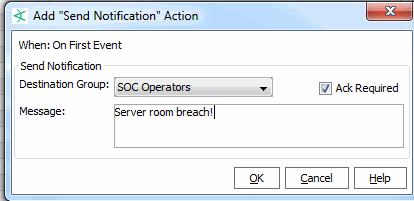
-
Click OK to save the notification definition.
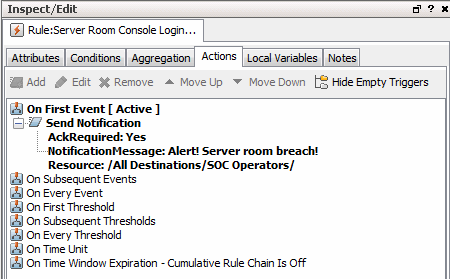
When the action is configured, it is displayed under the “On First Event” trigger as shown in the figure. According to this rule, a message is sent on the first trigger event; the first event in every time window that indicates a server room policy violation.
Click OK.