Taking a Snapshot
A snapshot is a record of qualifying events that occurred over a specified period of time and evaluated according to the snapshot profile. When the Threat Detector algorithm runs on the specified data set, it displays the result as a graphic, which you can use for investigation and analysis.
You can generate snapshots manually, or run them on a schedule.You are likely to generate snapshots more frequently during the early stage of implementation, when you are establishing a baseline of normal patterns. Each snapshot is stored in the Navigator panel in Threat Detector on the Snapshots tab.
You can also discover patterns directly from active channels. Right-click a channel in the Navigator panel and choose Discover Patterns.
To take a snapshot:
-
In the Navigator panel, go to Threat Detector and click the Profiles tab.
-
Right-click a profile in the resource tree and select Take Snapshot.
-
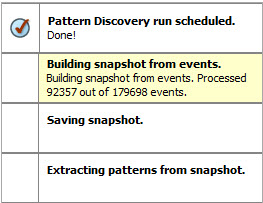
In the Viewer panel, the system processes the snapshot request and shows each process as the Threat Detector engine runs. For example:
-
When the process finishes, the system displays the snapshot in the Viewer panel. The views are linked; click a node in the snapshot view to see its details in the patterns view.
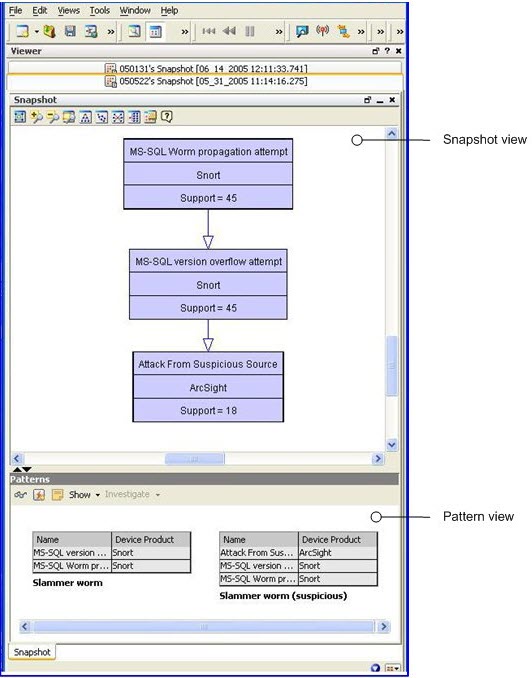
Tip: If the pattern is empty, no events passed the profile’s filter restrictions during the specified period. Adjust these profile specifications and generate the snapshot again.
Analyzing Snapshots
Use these options to analyze and respond to the patterns you discover in snapshots.
|
Option |
Usage |
|---|---|
|
Create Rule |
Use the Rules Editor to create a rule from a detected pattern of events or a selected event-level in the pattern hierarchy. |
|
Show Related Events |
Open a new channel filtered with a |
|
Show Event Graph |
Graph the complete pattern or a selected event-level in the pattern hierarchy, to analyze using the ArcSight Console's visualization tools. |
|
Inspect Pattern |
The Pattern Inspector shows details, and you can click the Actions button to apply the options described in this table. |
|
Investigate |
You can create an active channel, or add a filter to the editor, using (or not using) the name of the selected event item in the pattern. |
|
Tools |
Choose one of the network tools ArcSight provides to explore the origin of the selected event item. |
|
Annotate Pattern |
You can mark the pattern with a workflow collaboration Stage and Assign it to a user for filtering by Stages and Users resources. |