Configuring the Load Balancer
To permit access to ports 443 and 32081 for product deployment, you need to add health probe and load balancing rules for these ports to the AKS load balancer. You can perform these tasks using either the Azure Portal or the Azure Cloud Shell.
 To add a health probe for port 443 using the Azure Portal:
- In the Azure portal, locate the Azure Kubernetes resource group. (The AKS resource group name is in the format
MC_<your_resource_group>_<aks_name>_<location>.)
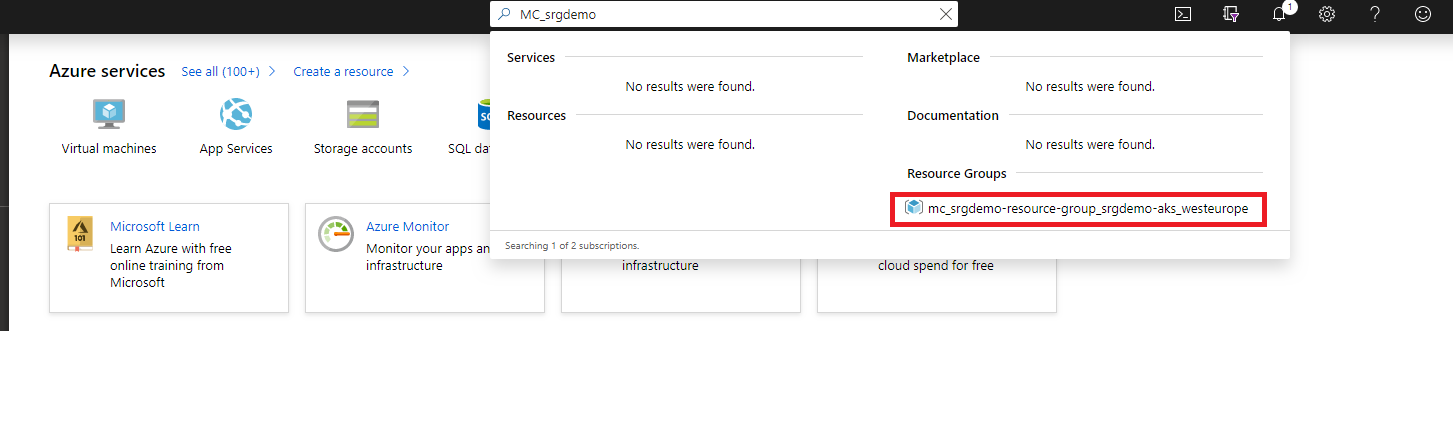
- Open the Kubernetes resource group.
- On the Kubernetes load balancer resource, click Health probes.
- Click + Add for Kubernetes load balancer health probes and specify values for the following:
- Name: Assign a name to the probe.
- Protocol: Select TCP.
- Port: Specify 443.
To add a health probe for port 443 using the Azure Cloud Shell:
- Run the following command:
az network lb probe create -g <AKS RESOURCE GROUP> --lb-name kubernetes-internal -n 443-hp --protocol tcp --port 443
For example:az network lb probe create -g mc_srg-demo_srg-demo-aks_westeurope --lb-name kubernetes-internal -n 443-hp --protocol tcp --port 443
To add a load balancing rule for port 443 using the Azure Portal:
- Open the Kubernetes load balancing rule and click Load balancing rules.
- Click + Add for the Kubernetes load balancer load balancing rules and specify values for the following:
- Name: assign a name to the probe.
- Port: Specify 443.
- Backend port: Specify 443.
- Health probe: Select the probe you previously created for port 443.
- Session Persistence: select Client IP and Protocol.
- Open the Kubernetes resource group.

To add a load balancing rule for port 443 using the Azure Cloud Shell:
- Run the following command:
az network lb rule create -g <AKS RESOURCE GROUP> --lb-name kubernetes-internal -n 443-lb-rule --protocol Tcp --frontend-port 32081 --backend-port 443 --probe-name 443-hp --backend-pool-name kubernetes
For example:az network lb rule create -g mc_srg-demo_srg-demo-aks_westeurope --lb-name kubernetes-internal -n 443-lb-rule --protocol Tcp --frontend-port 32081 --backend-port 443 --probe-name 443-hp --backend-pool-name kubernetes
To add a health probe for port 32081 using the Azure Portal:
- In the Azure portal, locate the Azure Kubernetes resource group. (The AKS resource group name is in the format
MC_<your_resource_group>_<aks_name>_<location>.)
- Open the Kubernetes resource group.
- On the Kubernetes load balancer resource, click Health probes.
- Click + Add for Kubernetes load balancer health probes and specify values for the following:
- Name: Assign a name to the probe.
- Protocol: Select TCP.
- Port: Specify 32081.
To add a health probe for port 32081using the Azure Cloud Shell:
- Run the following command:
az network lb probe create -g <AKS RESOURCE GROUP> --lb-name kubernetes-internal -n 32081-hp --protocol tcp --port 32081
For example:az network lb probe create -g mc_srg-demo_srg-demo-aks_westeurope --lb-name kubernetes-internal -n 32081-hp --protocol tcp --port 443
To add a load balancing rule for port 32081 using the Azure Portal:
- Open the Kubernetes load balancing rule and click Load balancing rules.
- Click + Add for the Kubernetes load balancer load balancing rules and specify values for the following:
- Name: assign a name to the probe.
- Port: Specify 32081.
- Backend port: Specify 32081.
- Health probe: Select the probe you previously created for port 32081.
- Session Persistence: select Client IP and Protocol.
- Open the Kubernetes resource group.
To add a load balancing rule for port 32081 using the Azure Cloud Shell:
- Run the following command:
az network lb rule create -g <AKS RESOURCE GROUP> --lb-name kubernetes-internal -n 32081-lb-rule --protocol Tcp --frontend-port 32081 --backend-port 32081 --probe-name 32081-hp --backend-pool-name kubernetes
For example:az network lb rule create -g mc_srg-demo_srg-demo-aks_westeurope --lb-name kubernetes-internal -n 32081-lb-rule --protocol Tcp --frontend-port 32081 --backend-port 443 --probe-name 32081-hp --backend-pool-name kubernetes