Importing the ESM-SOAR Integration Content
After you download the ESM-SOAR integration content from Marketplace, import it to the ArcSight Console and configure it.
-
Import the integration content to the ArcSight Console.
The following shows the content imported to the console:
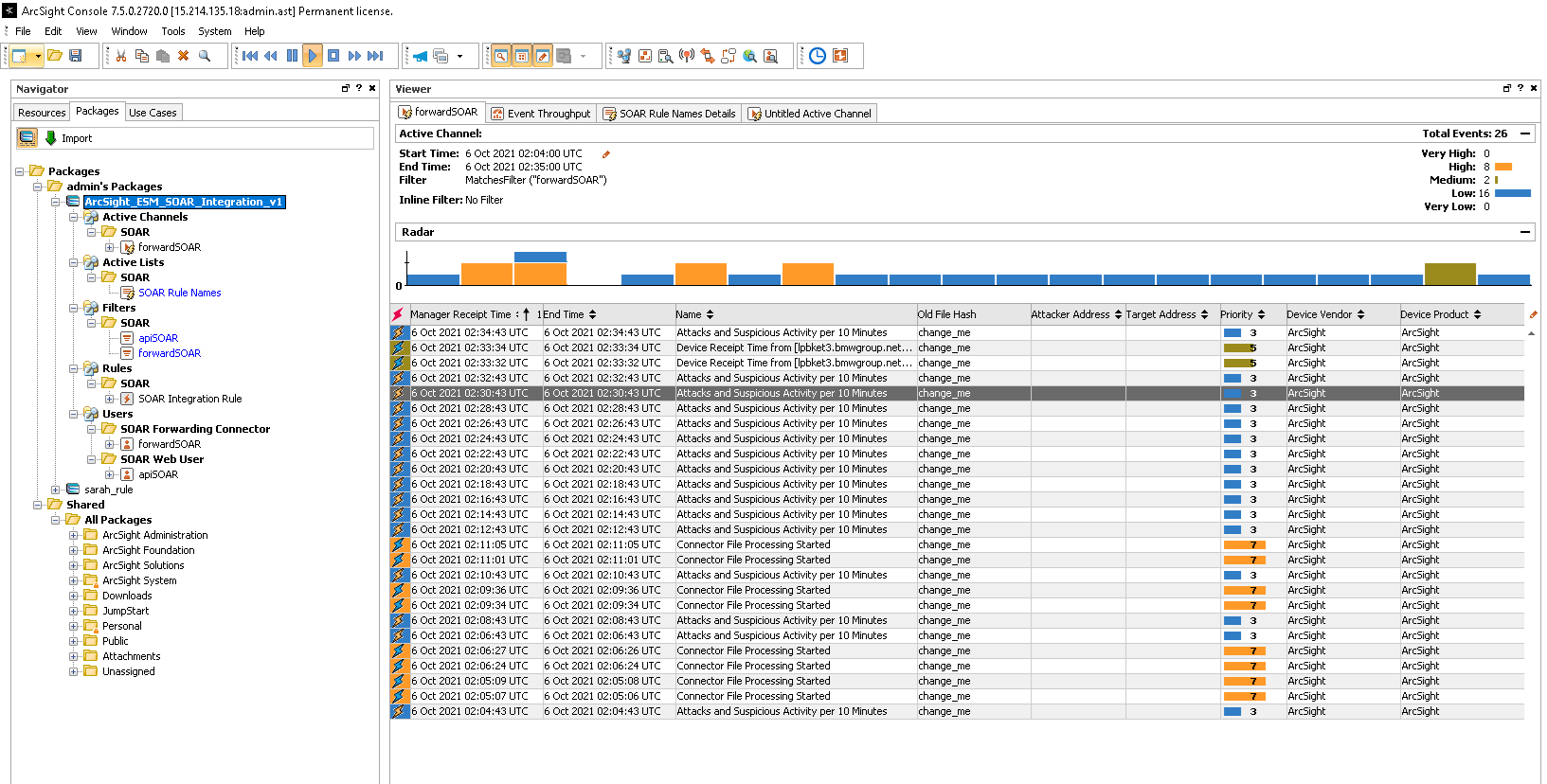
-
Reset the password for the SOAR Forwarding Connector user, forwardSOAR.
-
Reset the password for the SOAR Web user, apiSOAR.
-
Add the correlation rule names that you want to forward from ESM to SOAR to the SOAR Rule Names active list.
-
The integration content adds change me as the default value for the Old File Hash field.
This value is used during the process of adding ESM as an alert source for SOAR. The default value of the Old file Hash field is specified on the Key textbox in the Alert Source Editor.
-
Open ACL Editor for apiSOAR user on ESM console and add read and write permissions for all active lists for this user. Now you can access all the active lists on ESM from SOAR side.
Note: You can change the value of the Old File Hash field on the SOAR Integration Rule action tab in the ArcSight Console.