Monitoring Alert Ingestion
After you configure the components and push alerts to ArcSight Platform, log in to the console and verify if the widgets are populated correctly. If the widgets are not populated, troubleshoot the cause in the tab of the console.
Troubleshooting Invalid Alerts
Alerts that do not follow the data criteria are not considered for data visualization. You can view and troubleshoot error messages related to these invalid alerts from the portal.
To view and troubleshoot error messages related to invalid alerts, log in to the portal as a service provider administrator and click
. By default, you can view invalid alerts for all tenants. To view invalid alerts for a specific tenant, select the tenant name from the tenant list in the top navigation bar.
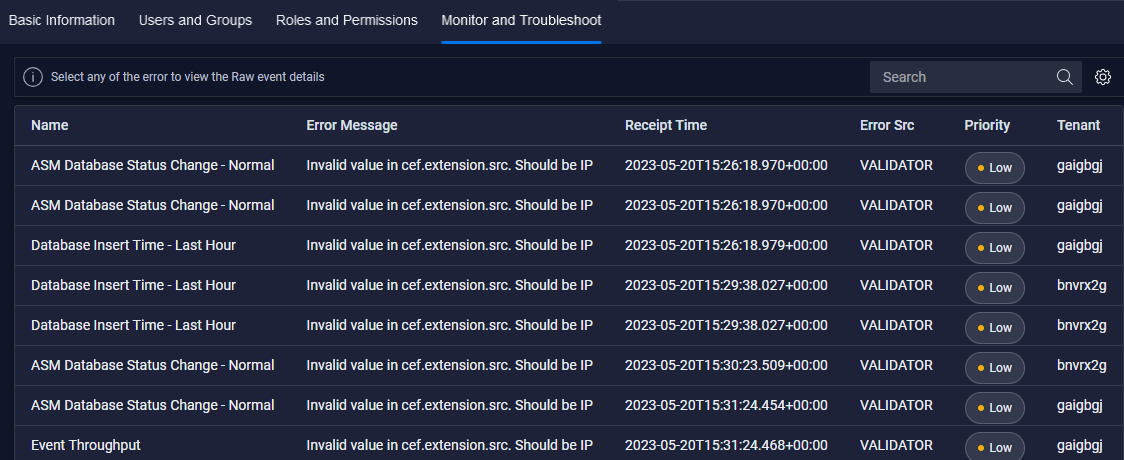
Click an error message in the list to view the details of the raw event associated with the message, as shown in the following image:
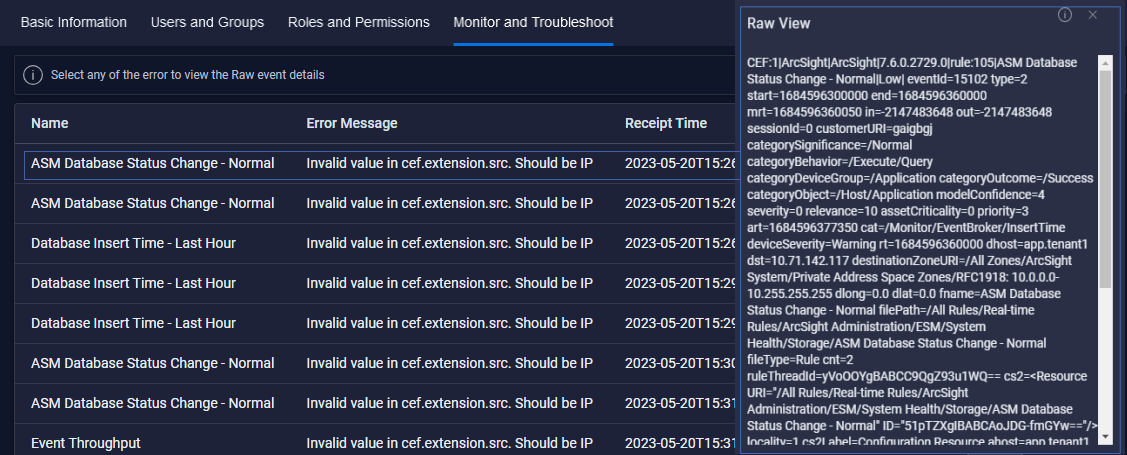
Review the error message and identify fields that failed validation. Ensure that the event contains all the required fields as described in the content guidelines and that the fields contain the correct values.