Microsoft Exchange Mailbox Store
Microsoft Exchange Server is the server side of a client-server, collaborative application product developed by Microsoft. It is part of Microsoft's line of server products, used by enterprises using Microsoft infrastructure solutions.
This section provides information about configuring Microsoft Exchange Mailbox Store and understanding its event mappings to ArcSight data fields.
With Exchange Server 2010, Microsoft has added new native audit capabilities, such that the audit logs are maintained in the mailboxes themselves. Being able to get those audit logs is very difficult due to the potential number of mailboxes and the vast amount of data they may contain, and Windows Event Log integration for this will not work.
Therefore, for Microsoft Exchange 2010 and later versions, use the SmartConnector for Microsoft Exchange PowerShell, which retrieves Microsoft Exchange Server 2010 SP1 and 2013 Mailbox Audit logs remotely, and lets you specify the mailboxes to be audited.
Configuring Mailbox Store Auditing
Use the Exchange Management Console to access the configuration area for mailbox store auditing.
Enabling Mailbox Store
To access the configuration area for mailbox store auditing, use the Exchange Management Console. The following figure shows the new Manage Diagnostic Logging Properties menu option.

To configure mailbox store auditing on a particular mailbox server:
-
Select the server in the Exchange Management Console and then select the Manage Diagnostics Logging Properties menu option from the action pane.
The Manage Diagnostics Logging Properties window is displayed.
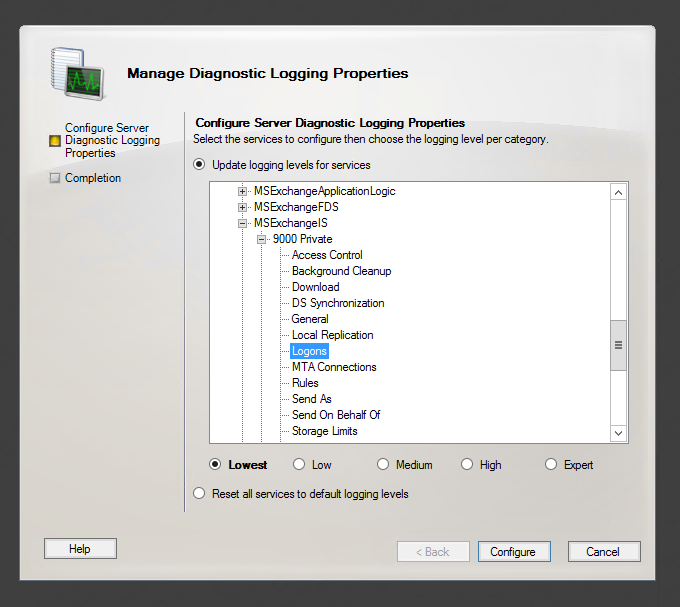
- In this window, expand the MSExchangeIS category and then expand the 9000 Private category.
-
Under the MSExchangeIS\9000 Private category, configure MailBox Store for Event 1016 by selecting Logons.
- Click Configure.
-
To view events, go to Windows Event Viewer, 1016 events are saved in Application Windows Events.
Accessing the Audited Information
To view the information logged, navigate to Event Viewer > Applications & Services Log > Exchange Auditing.
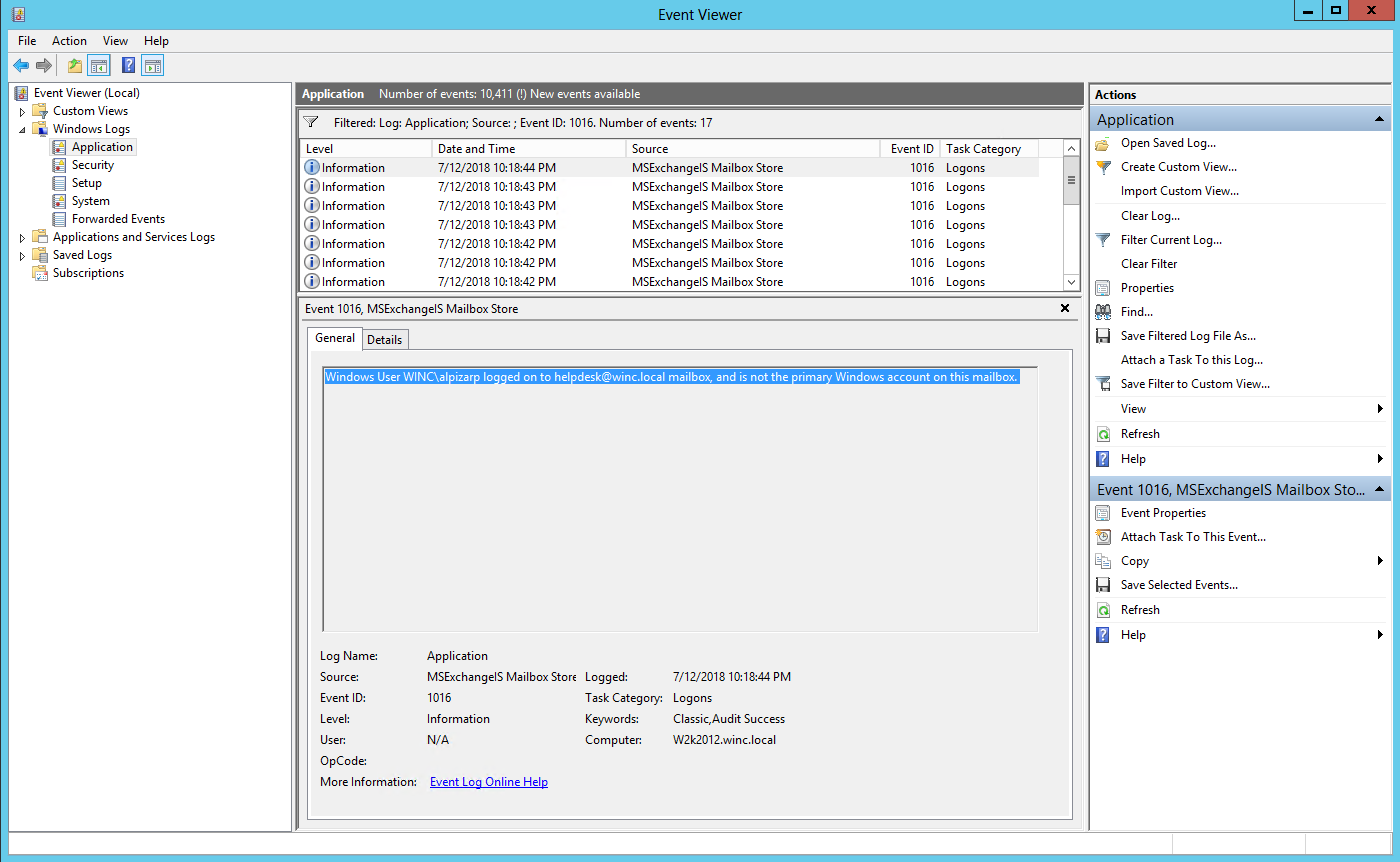
Changing Default Log Storage location
By default, the logs are stored in the Exchange Server installation directory (Drive\Program Files\Microsoft\Exchange Server\Logging\AuditLogs). The logs are archived by default when the location gets full. Therefore, make sure that the location of the logs is changed to a drive that has enough free space.
To modify the log storage location, select the properties for the Exchange Auditing log and change the options.

Excluding Service Accounts
Service accounts that have full access to the mailboxes might fill up your mailbox access log with events. To exclude service accounts from being audited, run the following command:
Get-MailboxDatabase -identity "server\sg\dbname" | Add-ADPermission -User "service account" -ExtendedRights ms-Exch-Store-Bypass-Access-Auditing -InheritanceType All