Microsoft Powershell
PowerShell is a task-based command-line shell and scripting language built on .NET. PowerShell helps system administrators and power-users rapidly automate tasks that manage operating systems (Linux, macOS, and Windows) and processes.
PowerShell commands let you manage computers from the command line. PowerShell providers let you access data stores, such as the registry and certificate store, as easily as you access the file system. PowerShell includes a rich expression parser and a fully developed scripting language.
As it is widely used by the black hat community for initial access and further lateral movement within an enterprise, it is critical to properly collect and parse Windows Powershell logs. This would open the doors to writing correlation and hunt/search tools to find the APT's and other advanced threats.
Auditing Powershell Objects in Windows
When you audit Powershell events, Windows writes an event to the Security log on the domain controller. For example, if a user attempts to log on to the domain using a domain user account and the logon attempt is unsuccessful, the event is recorded on the domain controller and not on the computer on which the logon attempt was made. This is because it is the domain controller that made an unsuccessful attempt to authenticate.
To enable auditing of Powershell objects:
- Configure an audit policy setting for a domain controller. (When you configure an audit policy setting, you can audit objects, but you cannot specify which object you want to audit.)
- Configure auditing for specific Powershell Objects. After you specify the events to audit for files, folders, printers, and Powershell Objects, Windows tracks and logs these events.
Configure an Audit Policy Setting for a Domain Controller
Auditing is turned off by default. For domain controllers, an audit policy setting is configured for all domain controllers in the domain. To audit events that occur on domain controllers, configure an audit policy setting that applies to all domain controllers in a non-Local Group Policy object (GPO) for the domain. You can access this policy setting through the Domain Controller's organizational unit. To audit user access to Powershell objects, configure the Audit Directory Service Access event category in the audit policy setting.
The computer on which you want to configure an audit policy setting must be granted the Manage Auditing and Security Log user right. By default, Windows grants these rights to the Administrators group.
To configure an audit policy setting for a domain controller (steps may vary for differing Windows operating systems):
- Click Start, point to Programs, point to Administrative Tools, and then click Powershell Users and Computers.
- From the View menu, click Advanced Features.
- Right-click Domain Controllers; then click Properties.
- Click the Group Policy tab, click Default Domain Controller Policy, and then click Edit.
- Click Computer Configuration, double-click Windows Settings, double-click Security Settings, double-click Local Policies, and then double-click Audit Policy.
- In the right pane, right-click Audit Directory Services Access, and then click Security.
-
Click Define These Policy Settings, then click to select one or both of the following check boxes:
Success: Click to audit successful attempts for the event category
Failure: Click to audit failed attempts for the event category - Right-click any other event category that you want to audit; then click Security.
- Click OK.
- Because the changes you make to your computer's audit policy setting takes affect only when the policy setting is propagated (or applied) to your computer, to initiate policy propagation, either enter
secedit/refreshpolicy machine_policyat the command prompt and then restart the computer or wait for automatic policy propagation, which occurs at regular intervals you can configure. By default policy propagation occurs every eight hours.
Configuring Auditing for Specific Powershell Objects
After you configure an audit policy setting, you can configure auditing for specific objects, such as users, computers, organizational units, or groups, by specifying both the types of access and the users whose access you want to audit.
To configure auditing for specific Powershell objects (steps may vary for differing Windows operating systems):
- Click Start, point to Programs, point to Administrative Tools, and then click Powershell Users and Computers.
- Verify that Advanced Features is selected on the View menu (the command has a checkmark beside it).
-
Right-click on the Powershell object you want to audit (
blackjack.comin the example) and select Properties.
-
Click the Security tab, then click the Advanced button; Advanced Security Settings for the object is displayed. Click the Auditing tab.
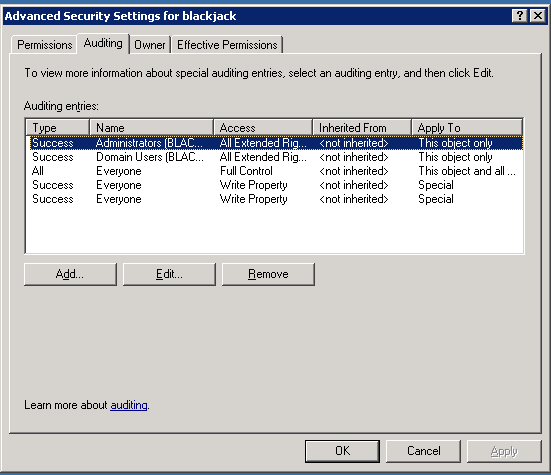
- To add an object, click Add.
- Either enter the name of either the user or the group whose access you want to audit in the Enter the object name to select box, then click OK, or browse the list of names and then double-click either the user or the group whose access you want to audit.
- Click to select either the Successful checkbox or the Failed checkbox for the actions you want to audit, then click OK. Click OK on the next two windows to exit.