Open topic with navigation
Data Validation
The data validation screen enables you to perform audit-quality validation on your Logger data files. From here, you can check the hash value of all data files within specified time range to validate the data. This feature is only available to administrators. See Users/Groups for more information on Logger user rights and how to administer them.
The data validation process takes the digest algorithm based on the Logger version in use at the time the data files are filled-up. Each data file contains up to 1 GB of data. The data validation process in Logger 6.5 and following releases for new and partially-filled data files uses the SHA-2 hash algorithm. It is also backward-compatible with the previous digest algorithm.
The process takes the hash value for the data files in the specified time range, compares it to the pre-computed value and determines the data file integrity.
Prerequisites
Users must be assigned to the following User Groups to access this feature:
- Default Logger Rights Group
- Default System Admin Group
See Setting Logger User Permissions for more information.
To validate data on Logger:
-
Open the Configuration > Data menu and then click Data Validation.
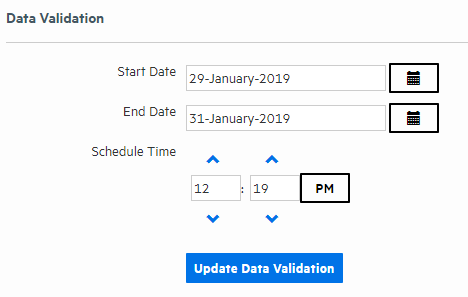
- Specify the range of data you want to validate in the Start Date and End Date fields.
- Specify the time you want to run the validation by using the up and down-arrows on the Schedule Time fields.
-
Check the Email Me Validation Results checkbox to have Logger send an email letting you know the validation result as soon as the validation process is complete. Logger sends this to the email address stored for the logged-in user.
Note: If the Email Me option is not available, Logger's SMTP server has not been configured. Logger's system administrator may be able to enable this feature. For more information, see SMTP.
-
Click Schedule Data Validation.
Note: You cannot cancel a Data Validation in progress. The data validation process can take a long time for large amounts of data. Therefore you should schedule the process to run during off-peak hours, and narrow down the time range to include only the data you are interested in.
Once the data validation process is complete, each data file in the specified time range is displayed along with its Validation Result. If the Email Me checkbox was selected, an email with the subject, "Data Validation results from Logger <logger host name>" is sent to the email address stored for the logged-in user.
To view the validation results:
-
Click the down-arrow in the Validation Result dropdown to select the type of result that you want to see. You can select All, Corrupt, Intact, or Hash Unavailable.
OR
- Click Export to download a spreadsheet containing the validation data.
The following table describes the possible validation results:
|
Displayed
Value
|
Value in
Exported File
|
Description
|
|
Intact
|
True
|
The hashes match; the data is intact.
|
|
Corrupt
|
False
|
The hashes do not match; the data has been changed or become corrupt.
|
|
Hash
unavailable
|
N/A
|
The file has no hash; the data could not be validated. This is most likely because the data file is not yet full or the data file was created by an older version of Logger.
|
Note: If the system has been upgraded from a version earlier than Logger 6.0, data from the earlier version will have a status of N/A. This is because no data validation hash value was stored when the data was created. However, in the case of future upgrades, hash validation data will be kept, and you will be able to validate the data after an upgrade.