You can create search filters to save specific queries so that you can easily use them again. Filters are similar to saved searches. However, filters save the query only, while saved searches save the time range information in addition to the query.
Your system comes with a set of predefined search filters. For more information about these filters, see System Filters/Predefined Filters. You can add new filters and edit the existing ones from the Filters page.
The following categories of filters are displayed on the Filters page.
Search Group: Search group filters provide an access control mechanism to limit the events that users in a particular user group can see. Search group filters can also be used to limit the events processed by a category of reports (see Report Category Filters). The query for these filters can contain either a regular expression or one level of unified query. For more information, see Search Group Filters.
You must have admin-level privileges to create or edit search group filters. See Users/Groups for more information on Logger user rights and how to administer them.
Search filters can have one of two different types of query:
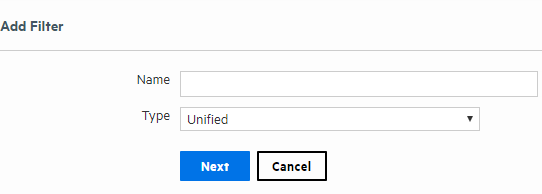
If Search Group Filter is the category, select the type: Unified or Regex Query from the type drop down.
Once you select the type, the following message will be displayed: The search group will be automatically updated in the database. Do you want to continue? If cancel is clicked, the current category remains selected.
Enter the query for the new filter.
For Unified queries:
Type a query. Logger’s Search Helper enables you to quickly build a query expression by automatically providing suggestions, possible matches, and applicable operators. See Search Helper for more information. Duplicate Storage Groups and Search Groups are not supported. The user is unable to create reports with duplicate parameters.
OR
Click Advanced Search to use the Search Builder Tool to create the query. For details about using the Search Builder Tool, see Classic Search: Using the Advanced Search Builder.
When adding a filter in Device Groups or Storage Groups, Logger displays a confirmation message as this action limits future searches for both search and report.
Click Save.
To create a filter by copying an existing one:
Locate the filter that you want to copy from the list of filters. Click the Copy icon ( ).
).
A new filter with the name “Copy of <filtername>” is created.
To edit a filter:
 ) on that row.
 Peer /Pipeline Operator:
It applies for Regex /Unified filter only. The query textbox in the search group category does not allow either [_peer] or [|] to use pipeline expressions.
If you use the advanced option, the Auto suggest for Unified Queries filters has been limited to level 1; complex expressions are not supported. "Peer" option was removed and it is no longer available in the edit section. If you attempt to add this keywords, the following message displays: "The peerLogger keyword is not allowed for Unified Search Group filters".
To delete a filter:
 ) on that row.
 See Also