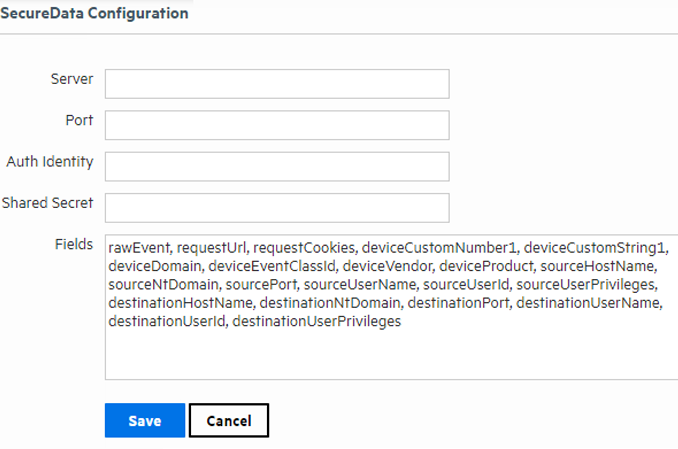
SecureData Decryption allows users to decrypt values that Logger receives from SmartConnectors. The fields are previously configured and consequently decrypted when running Searches and Reports.
Decrypting SecureData
It is required to have the following rights:
Note: The new rights are only available for users that belong to “Default System Admin Group”.
From Configuration > SecureData Configuration, users establish a connection with the SecureData Server. The SecureData Configuration window shows a list of default fields with the decryption feature enabled in Reports and Search pages.
Fields/ Columns with SecureData decryption are shown with the close padlock icon next to the search results. When the user clicks the close padlock, the system decrypts the value of that particular field. Users can decrypt all the values in a column by clicking on the padlock that is next to the column's name.
The system only decrypts values in the current page, so if the user goes to another page, the values are reset. SecureData Decryption is also enabled in graph searches, Event Details, Compare Events, and Column View.
When clicking the close padlock in a field/column where the value is not encrypted-configured, Logger will encrypt the value on the screen and not in the database. Fields/columns can also be decrypted in Classic and Smart reports with tabular format.
If the system can not be decrypted, the field will display both close padlock and error icons. The user can click how many times as necessary.
Every search tab is independent.
The icons change based on the decryption status.
| Lock Status | Description |
 Closed Padlock Closed Padlock |
The value is encrypted. If the user clicks the icon, the system sends the SecureData server a decryption request. The encrypted value is then replaced with the decrypted value. |
 Open Padlock Open Padlock |
The field is decrypted. If the user clicks on that icon the system shows original encrypted value. |
Loading Spinner  |
The field is SecureData configured and it is being decrypted. The system will show this icon the first time a value is decrypted. |
 Error icon Error icon |
The decryption was not completed due to an error. |
|
Note: For error details, click on the information icon.
|
Types of Error Messages
| Error Message | Description |
|
The remote decrypting service is unavailable, please contact your system administrator for assistance. |
Error message for the HTTP status code 503 (Service Unavailable) returned by the secure data decryption server |
|
An error has occurred in the remote decrypting service, please contact your system administrator for assistance. |
Error message for the HTTP status code 500 returned by the secure data decryption server. The user should check if remote server is up and running correctly. |
|
Failed to authorize the decrypting request, please contact your system administrator for assistance. |
Error message for the HTTP status code 403 returned by the secure data decryption server. The user should check if the request is authorized in the remote server. |
|
Failed to authenticate with the current credentials configured in the system. |
Error message for the HTTP status code 401 returned by the secure data decryption server. The user should check the credentials in the remote server. |
|
An error has occurred in the decrypting process, please contact your system administrator for assistance. |
General error message. The user should check if the information in the Secure Data Configuration Page is completed and the connection with the remote server is working. |