Open the Configuration > Storage menu and then click Storage Groups.
The Storage Groups page displays the available storage groups.
 ). The Storage Groups page displays the Edit <Storage Group Name> Storage Group pane.
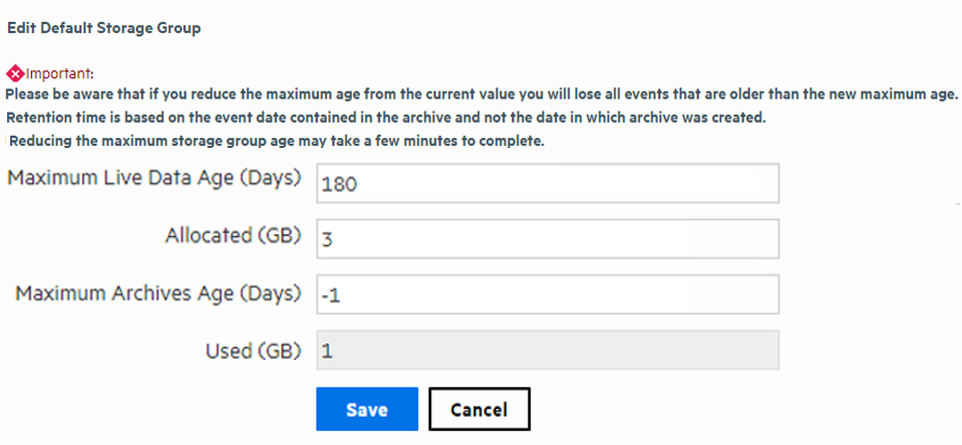
Access the Archive Storage Settings Configuration page. Update the following spaces:
- Storage Group: Edit the name of the storage group.
Note: The names of the Internal Storage Group and Default Storage Group cannot be modified.
- Maximum Archives Age: Set the maximum days for archive data to remain in the remote system. By default, the retention policy for event archives is disabled (-1 ) . To enable the policy, add a value not equal to -1 and greater than 0 which stands for the number of retention policy days. Please note the retention time is based on the event in the archive and not the date in which the archive was created.
- Maximum Live Data Age: Set the number of days for the data to remain in Logger before transition to an archive.
- Allocated: If reduction of storage group size is smaller than the Used (GB) size in the Edit Storage Group page, Logger displays a message indicating that reducing storage group size in this situation will require you to delete existing data.
If you choose to delete data to reduce the storage group size, follow these steps:
- Set the Maximum Age value to the number indicated in the message. Doing so triggers the deletion of events.
-
Refresh the Edit Storage Group screen. When the Used (GB) value is less than or equal to the storage group size you want to set, go to the next step. Otherwise, keep refreshing the screen periodically.
- Set the Allocated (GB) value to suit your needs.
-
If you wish, restore the Maximum Age setting (that you changed in Step a) to the original value.
If you choose not to delete data, go to the next step to exit the procedure.
Note: If there is sufficient space to reduce the storage group size, you can change it without modifying the Maximum Age value (to modify the retention policy to delete data).
 See Also