Logger provides a number of source types with pre-configured parsers. Additionally, you can define new source types and assign parsers to them. This enables you choose the set of fields you want to extract for a given kind of event. Only one parser can be associated with a source type, however, multiple source types can be associated with a parser. Out-of-box source types cannot be edited or deleted, but you can copy them to make similar source types to meet your needs. You can edit or delete custom source types, as desired. The source types available on your Logger may vary from the image below.
The following source types have associated parsers:
|
Source type |
Description |
|---|---|
|
Apache_access |
Apache Access Log |
|
Apache_error |
Apache Error Log |
|
audit_log |
Syslog for Audit Log files |
|
Bluecoat_proxy |
Bluecoat Proxy SG |
|
Cisco_PIX |
Cisco PIX |
|
IBM_DB2 |
IBM DB2 9.x Audit Log |
|
Juniper_NSM |
Juniper NSM 2009 Syslog |
|
logger_syslog |
Syslog for syslog files on Logger Appliance |
|
Microsoft_DHCP |
Microsoft DHCP for 2008 v6 log files |
|
syslog |
Simple Syslog |
|
TippingPoint_SMS |
Tipping Point SMS 2.5 Syslog |
|
VMware_ESX |
VMware ESX Syslog |
Logger can forward an event to ESM by using a Connector forwarder, which then forwards it to a Streaming Connector. This connector normalizes the event and forwards it to ESM.
If you need to forward events to ESM by using a Connector forwarder, you must choose one of the following source types:
|
Source Type |
|
|---|---|
|
Apache HTTP Server Access |
Juniper Steel-Belted Radius |
|
Apache HTTP Server Error |
Microsoft DHCP Log |
|
IBM DB2 Audit |
Other |
To add a source type:
Open the Configuration > Data menu and click Source Types.
The Source Types page displays the current source types. You can sort the fields by clicking the column headers.
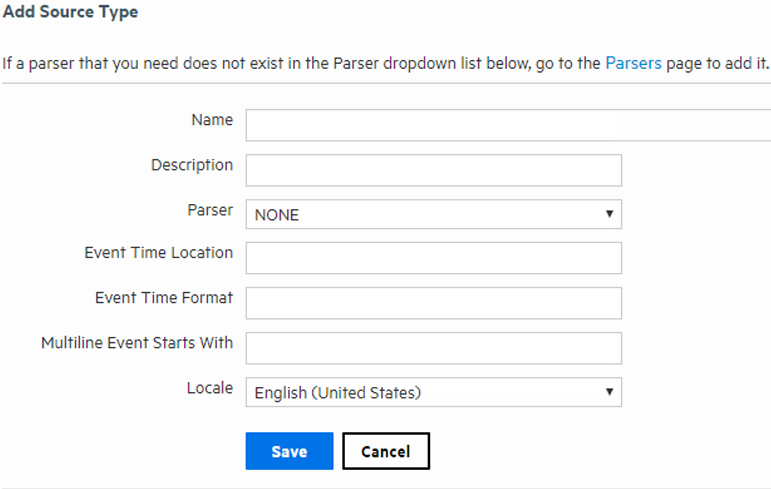
Fill in the fields to define the source type:
|
Field |
Description |
|---|---|
|
Name |
The name of the source type. |
|
Description |
A description of the source type. |
|
Parser |
The parser you want to associate with this source type. If the parser you need does not appear in the drop-down list, you can add one. For information on how to add a parser, see Parsers. |
|
Event Time Location |
A regular expression describing the timestamp in the log file. For example:
This expression specifies that the timestamp is found inside the first set of square brackets on each line. The first capturing group (the part of the regex in parentheses) is the part that is then parsed using the Date/time format. You can specify that there is no timestamp in the log file with |
|
Event Time Format |
A regular expression describing the date and time format in the log file. For example, You can specify that there is no timestamp in the log file with For more information about event time, see Time Range and Date and Time Specification. |
|
Multiline Event Starts With |
A regular expression describing how to recognize when adjacent lines are of the same event or when a new event starts. For example if each event starts with the date in the format, yy-MM-dd HH:mm:ss.SSS you could use |
|
Locale |
Select a locale from the pulldown list, such as English (United States), Chinese (Hong Kong), Chinese (Taiwan), and so on. This is locale of the data Logger should find in the file. |
To edit a source type:
Open the Configuration > Data menu and click Source Types.
The Source Types page displays the current source types. You can sort the fields by clicking the column headers.
Locate the source type that you want to update and click the Edit icon ( ) on that row.
Note: The Edit icon () is not available for out-of-box source types. You can copy the source type and make a similar one instead.
Edit the fields as appropriate.
See the table Source Type Fields for field details.
Disable and then re-enable any receivers that use this source type.
Changes in source type are not reflected in the associated receivers until you have re-enabled them.
To copy a source type:
Open the Configuration > Data menu and click Source Types.
The Source Types page displays the current source types. You can sort the fields by clicking the column headers.
 ) on that row.
 Enter a name for the new source type and edit the fields as appropriate.
See the table Source Type Fields for field details.
To delete a source type:
Open the Configuration > Data menu and click Source Types.
The Source Types page displays the current source types. You can sort the fields by clicking the column headers.
Locate the source type that you want to delete and click the Remove icon ( ) on that row.
Note: The Remove icon () is not available for out-of-box source types. You can only remove source types that you added.
 See Also