Open topic with navigation
The Powerview Data Context Menu
When you right-click within the report data, a context menu displays. The data menu deals with the more global report options. In contrast, the header context menu deals with report changes mostly at the column level. See The Powerview Heading Context Menu.
To change an option from the data context menu
-
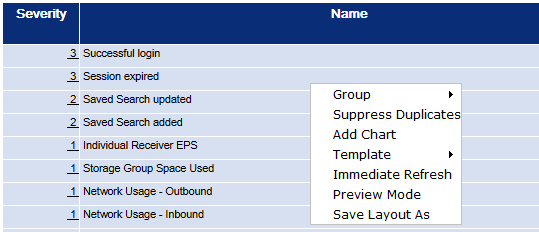
Right-click anywhere in the report data and select from the context menu.
-
You will see the action ready for confirmation in the Action Board. To apply this change immediately, click Apply in the Action board, or wait until you have made all the changes you want to make.
Tip: If you don't want to apply multiple actions at once, you can click Immediate Refresh from the data context menu to apply your changes automatically.
The data context menu contains the following options:
| Menu Option |
Description |
| Group |
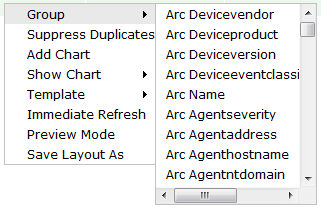
When you point to Group, a list of columns displays. Select a column to group the data by.
|
| Suppress Duplicates |
Select this option to hide duplicate events in your report display. Once applied, the menu option changes to Show Duplicates. |
| Add Chart |
Select this option to create a chart for the report. You can create more than one chart per report. See Creating a Chart for an Ad hoc Report in Powerview. |
| Template |
Select Template to choose from a list of all available templates for your report. See Template Styles. |
| Immediate Refresh |
When you select Immediate Refresh mode, your selections are applied without using the Action board. This mode will stay in effect until you deselect it. |
| Preview Mode |
Select Preview Mode to limit your report view (while you are working on it) to the first 200 records. Unselect it to view the entire report. |
| Save Layout As |
Select this option to save the report in its current form, rename, or save the report to a new location.
Tip: Save your work often. If your Logger times out, you could lose your work.
|