 for a list.
 for a column chart.
 for a donut chart.
 Logger’s default home page is the Summary page. (For information on how to use a different page as your home page, see Logger Options and Logout. ) The Summary page is a dashboard that provides summarized event information about your Logger in one screen. It enables you to gauge incoming events activity and the status of indexing. The events that are in Logger’s primary storage (not aged out due to retention or archived data) are used to generate the summary information.
Logger's home page, the Summary page, displays data in four panels. Each panel is displayed in a donut chart by default. You can change the display setting for each panel by clicking the appropriate icon.
for a list. for a column chart. for a donut chart. The panels on the Summary page can display up to 30 items. If there are more than 30, the panels display the top 30, by count.
Logger’s Home Page: The Summary Page
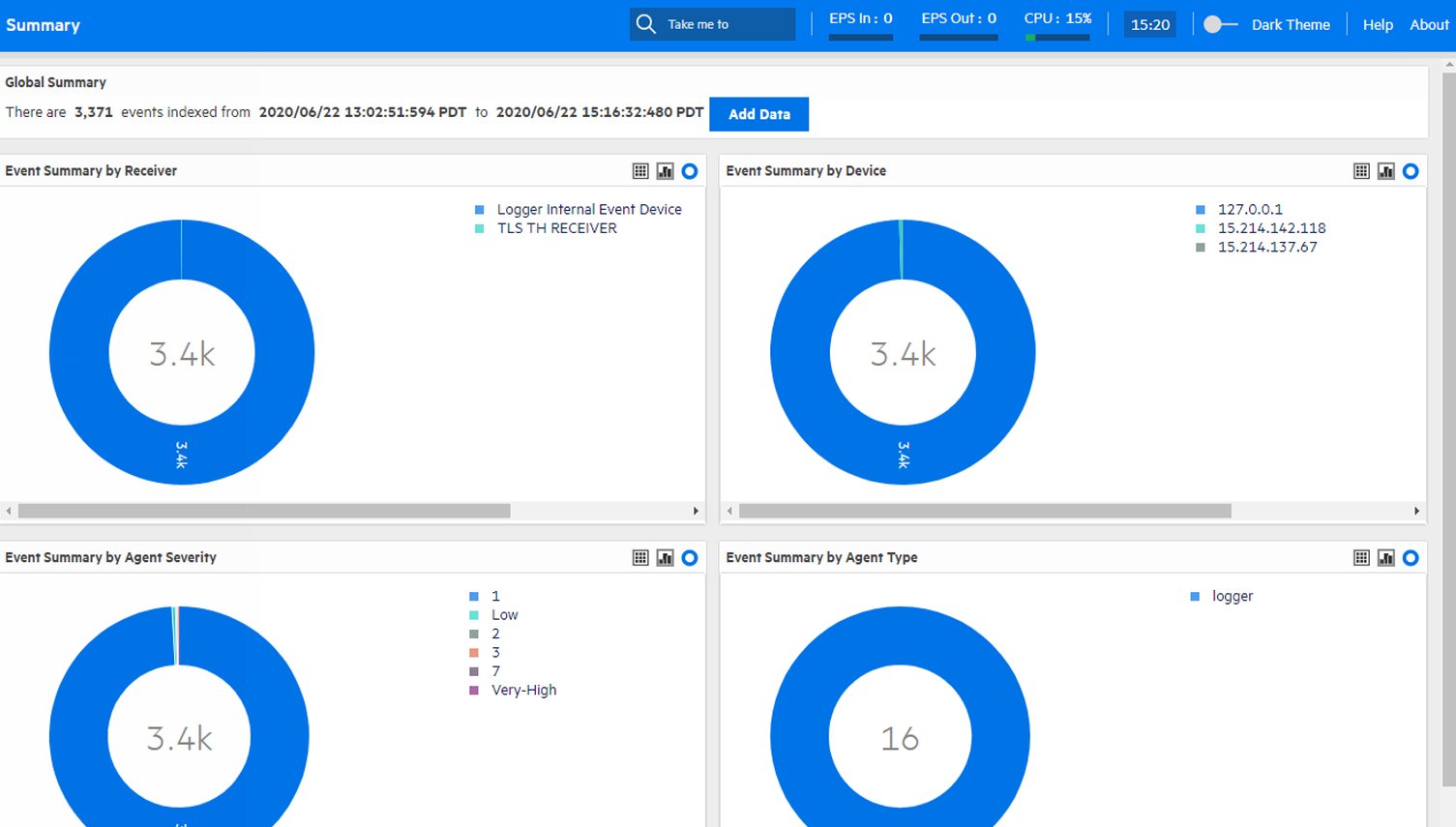
Point to a column, donut slice, or item in the legend to display information about it. For even more details, you can drill down to view the events by a specific resource—receiver, device, agent severity, or agent type. To do so, click the column, donut slice, or list resource to search for those events. The Search page opens and the search box is automatically populated with the search that generated the information you clicked on the Summary page. The Start and End fields are populated with the time of oldest events stored on your system (that have not aged out due to retention) and the current time, respectively.
For example, if you click Logger Internal Event Device under Event Summary by Receiver, the Analyze > Search page opens with the following query populated:

and the search is automatically run. If desired, you can further refine the search query to filter the search results to suit your needs. Click Go! to run the search again.
You cannot change or add other panels to the Summary page. If you need to display other information, you can create a custom Dashboard as described in Dashboards.
The information displayed on the Summary page is for your local Logger only, and does not include information about peer Loggers even if peers are configured.
 ) button at the top opens the Receivers page where you can add and manage the receivers that put log data into your Logger. For more information on managing receivers, see Receivers.
 Search Group filters that enforce privileges on storage groups are applied to the content displayed on the Summary page. However, Search Group filters that enforce privileges on device groups are not applied. Therefore, the Summary page includes counts of events in device groups to which a user does not have privileges. However, if the user tries to drill down to view events, search results in accordance with access privileges are returned as the search query is run on the Analyze page, which enforces all types of Search Group filters. Similarly, if a Search Group filter enforces privileges on both, storage groups and device groups, only the storage group enforcement is applied on the Summary page.
 See Also