About
This topic applies to both Software Logger and the Logger Appliance.
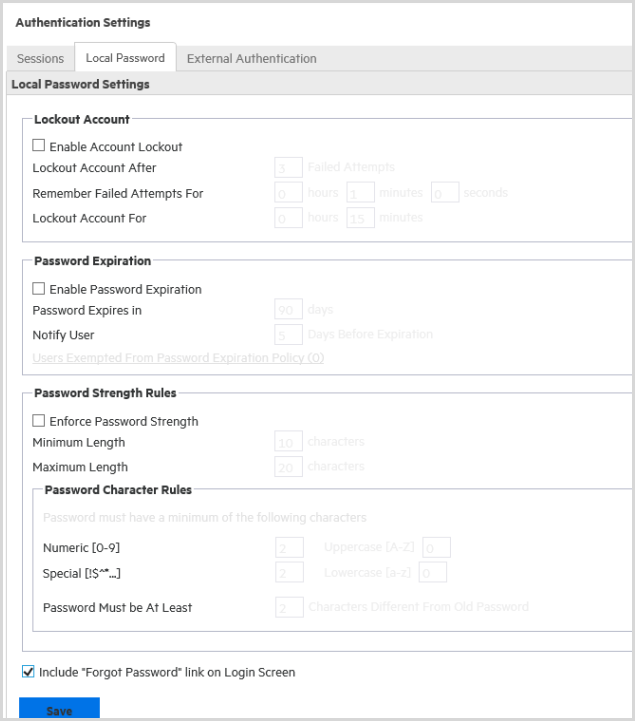
This feature is disabled by default, to enable it:
A SSL certificate must be uploaded by the user. For more information on SSL certificates, see SSL Server Certificate
Users can reset their own password from a Forgot Password? link accessible from the login screen. Logger sends the user a temporary password to the email address on file.
Procedure
1. From System Admin > Authentication > Local Password tab, scroll down to the bottom of the page,
2. Check Include "Forgot Password" link on Login Screen
3. Click Save.
The next time a user logs in, the link is enabled.
To reset your password:
On the Login dialog box, click the Forgot Password link.
The Reset Password screen displays.
Click Reset Password.
An automated email with a temporary password is sent to the email address specified for that user. After logging in with the temporary password, Logger redirects you to the Change Password page, where you can reset your password.
 See Also