This section describes how to create real time alerts. For information on Saved Search alerts, see Creating Saved Search Alerts (Scheduled Alerts). For a description of the types of alerts, see Logger Alert Types.
To create a real-time alert:
- Go to the Configuration > Data > Realtime Alerts
-
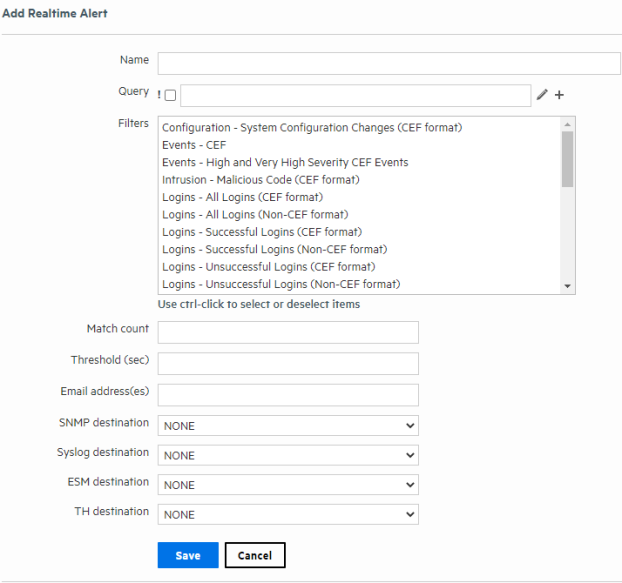
Click Add. The Add Realtime Alert dialog box is displayed.
-
Enter a name for the new alert, specify a query, or select an available filter from the list. Events that match this query are candidates for the alert.
Give the new alert a name that is unique and not likely to be duplicated elsewhere. For example, if you create an alert called "Remote" and a forwarder called "Remote," you will get an error message asking for a unique name.
-
You can edit the search filter query to meet your needs. Alphanumeric characters and spaces are acceptable, however, some special characters such as
%and&are not.For more information on Filters, see Filters.
Tip: To test the validity of an alert query, use the Search user interface. Enter the query in the Search text box in the following format:
Real time alert:
|regex “regex expression”Scheduled saved alert:
_deviceGroup IN [“192.0.2.3 [TCPC]”] name=“*[4924TestAlert]*” AND (“192.0.*” OR categoryBehavior CONTAINS Stop)If the query is valid, cut and paste the regular expression between the double quotes (
“ ”) in the Query text box on the Add Alert page. -
Enter Match count and Threshold values. If the number of candidate events equals or exceeds the Match count within the Threshold number of seconds, the alert will be triggered.
If you want to be notified when any event matches the filter (for example, for an internal event such as High CPU Temperature), enter a Match count of 1 and a Threshold of 1.
Note: If you specify Match count of 101 or higher, in order to optimize alert event size, the event does not contain event IDs for all the triggering events. As a result, the
baseEventCountfield in the event does not reflect the true number of matching events for such alert events.Triggering events are truncated in multiples of 100. Therefore, if you specify a Match count of 101, only one event is included in the alert event and the
baseEventCountfield value is 1. Similarly, if you specify a Match count of 720, only 20 events are included and thebaseEventCountfield value is 20. -
Enter notification destinations. Enter any combination of:
- One or more email addresses, separated by commas
- An SNMP Destination—for more information, see SNMP Destinations.
- A Syslog Destination—for more information, see Syslog Destinations.
- A Transformation Hub Destination - for more information, see Transformation Hub Destinations.
- An ArcSight Manager—for more information, see Sending Notifications to ESM Destinations.
-
Click Save.
When you create an alert, it is in disabled state. Enable it using the instructions in To enable or disable a Real-Time Alert:.
 See Also