A: Performance planning
This section provides information that allows you to calculate hardware requirements for Content Manager as well as performance configuration requirements for SharePoint itself.
Working of Content Manager Governance and Compliance app
The Content Manager Governance and Compliance app uses a centralized job queue, to manage and action requests from multiple web applications and site collections. The benefits of using a queue are:
- Improved user experience - A virtual elimination of waiting times for users performing management and configuration actions. Even though an action may impact thousands of SharePoint items, the user will not have to wait for that action to complete, and can carry on working. The action itself is carried out asynchronously in the background.
- Failover protection – With multiple servers in the Content Manager farm, if one server goes down, the other will continue to process jobs, with no interruption in service.
- Robustness – If jobs fail for any reason, an automatic mechanism retries the job a number of times.
- Scalable – Jobs are processed as resources become available. Scale up and out are both supported to manage workload.
A job is raised for a number of different actions performed in day-to-day interaction with the Content ManagerGovernance and Compliance app. When a job is raised, it is added to the job queue in a pending state. The job service takes jobs in a pending state and processes them. A job can either perform a single, or multiple tasks, and includes actual management of content along with configuration tasks (Applying Lifetime Management Policies, Content Type mappings etc.).
-
Single instance jobs
Single instance jobs are jobs that are raised to perform a job that only needs to be performed once. For example, a request to manage an item is carried out by a single instance job.
These types of jobs form the bulk of the jobs raised in day-to-day operation.
-
Recurring jobs
Recurring jobs are jobs that perform actions that need to be repeatedly run automatically at a pre-defined interval. These jobs will always have instances in the scheduled view, and do not require any manual intervention. Once a recurring job runs, it automatically adds another instance of itself in a pending state, to be run at a scheduled time.
The job queue is a centralized list of all jobs in the Content Manager Farm, it includes all jobs that are due to be processed, are currently running, have completed or have failed. The queue is also a useful area to identify any issues with the Content Manager Governance and Compliance app, information from the queue can help administrators and Content Manager Support to understand the nature of the problem. It can also be used to understand how the app is being used, where content in SharePoint is being managed, and who is raising manual management actions. It is only possible to see jobs for the particular tenant's job queue.
The job queue is accessible by all the servers in the Content Manager farm. That is, all workgroup servers that have the Content Manager integration for SharePoint installed and configured on them.
Each server runs the Content Manager SharePoint Service, as a local Windows service. This is responsible for coordinating the job queue. The number of jobs that a server can run concurrently is based on the value entered in the configuration tool for the server’s Maximum job count property. If a server is not currently processing its maximum number of jobs, it will take jobs from the job queue to process.
In the following example, both servers are configured with a Maximum job count of 5.
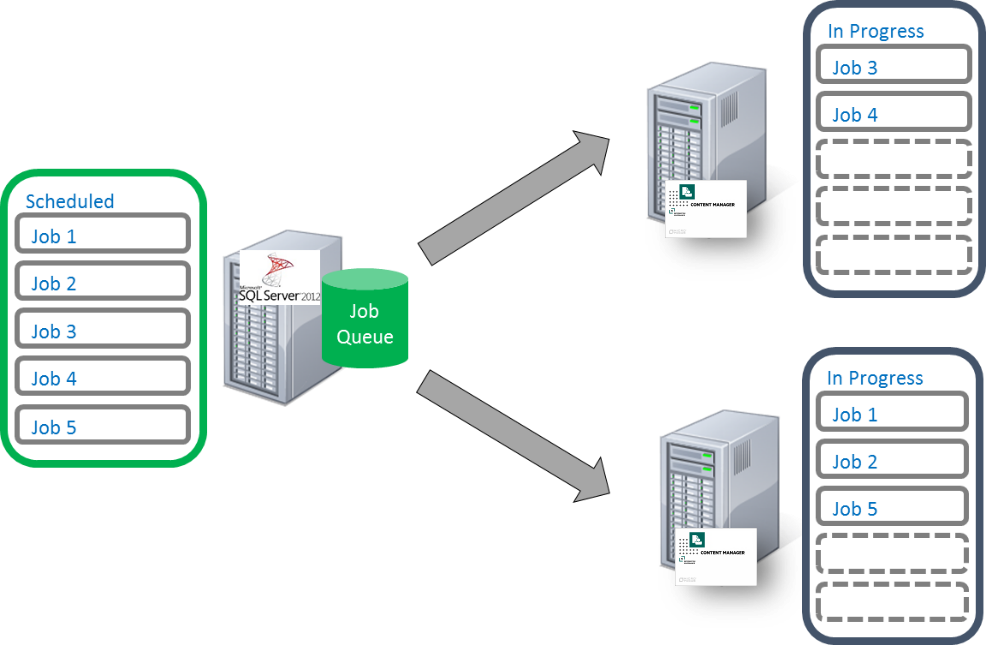
This means that the maximum number of concurrent running jobs equal to the sum of the Maximum job count for all servers you have configured in the Content Manager farm.
Job prioritization
Jobs are predominantly processed in the order that they are added to the queue, however, some types of jobs are given priority over other jobs. The following are the general guidelines that are used to determine the priority of a job.
- Respond to direct management requests or changes that trigger LMPs as soon as possible
- Correct anything that affects security as soon as possible
- Perform administration style jobs when resources permit but ahead of backlog jobs
- Perform backlog jobs (ie processing LMPs on existing content at the time of application of a LMP) when resources permit
Increasing the number of jobs that are processed
In the example above, because both servers are configured with a Maximum job count of 5, the maximum number of jobs that will ever be processed simultaneously is 10. To increase the number of jobs processed, consider the following:
-
Adding workgroup servers to the farm
Adding additional workgroup servers to the farm provides a simple mechanism for scaling out the job queue processing capacity. In the previous example, adding a third workgroup server would result in a total of 15 jobs that could be processed simultaneously.
-
Increasing the number of jobs a server can process
The configuration tool used for the Content Manager Governance and Compliance app allows specifying how many jobs each workgroup server should process simultaneously. It is possible to specify varying numbers for each server to accommodate the individual capacity of each.
The number of jobs that a workgroup server can process will be limited by the resources of that machine. When the processor and memory use is at capacity for that machine, increasing the number of jobs processed by that machine beyond that point will not result in any performance gain as all jobs will simply take longer resulting in the same throughput.
TIP: The number of jobs being processed should not cause the resource usage to be consistently more than 80% of machine capacity.
-
Considering SharePoint’s capacity
The number of requests that SharePoint can accept for a particular app is deliberately limited using a process called throttling. Throttling prevents one particular app from consuming too many SharePoint resources.
When throttling occurs, SharePoint will deny access to the app for a period of time. During this time it returns the following errors:
HTTP/1.1 429 Too Many RequestsAdditionally, in the ULS logs, the following messages are included:
ResourceBudgetExceeded, sending throttled status code.
Exception=Microsoft.SharePoint.SPResourceBudgetExceededException: ResourceBudgetExceeded at
Microsoft.SharePoint.SPResourceTally.Check(Int32 value) at
Microsoft.SharePoint.SPAggregateResourceTally.Check(SPResourceKind kind, Int32 value) at Microsoft.SharePoint.Client.SPClientServiceHost.OnBeginRequest()
Throttling is performed at a web application level. This means that if an app is being throttled on one site collection, all other site collections on that web app are also subject to throttling.
When the number of jobs being processed by the Content Manager Governance and Compliance app is high, SharePoint throttling can be encountered.
-
Modifying SharePoint’s throttling level
It is possible to increase the point at which SharePoint will throttle requests. This involves modifying the amount of time that a sustained number of app requests can access SharePoint before throttling occurs. By default, this value is 150000ms.
For on premise installations, you can increase this value using the following Powershell script (this example will increase to 450000ms):
$webapp = Get-SPWebApplication -Identity http://< web app url>

$webapp.AppResourceTrackingSettings.Rules.Add(

[Microsoft.SharePoint.SPResourceKind]::ClientServiceRequestDuration, 450000, 450000)
Increasing this value helps in situations where job processing is not consistently high and only have periods of high workload.
Where SharePoint throttling becomes an issue due to consistently high numbers of jobs, throttling can be disabled altogether using the following script:
$webapp = Get-SPWebApplication -Identity http://<web app url>
$rule = $webapp.AppResourceTrackingSettings.Rules.Get(
[Microsoft.SharePoint.SPResourceKind]::ClientServiceRequestDuration)
rule.Remove()
It is not possible to modify throttling in SharePoint Online. The following article describes SharePoint Online throttling: https://msdn.microsoft.com/en-us/library/office/dn889829.aspx
-
Adding servers to the SharePoint farm
During peak job processing periods, the resource usage of SharePoint servers will be increased. Should the resources be found to be consistently over 80% utilization, the addition of more servers to the SharePoint farm will result in the ability to process jobs faster.
-
Automatic job throttling
The processing of jobs will automatically throttle the number of jobs being processed when SharePoint throttling is encountered. Jobs will pause for a period of time while waiting for SharePoint to finish the throttling period.
If, after restarting, SharePoint throttling is encountered again, the number of jobs being processed simultaneously is reduced by 20%. This change will be reflected in the value of simultaneous jobs configured in the configuration tool.
If throttling is continually encountered, the number of processing jobs will continue to be reduced by 20% down to a minimum of 10 simultaneous jobs.
When a Tenant is removed from the Configuration Tool Tenant Settings or a trial period expires all pending jobs for that customer will be removed and no new jobs will be created.
Implementation
Implementation of the Content Manager Governance and Compliance app usually occurs on an already established SharePoint implementation. The implementation can be considered to occur in three phases:
-
An existing SharePoint farm will have existing content. Usually the Content Manager governance and compliance app is being implemented not only to provide governance to future content but also for existing content. During initial implementation there may be a large amount of content that needs to be governed that is disproportionate to the typical amount of content to be dealt with.
For example, at implementation time, an organization may have 1 Million items that need to be managed however, on average they only expect 250k new items to be created every year.
The period of time where this existing content is being managed is referred to as the Backlog phase.
It is important to separate this phase as a significant number of additional servers may be required during this time to complete the backlog phase in the time expected by the organization.
NOTE: For new SharePoint implementations, there is no backlog phase.
-
Once the backlog of existing content has been completed, the phase that refers to the “business as usual” management of content being created on a day to day basis is referred to as the Ongoing phase.
-
There is usually a period where both the backlog and the ongoing phase are concurrent. During initial implementation, whilst the existing content is being governed, users are still in a “business as usual” stage where new content is being created. This period is referred to as the Crossover phase.
NOTE: For new SharePoint implementations, there is no crossover phase.
Hardware calculations
The size of the necessary hardware will vary significantly from organization to organization. It is dependent on a number of factors. This section provides guidance for how to determine the number of servers that are necessary.
NOTE: Regardless of the number of servers calculated using these metrics, it is strongly recommended that a minimum of two Content Manager servers are always employed to provide failover protection should one server become unavailable.
Figures quoted in this section are based on servers with the following specifications:
|
Processor |
Quad core 2.6Ghz |
|
RAM |
16Gb |
It is important to understand what metrics need to be achieved. The following are the key metrics:
Backlog phase duration: how long can be allocated for the backlog phase to complete
Management delay: during the ongoing phase, how long is acceptable as a duration from the point where an item becomes eligible to be managed (either via LMP or manually) till it is actually managed.
Understanding the size and the amount of content both initially and ongoing is key to determining the resource requirements. You will need to know the following information, in order to determine hardware requirements:
-
Content sizing – backlog phase
-
Total content sizing
The details in this section are about the size of the current SharePoint implementation. This is all current content, regardless of whether the content is to become a record or not.
Value
Number of SharePoint farms
Total number of site collections
Total number of documents
Total number of metadata items
-
Managed content sizing
The details in this section describe the portion of the total content sizing that is expected to become a record during the backlog phase.
Value
Total number of documents
Total number of metadata items
-
Relocated content sizing
The details in this section describe the portion of the total content sizing that is expected to be relocated or archived during the backlog phase.
Value
Total number of documents
Average document size
-
-
Content sizing – ongoing phase
-
Total content sizing
The details in this section describe the expected amount of content to be created during the ongoing phase, regardless of whether it is to become a record or not.
Value
Total documents added per day
Total metadata items added per day
-
Managed content sizing
The details in this section describe the expected amount of content to be created during the ongoing phase, that will become a record.
Value
Total number of documents per day
Total number of metadata items per day
-
Relocated content sizing
The details in this section describe the portion of the total content sizing that is expected to be relocated or archived during the backlog phase.
Value
Total number of documents
Average document size
-
The following describe the rate of processing by the Content Manager Governance and Compliance app for various tasks. All values are based on one server only.
-
Application of LMPs
This is the application of LMPs to existing content. This does not include the time taken to apply management to the item. Management processes must be considered in addition to the application of LMPs.
Items per minute
200
Items per hour
12000
Items per day
288000
-
In place manage/finalize (no security)
This is the management or finalization of an item where security is not turned on for the site.
Items per minute
33
Items per hour
1980
Items per day
47520
-
In place manage/finalize (with security)
This is the management or finalization of an item where security is turned on for the site.
Items per minute
23
Items per hour
1411
Items per day
33864
-
Relocate/archive documents
This is the relocation or archiving of an item that has a 500Kb document associated with it.
Items per minute
24
Items per hour
1440
Items per day
34560
-
Relocate/archive metadata items
This is the relocation or archiving of an item that does not have a document associated with it.
Items per minute
29
Items per hour
1777
Items per day
42648
Calculating the required number of servers to complete the backlog requires determining the requirements for applying LMPs and the requirements for processing actions from the LMP. Using the performance metrics, it can be calculated how many days a single server would take to perform each task.
Once this duration has been calculated, then it is divided by the number days that the backlog duration should take to determine the number of servers. In the examples below, a backlog duration of 30 days has been used.
NOTE: All tables in the following sections contain example figures. Items per day has been calculated using the metrics in the Performance metrics used section.
-
Application of LMPs to all items
Total items
42M document + 2.3M metadata = 44.3M
Items per day
288000
Single server time
154 days
Servers required to meet backlog duration
5.2
-
Management/finalization of non secure items
Total items
242k document + 13k metadata = 255k
Items per day
47520
Single server time
6
Servers required to meet backlog duration
.2
-
Management/finalization of secure items
Total items
100k document + 20k metadata = 120k
Items per day
33864
Single server time
4
Servers required to meet backlog duration
.2
-
Relocate/archive documents
Total items
350k
Items per day
34560
Single server time
11
Servers required to meet backlog duration
.4
-
Relocate/archive metadata items
Total items
50k
Items per day
42648
Single server time
2
Servers required to meet backlog duration
.1
-
Total number of servers
Application of LMPs to all items
5.2
Management/finalization of non secure items
.2
Management/finalization of secure items
.2
Relocate/archive documents
.4
Relocate/archive metadata items
.1
Total Servers required to meet backlog duration
7 (rounded up from 6.1)
The ongoing phase calculations are based on calculating how many items per minute require processing then dividing it by the per minute rate that is achievable by a single server. Then dividing that figure by the number of minutes that are acceptable for the management duration.
In the examples below, the management duration used is of 1 minute has been used.
NOTE: All tables in the following sections contain example figures.
-
Application of LMPs to all items
Total items per month
16040000
Items per day
517419
Items per hour
21559
Items per minute
359
Single server rate/min
200
Servers required to meet metrics
1.8
-
Management/finalization of non secure items
Total items per month
273250
Items per day
8814
Items per hour
367
Items per minute
6
Single server rate/min
33
Servers required to meet metrics
.2
-
Management/finalization of secure items
Total items per month
273250
Items per day
8814
Items per hour
367
Items per minute
6
Single server rate/min
33
Servers required to meet metrics
.2
-
Relocate/archive documents
Total items per month
500000
Items per day
16129
Items per hour
672
Items per minute
11
Single server rate/min
24
Servers required to meet metrics
.5
-
Relocate/archive metadata items
Total items per month
26000
Items per day
838
Items per hour
34
Items per minute
1
Single server rate/min
29
Servers required to meet metrics
.1
-
Total number of servers
Application of LMPs to all items
1.8
Management/finalization of non secure items
.2
Management/finalization of secure items
.2
Relocate/archive documents
.5
Relocate/archive metadata items
.1
Total Servers required to meet metrics
3 (rounded up from 2.8)
The total number of servers required during the cross over phase is the number calculated for the backlog phase plus the number required for the ongoing phase.
Using the examples in the previous sections, this organization would require 10 servers during the crossover phase.
NOTE: The example figures used are for a large organization creating a significant amount of content.