Content Manager Client
When you drag and drop using left mouse button, the document is attached as hyper link This is due to the changes from Microsoft (https://support.microsoft.com/en-us/office/inserting-a-link-as-an-attachment-has-changed-in-outlook-desktop-0ac06bae-e78d-48a8-b43d-15f63d6b8626). So, the audit event is not logged. But you should be able to see an event as document extracted.
The following are the changes to the registry setting:
-
QuickCacheStyle: Moved from registry to System Options > Caching. You can set it there.
-
QuickCacheRefresh: Moved from registry to ini file with name changed to QuickCacheSetting
-
MaxLocsInOneACL: Moved from registry to ini file with name changed to MaxLocationsInOneACLList
-
MaxRowCountForDisconnectedRowSet: Moved from registry to ini file with name changed to MaxRowCountForDisconnectedRowSet
This is because, the option Use record properties dialog when open record is enabled by default in Content Manager. Make sure to disable this option, set the global setting, and then deploy it to all users.
Content Manager does not have specific API from Service API to throttle the resource consumption during scans.
This is a feature from Windows and not from Content Manager.
Try the following steps to disable the notifications:
-
Open the notifications settings. Press Windows + I > System > Notifications & actions.
-
Scroll to Get notifications from these senders.
From the list of applications, untoggle or disable the notification for Office Add-in.
-
The Offline Records folder will be present for each Dataset being created/registered. It is created on purpose and will not be deleted automatically as per the design.
-
After editing the document, when you save and close, it takes sometime for the document to be checked in back to the Content Manager and once it is checked in, the folder will be deleted.
During the check in time, if you try to edit another document, a new folder will be created with a number, to avoid duplicates. But the folder gets deleted once it is empty.
This is an expected behavior and is not an issue.
Content Manager does not call any explicit API for logging into Content Manager (through Face/Fingerprint/Pin). It is handled by Windows API.
This is an expected behavior. The UI of tasks available for an object is designed differently for the tagged and non-tagged records.
In a non-tagged record, Content Manager validates all the available and eligible tasks for that object. Whereas in tagged records, Content Manager does not validate every tagged record for an available and eligible task because the validation will delay the loading and displaying of the context menu. In tagged records, if the operation performed is not eligible, then the error is reported in the activity log.
To ensure optimal performance for Content Manager over a broadband connection, especially when users are working remotely, it’s important to adhere to certain network requirements. While specifics can vary based on the version and configuration of Content Manager, here are some general minimum network requirements and best practices you should consider:
Minimum Network Requirements
-
Bandwidth
-
Download Speed. At least 1 Mbps per user (preferably higher for better performance).
-
Upload Speed. At least 1 Mbps per user (preferably higher for better performance).
-
-
Latency
-
Round-Trip Time (RTT). Ideally less than 100 milliseconds. Higher latency can significantly impact the performance of data operations like checking in and checking out records.
-
-
Packet Loss
-
Maximum Packet Loss. Less than 1%. Packet loss can lead to data transmission issues and slow performance.
-
-
Network Stability
-
A stable connection with minimal fluctuations is crucial. Frequent disconnections or network instability can affect the ability to check in and check out records.
-
-
Network Configuration
-
Firewalls. Ensure that the necessary ports and protocols for Content Manager are open. This includes ports for HTTP/HTTPS traffic and any other specific ports required by Content Manager.
-
VPN. If using a VPN, ensure it is configured correctly and does not introduce additional latency or bandwidth limitations.
-
-
System Requirements
-
Client. Ensure that the client machine meets the system requirements for running Content Manager smoothly.
-
Server. Verify that the server hosting Content Manager is adequately provisioned in terms of processing power, memory, and network capacity to handle remote connections.
-
Troubleshooting Tips
-
Check Connectivity. Use network diagnostic tools (like ping and traceroute) to check the latency and path to the Content Manager server from the remote user’s location.
-
Monitor Network Traffic. Use network monitoring tools to analyze traffic patterns and identify any issues with bandwidth or packet loss.
-
Review Logs. Check both client and server logs for any errors or warnings that might indicate network-related issues.
By ensuring that users meet these minimum network requirements and addressing any network-related issues, you should be able to mitigate problems with checking in and checking out records when working remotely. If issues persist despite meeting these requirements, it may be necessary to conduct a more detailed investigation into specific network or application configurations.
This is an expected behavior. When the numbering is based on the Container, then it is mandatory only for the first time.
A Record Type could have default values set for some of the fields. And the values are huge in the database for these fields, then every time you choose the Record Type, you experience a delay. Because it has to run through the database and fetch the default value each time you make a call.
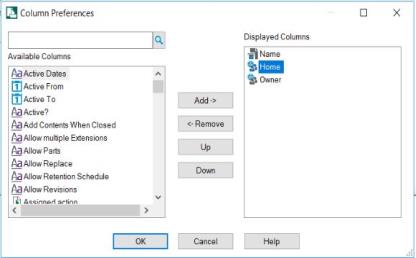
Alternatively, in the Column Preferences window of the Record Type, remove the Home and the Owner columns. Then, Administrator can save these settings as Global Settings that can be accessed by other users. Hence, there will not be any delay in loading the Record Types when creating a record.
If you encounter performance issues, check the following:
-
Antivirus or network scanning tool is running
-
Check WGS settings - threads, ping interval, CMS etc
-
Check the pings from Client to server
-
Recent updates to OS or to the system
The KB article provides the information.
This is an expected behavior.
All check-ins from offline records (using the Office integration or the Edit function) will move the document being checked in to the Recycle Bin after the check-in has been successful. Previously, this was only applicable to the Draft documents.
Alternatively, use Zero Footprint Office integration or Content Manager client that supports the record creation with the document attachment, hence Knowledge Worker can create the record.
As per current security design and fail safety measure, the existing token gets purged first and then refresh token request is applied. If there is a delay in getting refresh token or the refresh token request fails, the Security fail safety ensures that the user remains in purged state. So, as per current design, this is expected.
Currently, there is no option to export the Content Manager reports in Excel format.
They are the short version of Database ID which is used in internal business logic. It helps developers to debug, such as navigate cache, etc.