Contact
Get started
Connect is a single location within Micro Focus Data Discovery to manage your data and the agents responsible for processing that data. You can also review your data patterns from multiple perspectives.
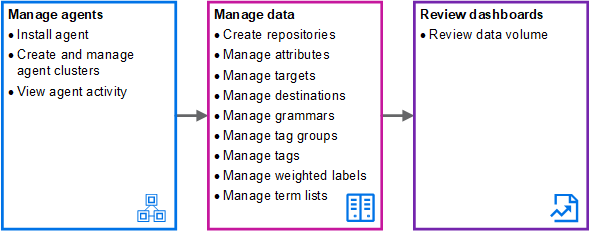
When getting started with Connect, complete the setup in the following order:
Data Discovery home page
After a successful log on, the Data Discovery home page opens. From the home page, you can access all components within Data Discovery you have access to.
From within each Data Discovery component UI, click Data Discovery or the Data Discovery icon (DD) above the primary navigation panel to navigate to the other UIs within the application.
Connect UI
Connect includes the following general features:
-
Click the menu icon (
 ) to hide or show the primary navigation panel.
 -
Click the help icon (
 ) to open the Help Center.
 -
Click the settings icon (
 ) to see the user you are logged in as, to log out or to view the application version number.
 -
Where applicable in a list view,
-
Click the item name to open the edit dialog.
-
Click anywhere in a list row to highlight the row. This also reveals applicable action icons in the right column.
-
Hover over the row to reveal applicable action icons in the right column.
-
Click the open detail panel icon (
 ) to open a detail panel for the selected item; click the close icon (
 ) to close the detail panel.
 -
Click a column header to sort the contents by that column. An icon next to the column header indicates whether the order is ascending (
 ) or descending (
 ).
).
-