Connect
Analyzed Sensitive Data
The Analyzed Sensitive Data dashboard depicts the distribution of sensitive data under management. Content is identified by the weighted labels that are applied as content is processed (metadata and content indexed or collected).
Click any data segment in a chart to go to the Research document list page and see the list of items that segment represents. On the Research document list page, hover over the VIEWING CONTENT OF box above the filter panel to view the criteria for the resulting list of items. For example, if you click a data segment within the Clusters chart, the document list displays all items for the selected agent cluster, agent, weighted label.
The Analyzed Sensitive Data dashboard includes the following graphical views as it relates to your analyzed sensitive data under management.
TIP: For data values that include "unique" counts, a unique item is one that exists in only one of the groupings defined by the chart.
-
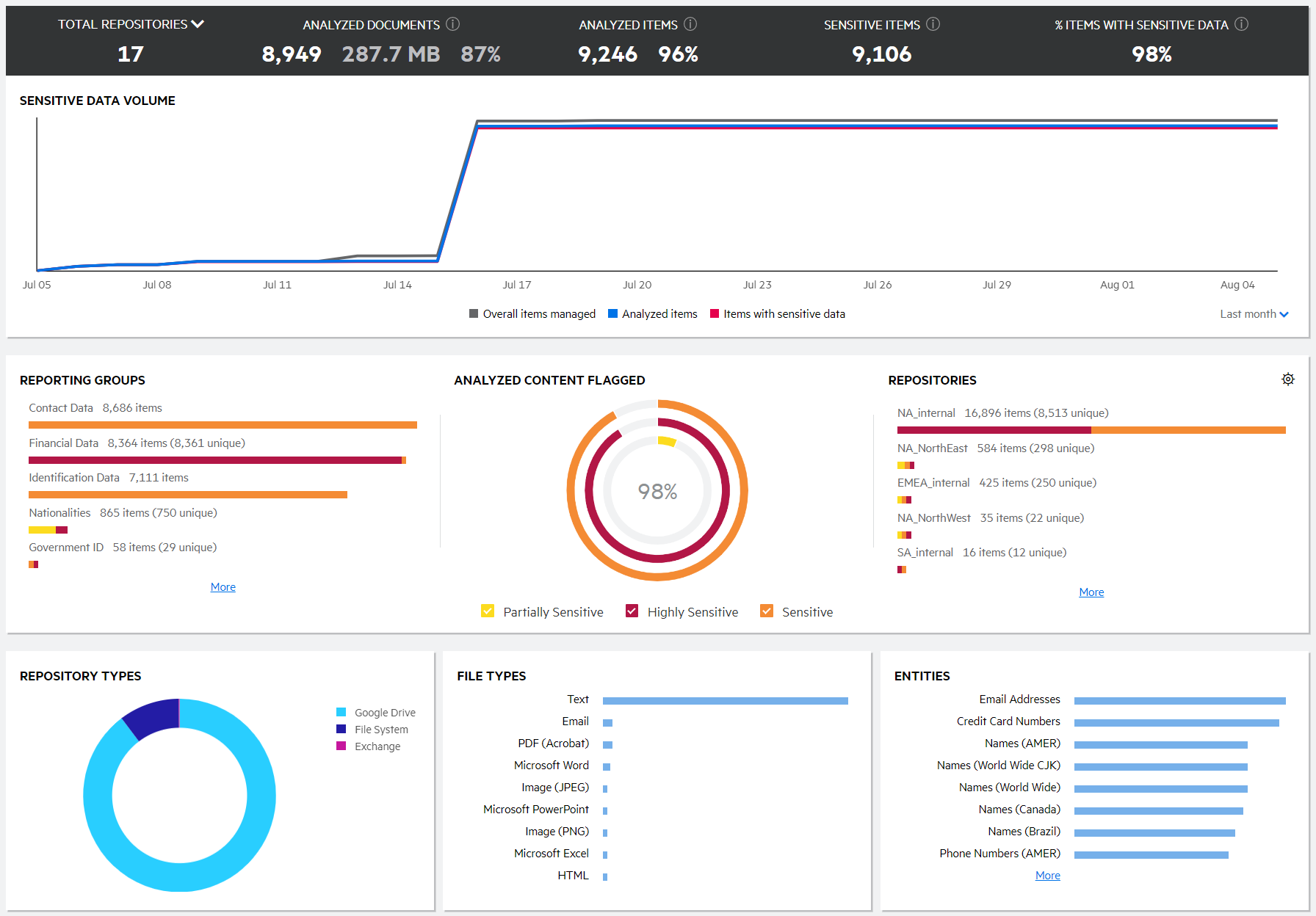
Using the Sensitive Data Volume chart, view the growth of sensitive data under management compared to overall data under management for a specific time frame. Click the information icons (
 ) on this chart to view the description of the data values. Beneath the chart, click the date dropdown to view data for the last year, the last six months, the last month (default), or the last week.
 Hover over a data point along either data line to view the total number of items for that date.
-
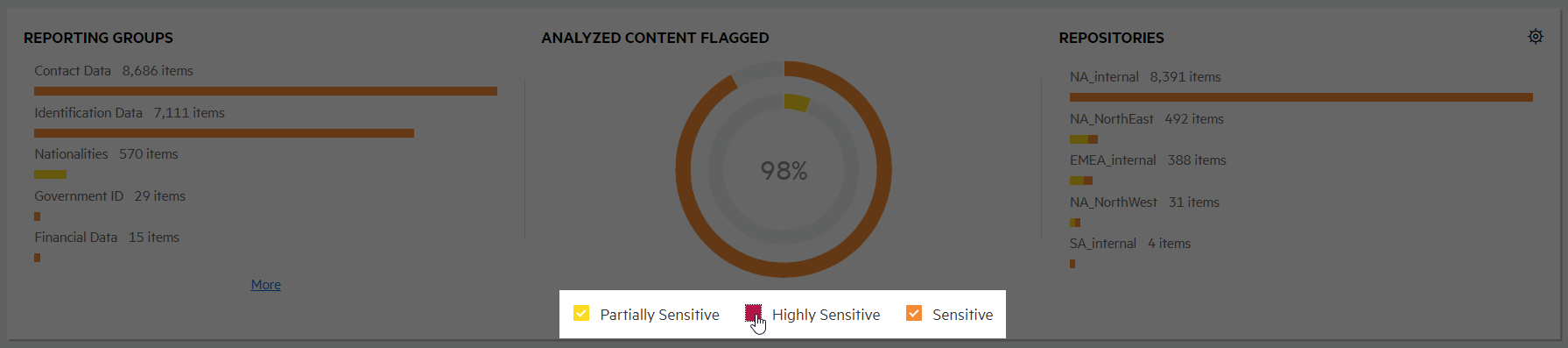
Using the Reporting Groups chart, view the amount of analyzed sensitive data for each tag in a reporting group. The five reporting groups with the most sensitive data are included. Hover over any data segment within a reporting group to view the number of sensitive data items associated with the weighted label.
Select or clear the checkboxes in the legend for this section to show only the desired weighted labels in the charts. The charts in this section refresh based on your selection.

If more than five reporting groups exist and you have permission to review tags in Connect, a More link displays. Click the link to go to Connect to view all reporting groups.
-
Using the Analyzed Content Flagged chart, view number of sensitive data items for the top three weighted labels relative to the percentage of overall flagged content.
Select or clear the checkboxes in the legend for this section to show only the desired weighted labels in the charts. The charts in this section refresh based on your selection.
-
Using the Repositories/Clusters/Repository attributes chart, view the number of analyzed sensitive data items relative to repositories or agent clusters, or to a selected repository attribute.
By default, the repository information displays. To show details for agent clusters or a specific repository attribute instead, click the settings icon (
 ) to the top right of this chart and then select Clusters or the desired attribute. The selection you make here is saved as your preference and will display going forward until you make another selection.
When a repository attribute is selected, the top five attribute values display. If more than five attribute values exist and you have permission to review repositories in Connect, a More link displays. Click the link to go to Connect to view all repository attributes and their values.
Select or clear the checkboxes in the legend for this section to show only the desired weighted labels in the charts. The charts in this section refresh based on your selection.
-
Using the Repository Types chart, view the number of sensitive data items relative to repository types.
-
Using the File Types chart, view the number of sensitive data items relative to file types.
-
Using the Entities chart, view the number of sensitive data items relative to identified entities. The top eight identified entities display. Click the More link to go to the Sensitive Trend Analysis dashboard and review all entities identified.