Establishing the CouchDB Settings in the Admin Client
Follow these procedures to establish the CouchDB settings in the Admin Client.
- In the Admin Client, click the Configuration tab.
- Click Target-Driven Configuration.
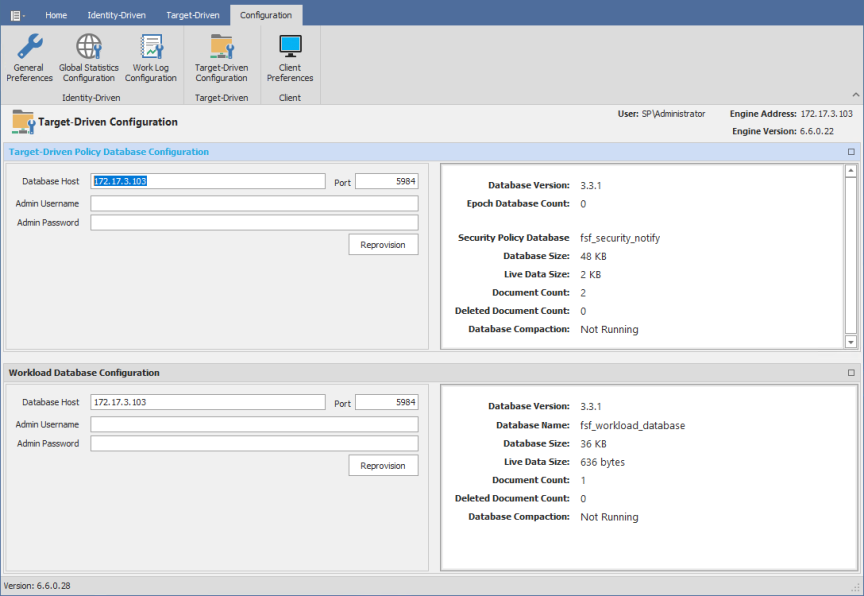
- In the Database Host field, enter the IP address or DNS host name or the server hosting CouchDB.
- Set the Port field address setting to
5984. - Enter the CouchDB admin username and password and click Provision.
- When notified that the database settings have been saved, click OK.
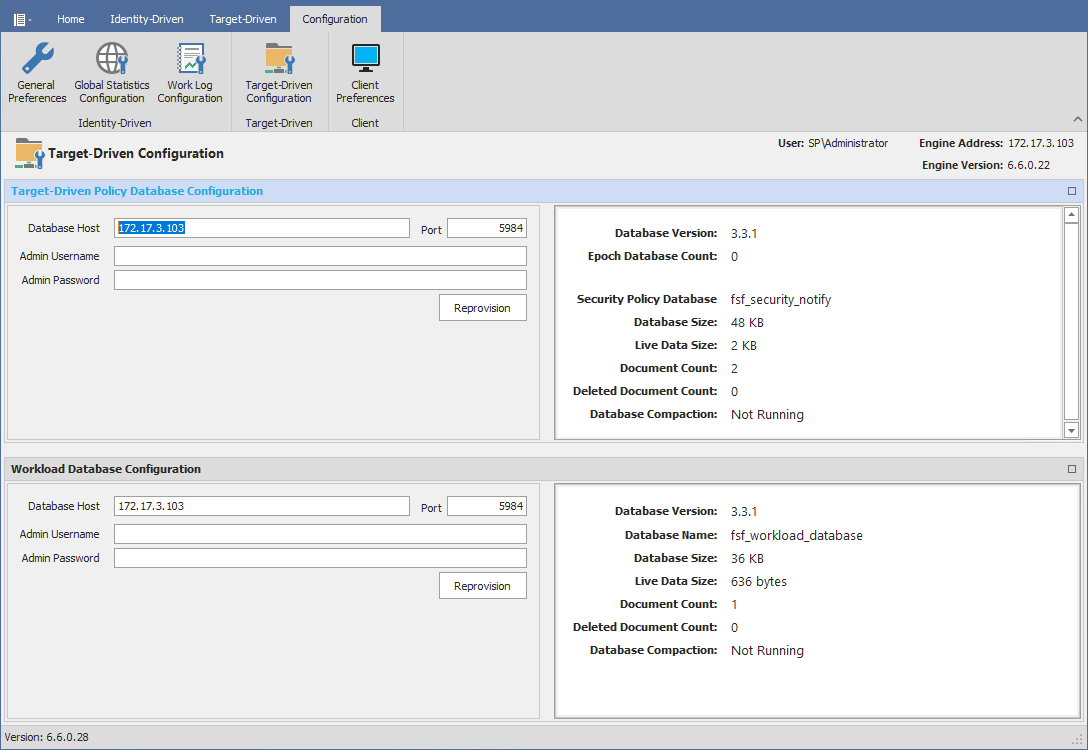
The Target-Driven Database Configuration heading is blue, indicating that the fields in that region of the page can be edited.