Installing CouchDB
Apache CouchDB is the NoSQL database that File Dynamics uses for:
- Work Log reports
- Security Policy reporting for Notification, Lockdown and Fencing policies
- Workload reporting
If you do not plan to initially create any of these policies, there is no need to install CouchDB. However, we recommend that you do so anyway so that your system will be ready once you decide to do so.
Recommendations
- Disk space requirements depend on a number of variables including the number of policy target paths, the number of files and folders in each target, and the frequency of policy execution.
- We recommend the CouchDB host be a multi-processor system with a minimum of 4 GB of RAM. If you host CouchDB on a server that also hosts the Engine, Event Monitor, or SQL Server, the RAM requirements are in addition to the RAM for those services.
- While CouchDB may be installed on any of its supported platforms, we only support troubleshooting of CouchDB instances installed on Windows or Linux platforms.
Download and Install CouchDB
The following are a minimal set of procedures for installing CouchDB.
-
From https://couchdb.apache.org/#download, download the latest version of CouchDB for the server that will host the CouchDB database.
-
Launch the downloaded installation file.
-
Follow the wizard steps to complete the installation. Installation and configuration guides can be found at https://docs.couchdb.org/en/stable/install/index.html.
-
Launch Apache CouchDB Fauxton. This launches the Apache CouchDB administrative interface in a web browser.
-
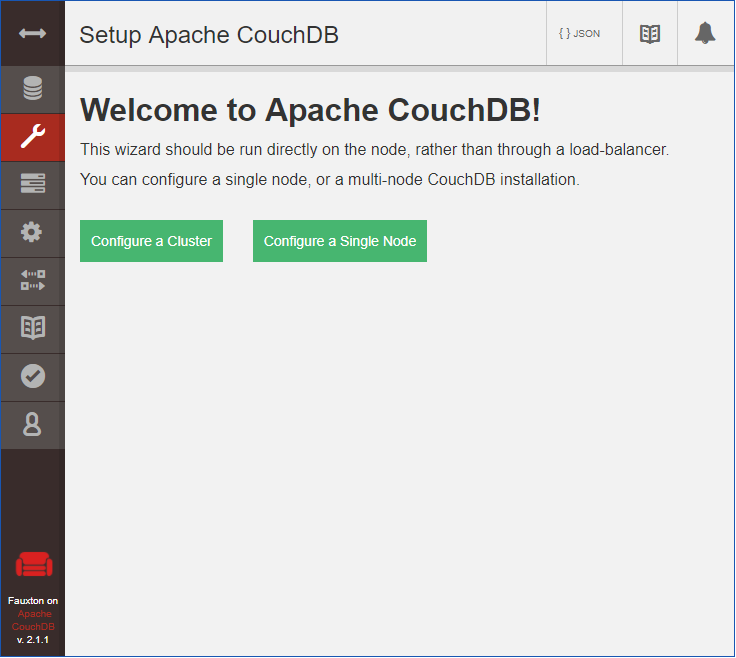
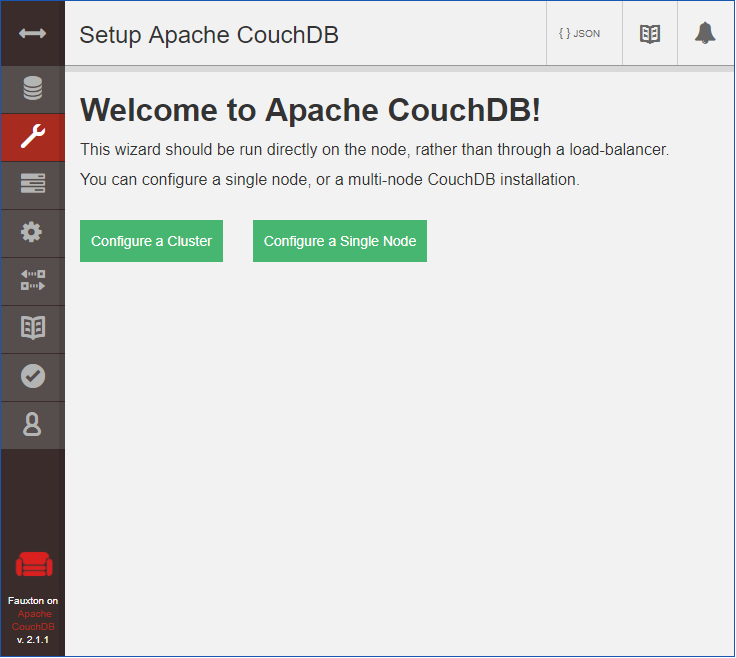
Click Setup (the wrench icon).
-
Click Configure Single Node.
-
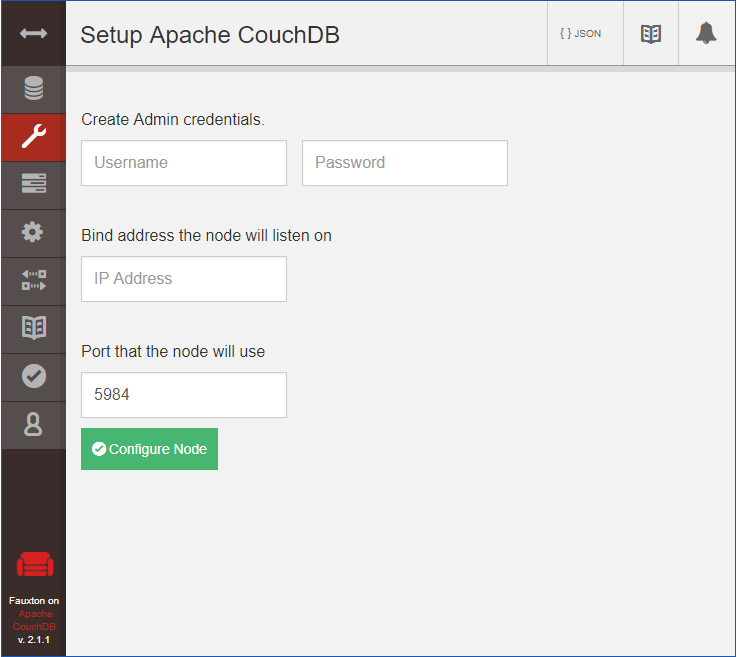
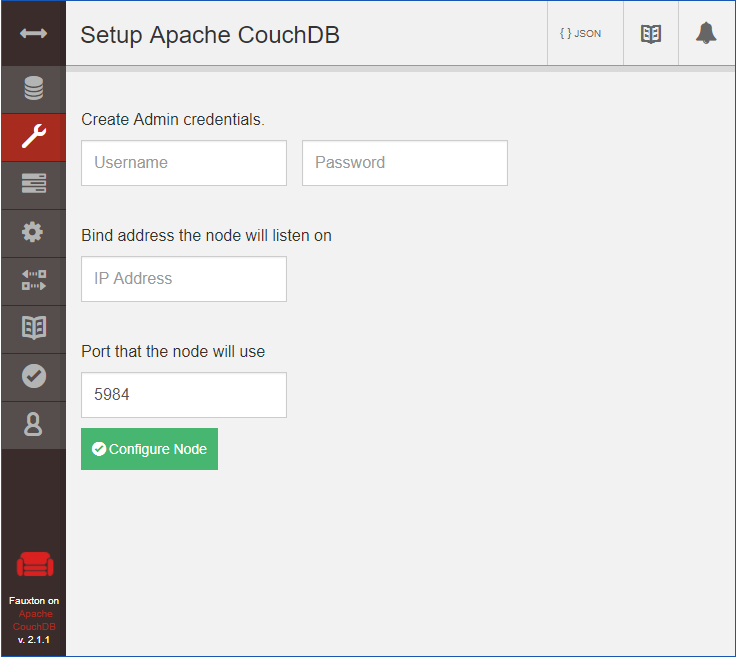
Specify the Admin credentials entered during installation, or create a new administrator username and password.
-
Leave the IP address setting open or 0.0.0.0, and leave the Port setting at 5984.
-
Click Configure Node.
Configure CouchDB Integration
Use the File Dynamics Admin Client to configure the CouchDB settings by referring to the appropriate section in the File Dynamics 24.2 Administration Guide
-
For Security and Workload policies, see Establishing the CouchDB Settings in the Admin Client.
-
For the Work Log, see Establishing the Work Log Database Settings in the Admin Client. Establishing the Work Log Database Settings in the Admin Client.