Setting Group Collaborative Storage Policy Quota Options
This page lets you establish storage quota settings for the group collaborative storage folder. Until quota management is established, a collaborative storage area has unlimited space. Quota management for collaborative storage applies to:
- The quota for the entire storage folder
- Quotas for personal folders in the collaborative storage folder
In order for the quota to be managed on a personal folder, you must also manage the quota on the -MANAGER- or -MEMBER- folder. You can set this in the template through the Windows Server Manager in the same way you set the folder options.
Quota management on NAS devices needs to be managed by the NAS vendor software.
This page is also where you establish quota management settings for quota managers. A quota manager is a specified user or group who is granted the ability to increase quotas without having rights to the file system. Quota management actions are performed through Quota Manager, which is a separate web browser-based management interface. For more information on Quota Manager, see Using Quota Manager.
- In the left pane, click Quota Options.
The following page appears: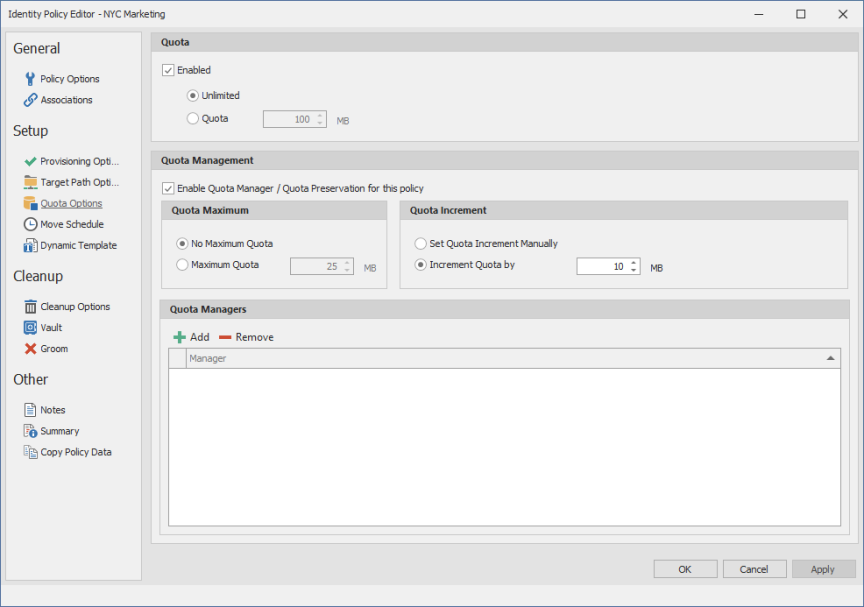
- Select the Enabled check box to enable an initial storage quota for collaborative storage paths managed by this policy.
- In the MB field, specify the initial storage quota for the collaborative storage folders.
- Set up quota managers by filling in the following fields:
-
Click Apply to save your settings.
- Proceed with Setting the Group Collaborative Storage Policy Move Schedule.
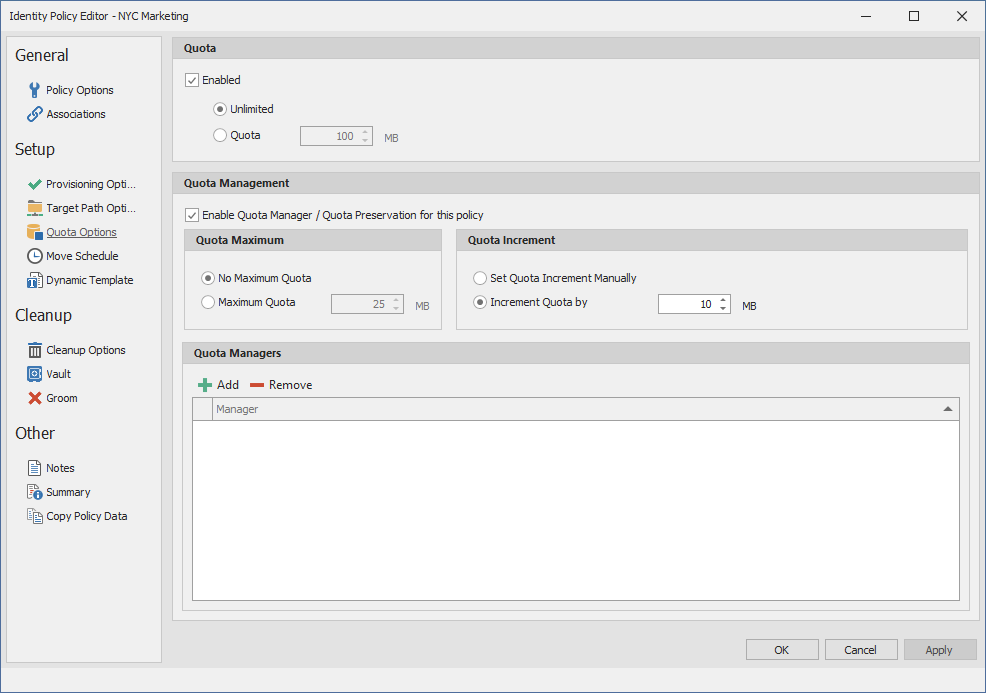
Enable Quota Manager / Quota Preservation for this Policy: Select this check box to enable the Quota Management region of the page.
Quota Maximum: Indicate whether the collaborative storage folders associated with this policy will have a maximum quota setting. If so, indicate the maximum quota.
Quota Increment: Indicate whether quota managers will set quotas manually or in set increments. If you select manual increments, the quota manager can increase the quota in any increment until it meets the maximum quota setting. If you select set increments, the quota manager can only increase the quota by the increment setting.
Quota Managers: Click Add and use the Directory Services Browser to browse to and select a user or group you want to be a quota manager, then drag the User or Group object to the right pane. Repeat this for each user or group you want to be a quota manager.
If you do not specify a user or group as a quota manager, only members of the File Dynamics Admins group will be able to use the Quota Manager web insterface.