Creating an Auxiliary Storage Policy
- In the Admin Client, click the Identity Driven tab.
- Click Policies.
- In the Manage menu, select New > Auxiliary.
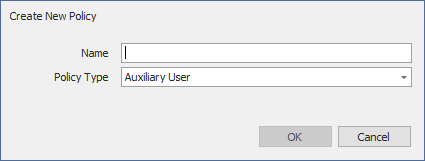
The following dialog box appears: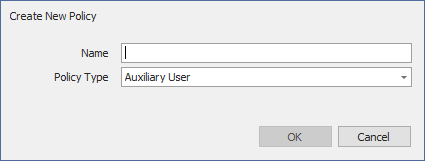
- Specify a descriptive name in the Name field, such as “HR-AUX,” and click OK.
The Policy Options page appears. - Proceed with Setting Auxiliary Storage Policy Options
Setting Auxiliary Storage Policy Options
- Leave the Process Events for Associated Managed Storage check box selected.
- Proceed with Enabling Auxiliary Storage Extended Options
Enabling Auxiliary Storage Extended Options
- In the left pane, click Extended Options.
- Click the Enable check box.
- In the Tag field, enter a descriptive string for the auxiliary storage.
- In the Description field, specify a description of the Auxiliary Storage policy.
- Click Apply to save your settings.
- Proceed with Setting Auxiliary Storage Provisioning Options
We recommend that once you have made an entry in the Tag field, you do not change it. If the value of the Tag field is changed after some users have already had their auxiliary storage provisioned via that policy, the new tag value does not automatically get propagated to those users. Only users who get storage provisioned after the change in the tag value will get the new tag value.
Setting Auxiliary Storage Provisioning Options
Before setting the provisioning options, you need to decide whether the user should have rights to auxiliary storage.
Additionally, if you are going to provision auxiliary storage folders with a certain structure or with specific documents, you need to place them somewhere in the file system so you can use them as a template. For example, if the HR department wants the auxiliary storage folder to have an Annual Reviews folder and an Insurance Forms folder, you need to set these up in the file system before proceeding.
- In the left pane, click Provisioning Options.
- Do one of the following:
- If you do not want the associated user to have access to the auxiliary storage folder, deselect all of the Default Permissions check boxes.
- If you want the associated user to have access to the auxiliary storage folder, select the appropriate permissions from the Default Permissions check boxes.
- In the Template Folder region, click the Browse button, and then specify the template path in the Path Browser dialog box.
- Click Apply to save your settings.
- Proceed with Setting Additional Auxiliary Storage Options
Setting Additional Auxiliary Storage Options
- Select the additional options that you want to use in the Auxiliary Storage policy.
Target Path Options: You need to specify the location where the auxiliary storage folders are to be located. For example, if these were HR Department folders, they would probably be located on a network share specific to the HR Department.
The fields presented on the Target Path Options page are identical to those presented when you create a User Home Folder policy. For an explanation of the page along with procedures for setting target paths, see Setting Target Paths.
Quota Options: You need to specify the quota for the auxiliary storage folder associated with a user. In many cases, such as the HR Department example, this folder can be much smaller that the home folder.
The fields presented on the Quota Options page are identical to those presented when you create a User Home Folder policy. For an explanation of the page, along with procedures for setting quota options, see Setting Quota Options
Move Schedule: The fields presented on the Move Schedule page are identical to those presented when you create a user home folder policy. For an explanation of the page, along with procedures for setting the move schedule, see Setting the Move Schedule.
Cleanup Options: The fields presented on the Cleanup Options page are identical to those presented when you create a User Home Folder policy. For an explanation of the page, along with procedures for setting cleanup options, see Setting Cleanup Options
Vault: The fields presented on the Vault page are identical to those presented when you create a User Home Folder policy. For an explanation of the page, along with procedures for setting vault rules, see Setting Vault Rules.
Groom: The fields presented on the Groom page are identical to those presented when you create a user home folder policy. For an explanation of the page, along with procedures for setting grooming rules, see Setting Groom Rules.