Setting Associations
Associations is where you assign the policy you are creating to an organizational unit, group, or user object.
- In the left pane, click Associations.
- Click Add to bring up the Directory Services Browser.
- If you plan to assign the policy to a User object, select the Users check box as a Filter option in the Directory Services Browser.
- Browse through the directory structure and select the organizational unit, group object, or user object you want to associate the policy to.
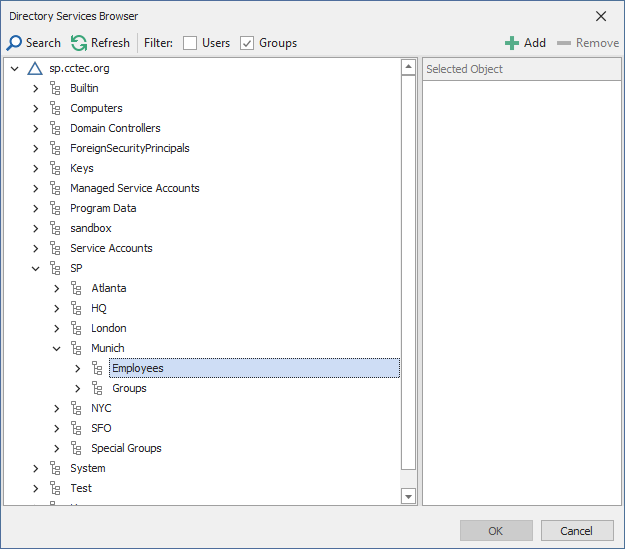
- Drag the object to the Selected Object pane, then click OK.
The Directory Services Browser is closed and the object is displayed in fully qualified name format in the right pane of the window. For example,OU=Employees,DC=Munich,DC=SP,DC=cctec,DC=org. - Click OK to close the Directory Services Browser.
- Click Apply to save your settings.
- Proceed with Setting Provisioning Options.