Setting Target Paths
The Target Path Options page is where you select the naming attribute for the managed path, as well as set the paths to the shares where user home folders will be hosted.
- In the left pane, click Target Path Options.
- In the Managed Path Naming Attribute region, do one of the following:
- From the drop-down menu, select the single-value Active Directory attribute you want as the means of naming your home folders.
- Click Link Action Block and select a previously saved Action Block for the naming attribute.
- In the Target Placement region, fill in the following fields:
Distribution: If you create more than one target path for a policy, you can indicate any of the following options:
- Random: Distributes storage randomly among the number of target paths.
- Actual Free Space: Distributes the creation of user home folders according to shares with the largest amount of absolute free space. For example, if you have two target paths listed, target path 1 has 15 GB of free space, and target path 2 has 10 GB, the home folders are created using target path 1.
- Percentage Free Space: Distributes the creation of user home folders to shares with the largest percentage of free space. For example, if you have two target paths listed, target path 1 is to a 10 TB share that has 30 percent free space and target path 2 is to a 500 GB share with 40 percent free space, the home folders are created using target path 2, even though target path 1 has more absolute available disk space. You should be cautious when using this option with target paths to shares of different sizes.
Leveling Algorithm: Use this option to structure the home folders so that they are categorized by the first or last letter of a username through a subordinate folder. For example, if you choose First Letter, and the Leveling Length field is set to 1, a user named BSMITH has a home folder located in a path such as
\\SERVER1-DNS-NAME\HOME\B\BSMITH.
If you choose Last Letter, and the Leveling Length field is set to 1, the same user has a home folder located in a path such as\\SERVER1-DNS-NAME\HOME\H\BSMITH.
The Last Letter means the last character of the attribute File Dynamics uses to create storage. Once again, File Dynamics uses the SAM, not the character of the last name.
The Leveling Length field allows you to enter up to 4 characters. This makes it so that you can organize home folders by year. For example, if your Leveling Algorithm setting is Last Letter, and the Leveling Length setting is 4, a user named BMITH2014 has a home folder located in a path such as\\SERVER-DNS-NAME\HOME\2014\BSMITH2014.Maximum Unreachable Paths: If you have a substantial number of target paths listed on this page, this field lets you indicate the number of target paths File Dynamics accesses to attempt to create a home folder before it suspends the attempt.
For example, suppose you have 100 target paths and you're using Random Distribution and the Maximum Unreachable Paths setting is 20. File Dynamics will try 20 of those 100 paths before the event will become a pending event. A path can be unreachable for any error condition. For example, the server is down or the share is not available. - For each target path that you want to establish, click Add to access the Path Browser.
- Browse to the location of the target path you want and click Add to add the target path to the Selected Paths pane.
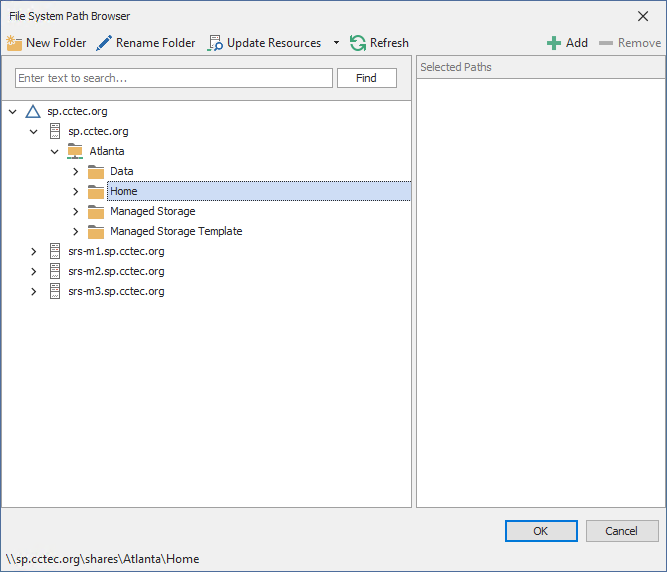
- Click Apply to save your settings.
- Proceed to Setting Quota Options.
For some organizations, having the default sAMAccountName attribute as the means of naming home folders is not desirable. A school that generates student accounts using an account provisioning system for example, might generate a student account and sAMAccountName such as SA74556, rather than a more descriptive name such as William Sanders. To allow File Dynamics to create a home folder with a name like WSanders, rather than SA74556, you can select a different attribute from the drop-down list.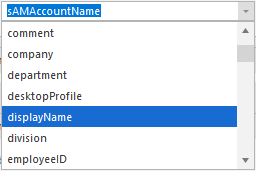
Once you have saved the policy, you can use an account provisioning system such as NetIQ Identity Manager to automatically populate the selected attribute with the desired folder name and then File Dynamics will automatically provision the home folder based on this attribute setting. Using the example above, the home folder name would be WSanders rather than SA74556.
For existing users whose home folders you would like to change to a new attribute value, you would follow the same procedures, followed by performing an Enforce Policy Path Management Action.
For specifications pertaining to Managed Path Naming Attribute, see Managed Path Naming Attribute Specifications.
