Client Preferences
Use this page to set preferences specific to the File Dynamics Admin Client.
Client Preferences Page 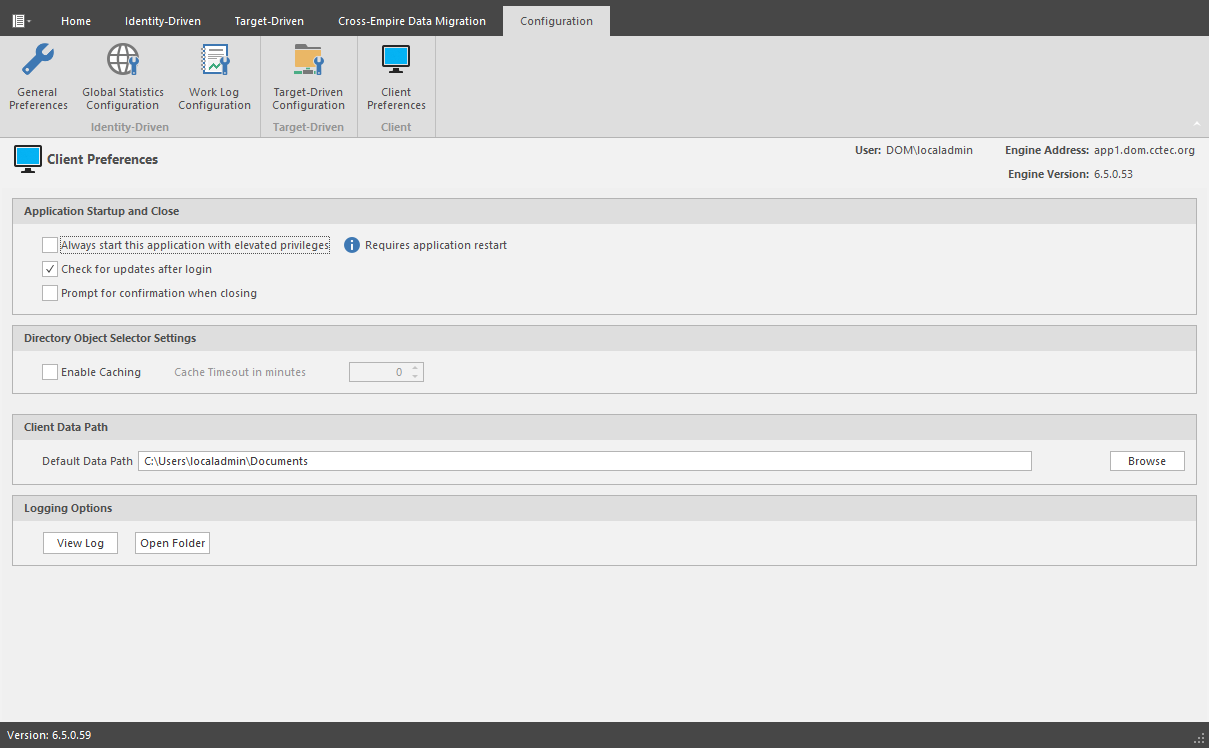
Application Startup and Close: This region provides preference settings for when the Admin Client is launched and closed.
Always start this application with elevated privileges: When selected, this option allows you to run the Admin Client as the Administrator, enabling you to view settings that are not visible to non-administrators. For example, Server Share properties can only be seen when someone is logged in as an administrator.
Check for updates after login: Selecting this check box allows the Admin Client to notify you of the availability of newer File Dynamics components.
Prompt for confirmation when closing: When selected, this option specifies that you want a confirmation prompt before closing the Admin Client.
Directory object Selector Settings: This region lets you establish caching settings specific to the Admin Client.
Enable Caching: Selecting this check box enables the Admin Client to maintain the area of the directory tree that is visible in the right pane of the Objects page, if you move from the Objects page to another. For example, if you locate a Group object in a container and then need to move to another page, when you return to the Objects page, you do not need to navigate the directory tree to locate the Group object again.
Cache Timeout in minutes: In large enterprises, it can take a long time to build up the directory services cache. In these type of environments, consider increasing this setting so that you can use the cache, instead of querying directory services again for information.
Default Data Path: This field specifies the location where all exported reports are stored. For example, if you were to export a Consistency Check report as a CSV or HTML file, it would be saved in this location.
Browse: Locate the destination where you want exported reports stored.
Logging Options: This region enables you to access the Admin Client’s log files.
View Log: Clicking this button opens the log file.
Open Folder: Clicking this button opens the folder where the Admin Client’s compressed log files are stored.