Scheduled Tasks
Use the Scheduled Tasks page to schedule storage resources discoveries and database cleanup tasks as well as schedule Groom policies.
Schedule a Storage Resources Discovery
This task initiates a search within the entire forest domain for any new shares or DFS namespaces. Depending on the size, configuration, and topology of your network, this can take a significant amount of time.
- In the Admin Client, click the Engine tab.
- Click Scheduled Tasks.
- From the list of scheduled tasks, double-click Storage Resources Discovery.
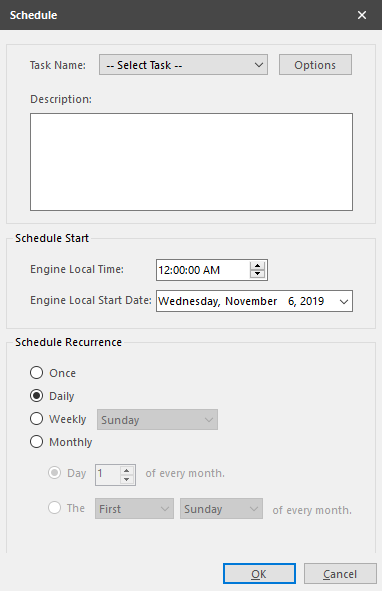
- In the Schedule Start region, set the time and data parameters when you want the storage resources discovery to take place.
- In the Schedule Recurrence region, specify the frequency of the storage resources discovery.
- Click OK.
Run a Storage Resources Discovery
In addition to scheduling a storage resources discovery, you can run the storage resources discovery immediately.
- In the Admin Client, click the Engine tab.
- Click Scheduled Tasks.
- From the list of scheduled tasks, right-click Storage Resources Discovery and select Run.
- Click Yes in the confirmation dialog box.
Schedule a Database Cleanup
A database cleanup reduces database bloat that can affect File Dynamics performance. A database cleanup does the following:
- Removes old scan entries
- Removes deleted path history entries
- Removes deleted object entries
- Removes events that are marked as completed
- Cleans up DS objects based on their delete time
- Removes orphaned action blocks
While the database cleanup is in process, event processing is turned off. Once the cleanup finishes, event processing is turned on.
- In the Admin Client, click the Engine tab.
- Click Scheduled Tasks.
- From the list of scheduled tasks, double-click Database Cleanup.
- In the Schedule Start region, set the time and data parameters when you want the database cleanup to take place.
- In the Schedule Recurrence region, specify the frequency of the database cleanup.
- Click OK.
Run a Database Cleanup
In addition to scheduling a database cleanup, you can run a database cleanup immediately.
- In the Admin Client, click the Engine tab.
- Click Scheduled Tasks.
- From the list of scheduled tasks, right-click Database Cleanup and select Run.
- Click Yes in the confirmation dialog box.
Schedule a Groom Policy
- In the Admin Client, click the Engine tab.
- Click Scheduled Tasks.
- Click Add.
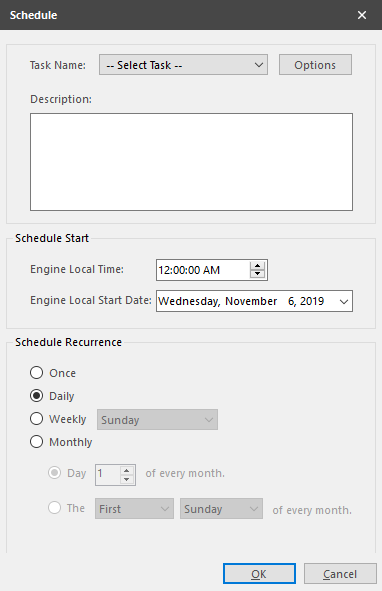
- From the Task Name drop-down menu, select Policy-based Groom.
- Click Options to access the Take Action dialog box.
- Enter the settings in the dialog box and click OK.
- In the Description field, enter a description of the scheduled groom.
- In the Schedule Start region, set the time and data parameters when you want the scheduled groom to take place.
- In the Schedule Recurrence region, specify the frequency of the scheduled groom.
- Click OK.