Creating a Security Lockdown Policy
- In the Admin Client, click the Target Driven tab.
- Click Policies.
- Select New > Security Lockdown Policy.
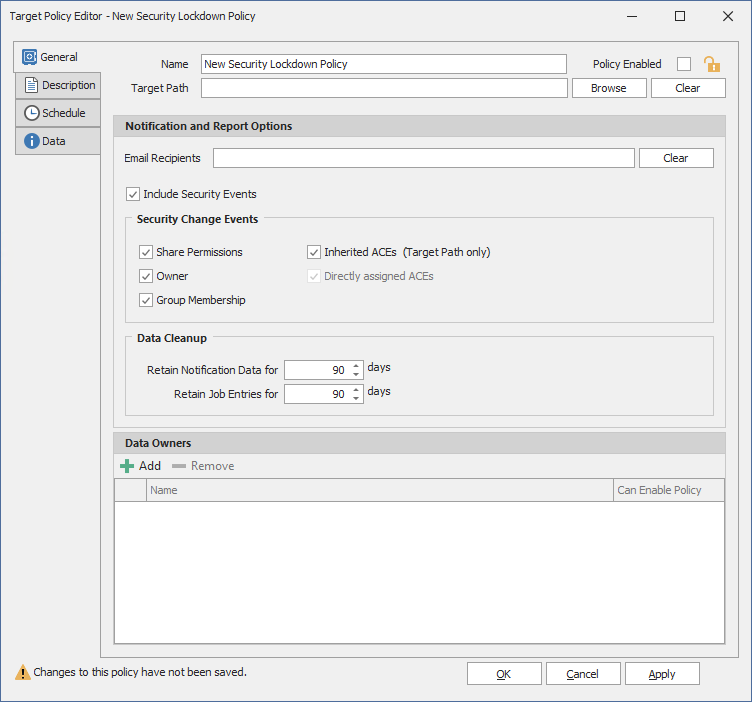
- In the Name field, give the Security Lockdown policy a descriptive name.
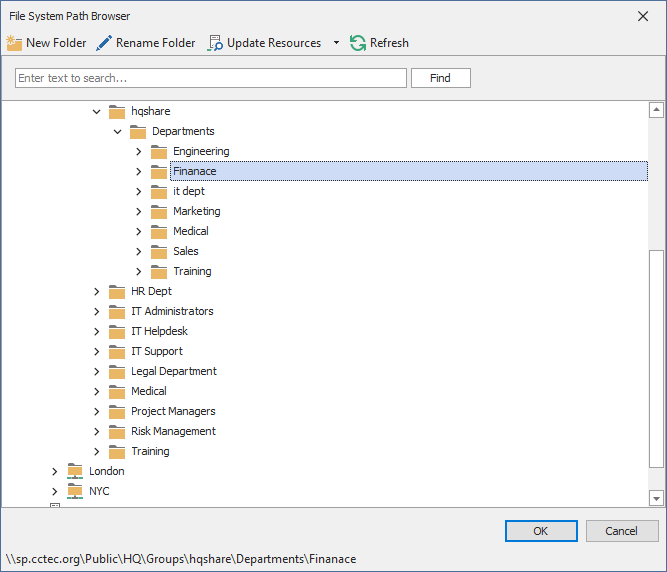
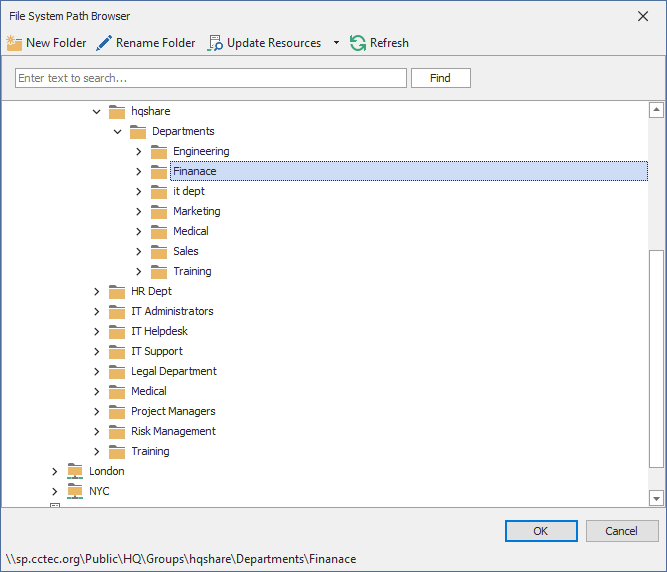
For example, HQ Finance Lockdown Policy. - Click the Browse button pertaining to the Target Path field and specify the share or folder for this policy.
- (Conditional) If the currently established access permissions to the specified target path are the permissions you want enforced, select the Policy Enabled check box.
- In the Email Recipients field, specify the email addresses of each user you want notified when access permissions to the selected folder or share take place.
- In the Security Change Events region, specify the event types for which this policy will email notifications.
- In the Data Cleanup region, specify how long you want scan job information to remain in the database.
For more information, see Security Lockdown Policy. - In the Data Owners region, click Add to specify the users or groups that will serve as Data Owners for this policy.
Data Owners assigned for a Security Lockdown policy will be enabled to view changes in access permissions in the security reports via the Data Owner Client. - (Conditional) If you want the specified Data Owners to be able to enable the policy, select the Can Enable Policy check box.
- Click the Description tab and in the Description field, specify any information you want to include pertaining to this policy.
- Click Schedule.
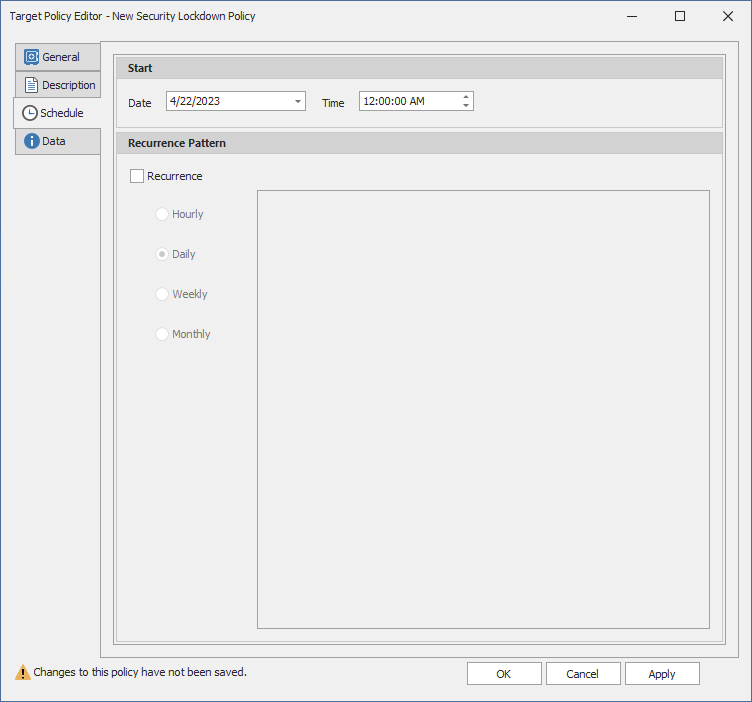
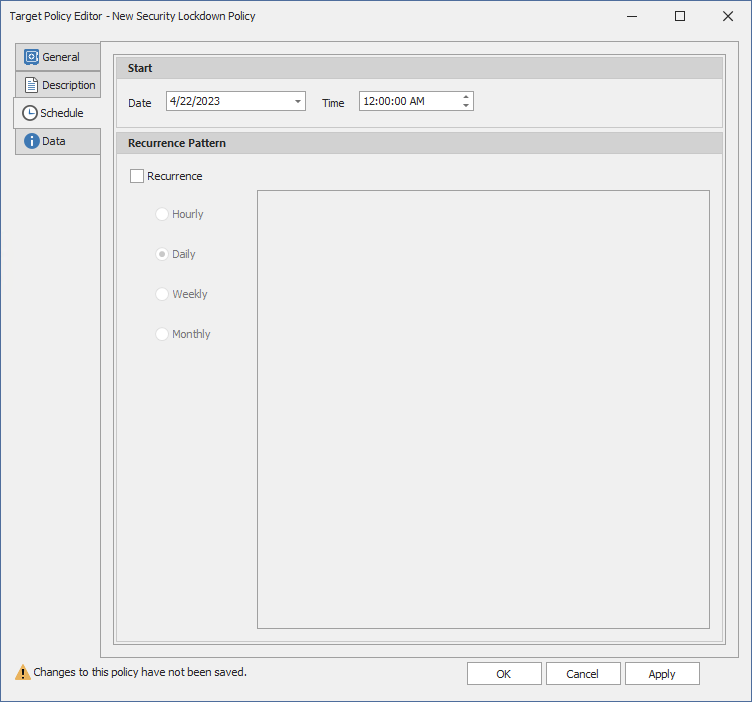
- In the Date field, specify the date you want the policy to be initially invoked.
- In the Time field, specify the time you want the policy to be initially invoked.
- (Conditional) If you want the policy to run on a recurrent basis, select the Recurrence check box and then select one of the options.
- Click Apply to save the schedule.
- Click OK.

Otherwise, come back and select the check box after you have updated the access permissions to the target path.
Once this option is selected, this becomes the baseline for comparison for all Security Scans.
Email addresses can be separated by a comma, semicolon, or a space.
File Dynamics only reports on the changes in permissions between one scan and the next. Therefore, if there are no changes in access permissions between scans, no notifications will be emailed.
When a Data Owner can enable a policy, he or she can enable or disable the policy. An example of when this might be helpful is when the access permissions for the target path need to be updated.
If a Data Owner disables and then enables a policy, the Data Owner is given the option to rebuild the baseline.