Configuring the Database
- In the Configuration Utility, click Configure Database.
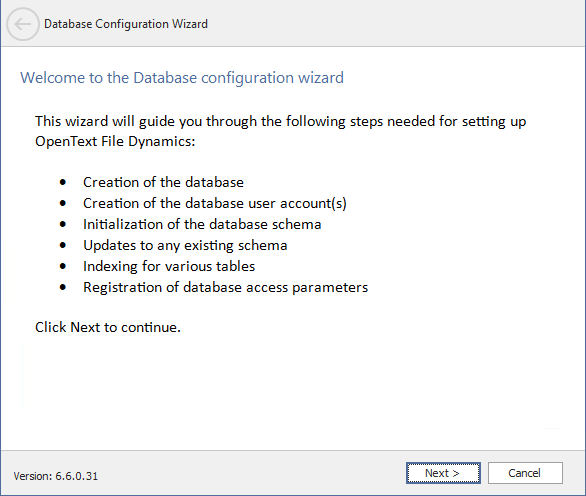
- The page indicates what database configuration tasks are to be completed in this wizard.
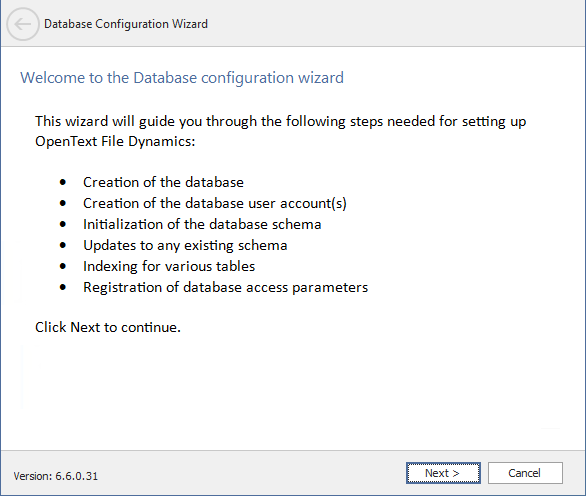
- From the wizard page, read the overview of what will be configured and click Next.
- The following page appears:
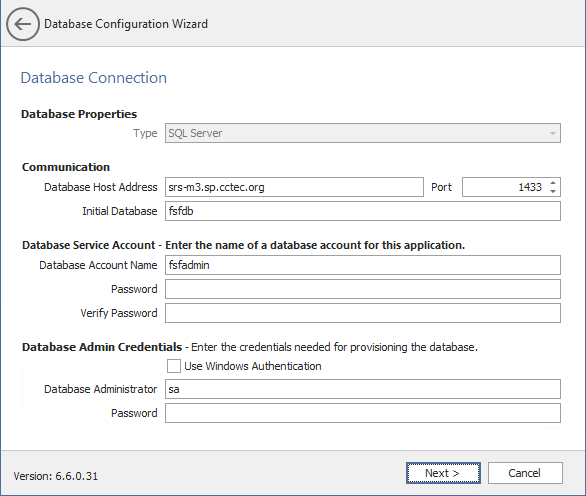
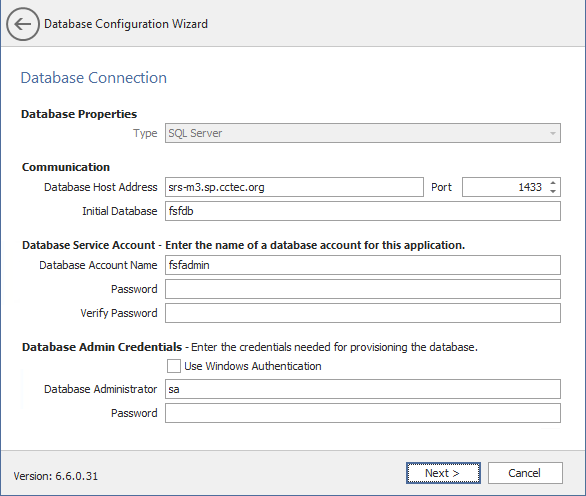
- This page lets you establish the settings needed for the Engine to communicate with the database.
- Database Properties: Displays information on the database.
- Type: Displays the supported database.
- Communication: Specifies address, port number, and name of the database.
- Database Host Address: Specify the host address of the server where the database is installed.
- Port: The default SQL Server port setting is 1433. If there is a port conflict, you can change it.
- Initial Database: The default name of the File Dynamics database.
- Database Service Account: Use this region to set authentication information for the database service account, which is the database account that the Engine uses to sign in to the database.
- Database Account Name: By default, the database account is fsfadmin, which you can change in this field.
- Password: Specify a password for the service account to connect to the database.
- Verify Password: Specify the password again in this field.
- Database Admin Credentials: Use this region to establish the database administrator name and credentials.
- Use Windows Authentication: Selecting this check box specifies that you want to configure the database using the authentication credentials of a Windows network administrator, rather than the credentials of a SQL Server database administrator. Selecting this check box disables the Database Administrator and Password fields.
- Database Administrator: Specify the SQL Server administrator name.
- Password: Specify the SQL Server administrator password.
- Complete the fields and click Next.
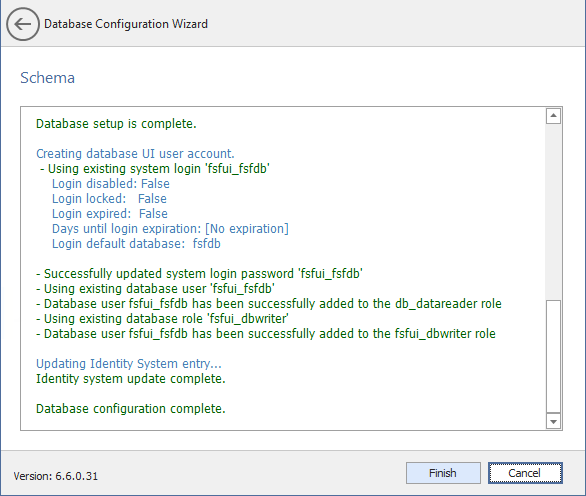
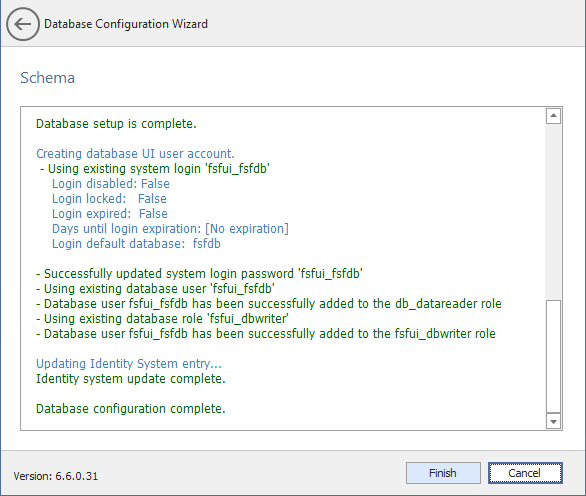
- Review the configuration log and click Finish.