Scan Scheduling
Setting a Scan Schedule
-
Select Scan Policies in the File Systems menu.
-
Check the box for the scan policy you want to schedule.
-
Click Edit Schedule to open the Schedule dialog.
-
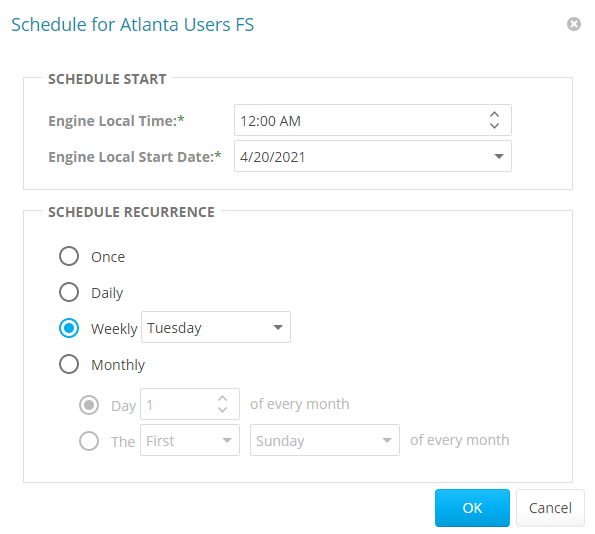
Specify the time you want the scan to begin in the Engine Local Time field.
NOTE: The time you select is based on the time zone in which the Engine is located, not the time zone of the Agent that conducts the scan.
-
Specify the date on which you want the scan schedule to take effect in the Engine Local Start Date field.
-
Set the frequency of scheduled scans in the Schedule Recurrence field.
-
Once: Select to scan the storage resources specified in the scan policy one time only.
-
Daily: Select to scan the storage resources specified in the scan policy at a designated time each day.
-
Weekly: Select a specific day on which to scan the storage resources specified in the scan policy each week.
-
Monthly: Select a specific day on which to scan the storage resources specified in the scan policy each month.
-
-
Click OK.
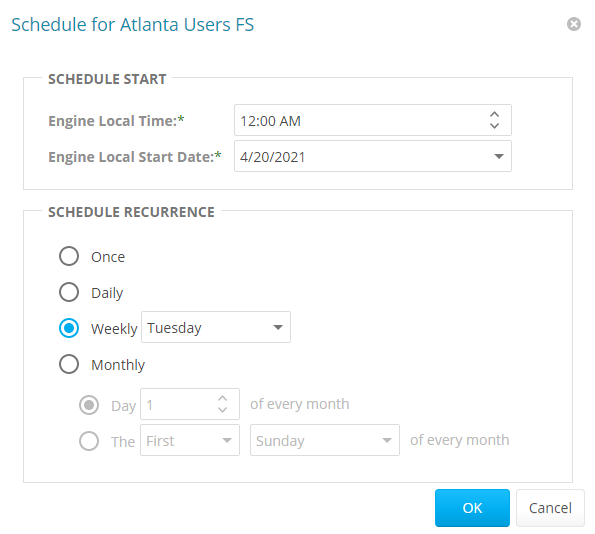
NOTE: Entering a start date does not mean that the scan takes place on that date, it means the schedule starts on that date. Thus, if the Engine Local Start Date is set for a Monday but Schedule Recurrence is set for Weekly on Sunday, then the scan itself does not take place until the Sunday following the scheduled Engine Local Start Date.
Editing a Scan Schedule
- Select Scan Policies in the File Systems menu.
- Check the box for the scan policy you want to reschedule.
- Click Edit Schedule.
- Make the desired changes to the schedule.
- Click OK.
Clearing a Scan Schedule
- Select Scan Policies in the File Systems menu.
- Check the box for the scan policy you want to unschedule.
- Click Clear Schedule.
- Click Yes to confirm.
Conducting an Immediate Scan
- Select Scan Policies in the File Systems menu.
- Check the box for the scan policy you want to execute.
- Click Scan Now.
- Click Yes to confirm.