Using the Tree Map
View graphical representations of hierarchical file system data in the Tree Map to gain insight quickly.
-
Click Load from Database in the Dashboard.
-
Double-click the desired file system scan.
-
Click Tree Map.
-
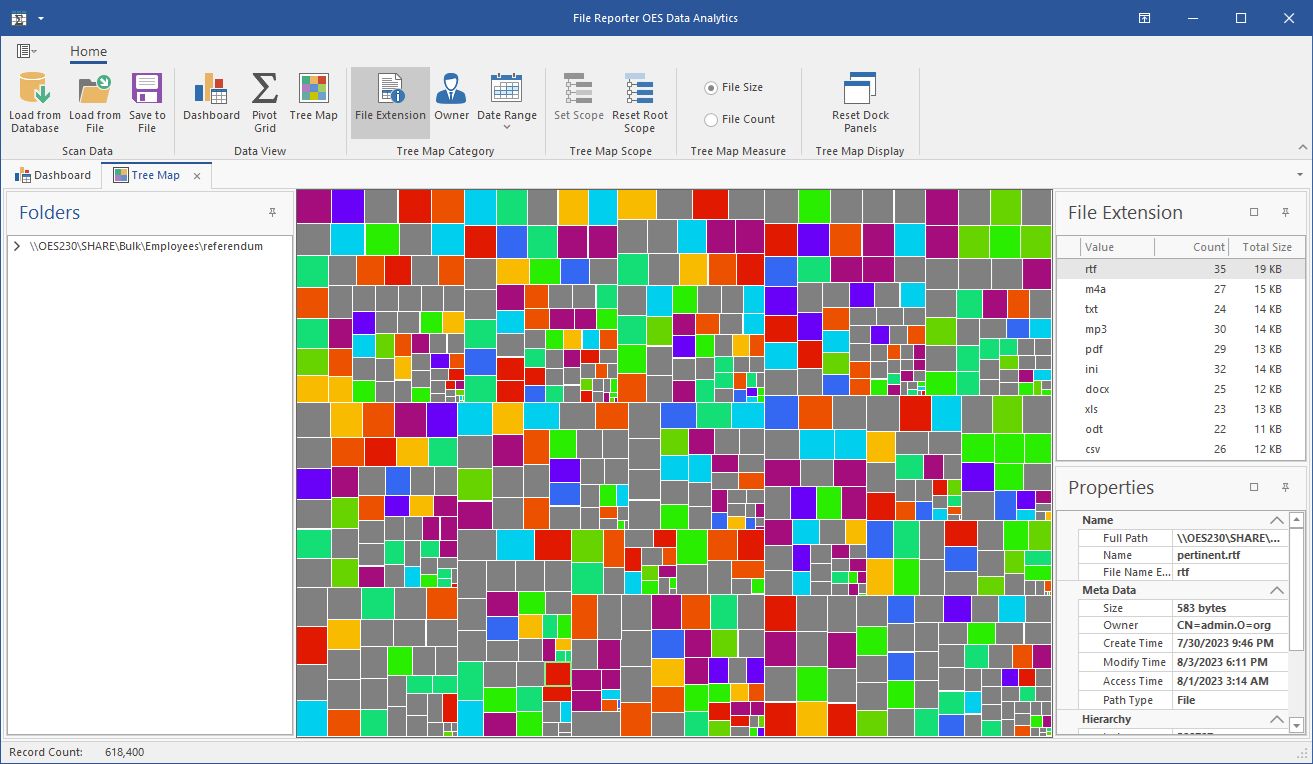
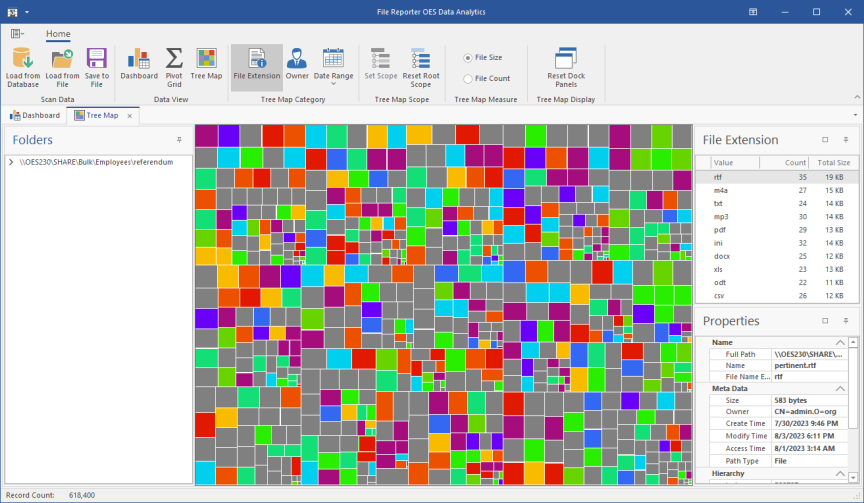
The Tree Map is presented according to file extension type with the specific color assignments detailed in the File Extension region. Each square in the Tree Map represents a single file in the scanned storage resource according to file size, relative to all other files in the scan.
-
Click a larger square to view the details of the file in the Properties region.
-
Right-click the file and select Open Parent Folder to open the folder in which the file resides.
-
Expand the file system so it is displayed in the Folders region.
-
Click one of the folders to see the group of files that reside in that folder. The files belonging to a selected folder are outlined in magenta.
-
Right-click a folder and select Set Scope to drill down and view the contents of the folder in the Tree Map.
-
Right-click the listed scan in the Folders region and select Reset Root Scope.
-
Click Owner to display files according to owners in the Tree Map and observe which users are storing the largest files according to the color classifications.
-
Click Access Date in the Date Range menu to view the data in the Tree Map according to when the files were last accessed. This is one of the most powerful methods in File Reporter OES of quickly determining the relevance of data being stored on network storage resources.